Using Dynamic Variables in Business Rules
This guide shows how to reference dynamic variables in your decisions, validations, and functions. Once defined in a value library, dynamic variables can be used anywhere expressions are allowed.
Prerequisites
-
A value library containing dynamic variable definitions
-
A decision, validation, or function where you want to use the variable
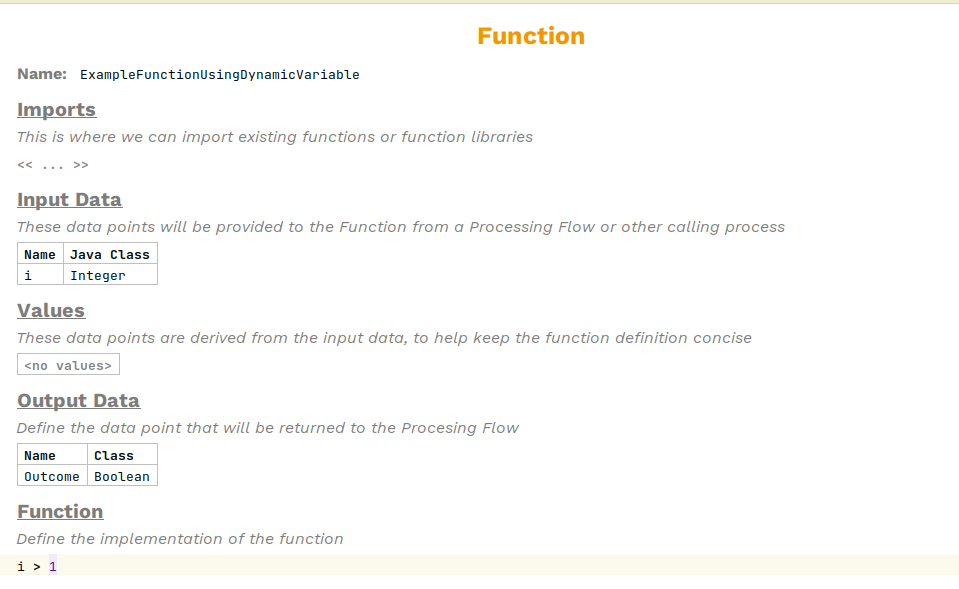
For this guide, we will transform the following function to use a DynamicVariable instead of a static value.
All this function does is takes an integer i as an input returns the result of i > 1. We will make the value of 1 configurable using DynamicVariables so that it can be changed at runtime without regenerating the MPS model.
Steps
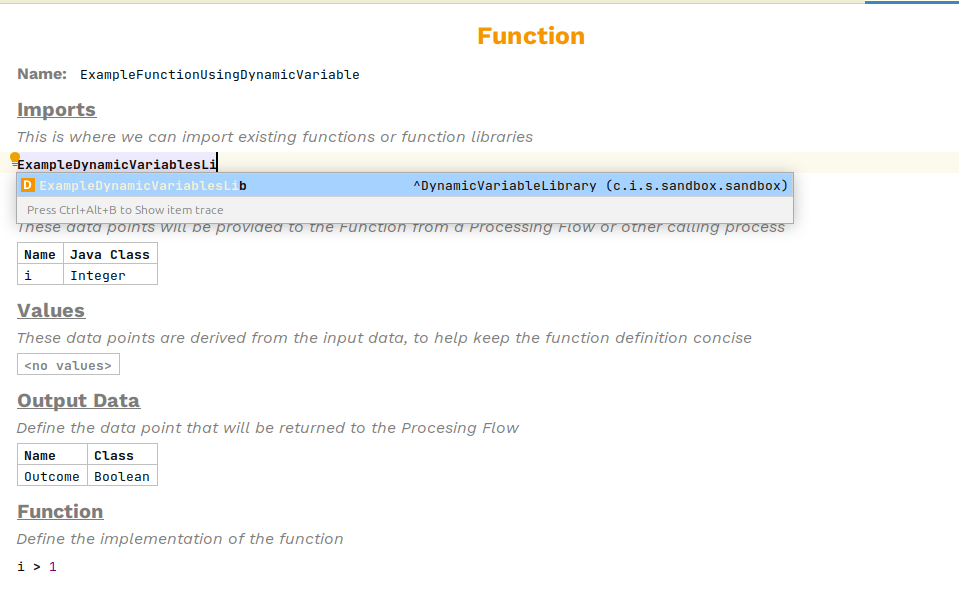
1. Import the Value Library
Before using dynamic variables, you must import the value library that contains them. At the top of your decision, validation, or function, locate the Imports section.
Press Ctrl+Space in the imports area and select your value library.
2. Reference the Variable in an Expression
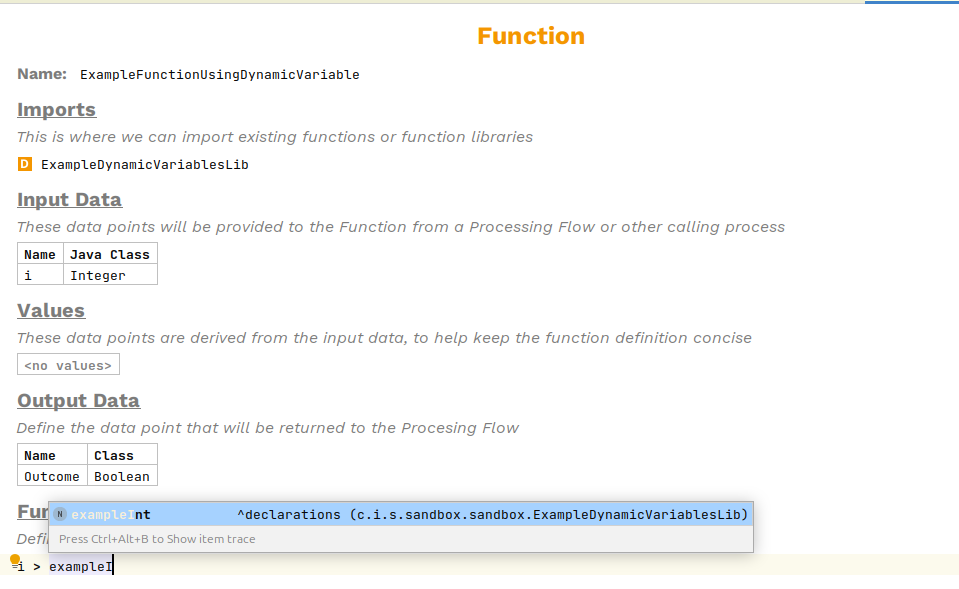
Once imported, you can reference any dynamic variable from that library in your expressions.
Type the variable name or press Ctrl+Space to see available options from the imported library.
| Bear in mind that the typesystem will ensure that the types match and will show warnings/errors if the expected type does not match the type of the DynamicVariable supplied. |
How It Works
When MPS generates code for your business rules, references to dynamic variables are converted to calls to DynamicVariableResolver.resolve():
// What you write in MPS:
// i  < exampleInt

// Generated Java code:
i < DynamicVariableResolver.resolve(ExampleDynamicVariablesLib.exampleInt)
The resolver:
-
Looks up the current value in the
DynamicExpressionRegistry -
Falls back to the default value if not configured
-
Converts the value to the appropriate KernelF type