Creating a Private Function
The following how-to guide will walk through the steps required to create a private function using the Rules Designer in the Simple Language. The example shown is fairly trivial, however far more complicated functions can be defined in much the same way.
Prerequisites
-
MPS (version 2022.3.1)
-
A model using the
com.iconsolutions.simple.devkit, or a devkit that uses it (e.g.v2Flo.devkit)
Steps
1. Create Private Function Node
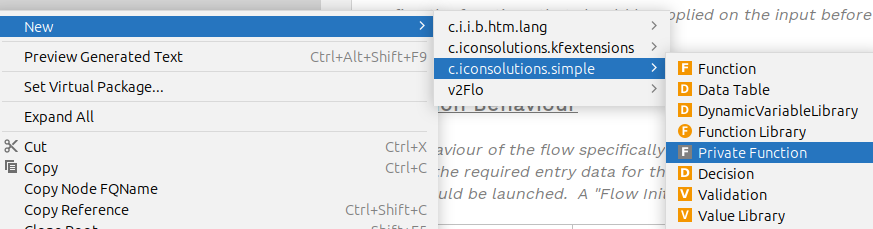
To add a private function into a model, go to the Logical View window on the left hand side of MPS and right-click on the model where the private function is required. Then navigate to New > com.iconsolutions.simple > Private Function.
It should look like the image below:
2. Name Private Function
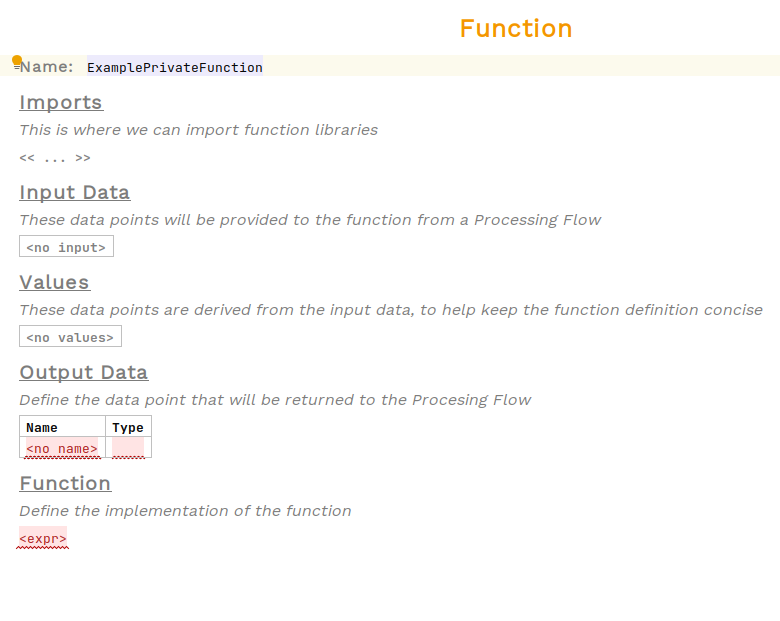
An unimplemented private function should have been created now. All functions need a name so that they can be referenced elsewhere. Place the cursor on the red cell that says <no name> to the right of Name: and enter the function’s name.
In the example below, the name is set to ExamplePrivateFunction:
3. Define Inputs
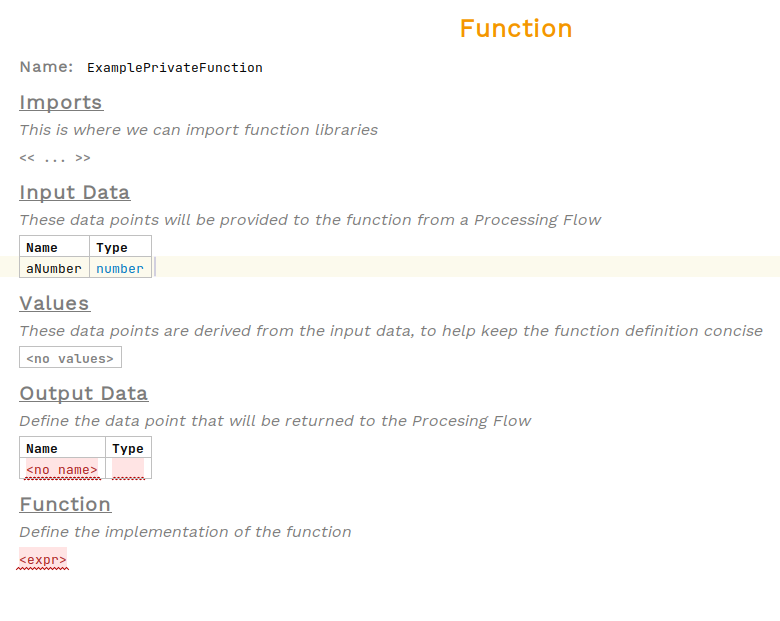
Private functions can take any number of inputs. To add one, select the cell below Input Data that says <no input> and press enter. A table should appear with an empty row. Enter the input’s name and select a Kernel F record or type for it. To add additional inputs, place the cursor on a row of the table and press enter.
In the example below, a single input aNumber of type number has been defined:
4. Define Values (optional)
Private functions don’t need to define any values, but they can be particularly useful for deriving intermediate values from the input. To add one, select the cell below Values that says <no values> and press enter. A table should appear with an empty row. Enter the input’s name and select a type for it. The expression column allows writing a function to determine the value at runtime. To add additional values, place the cursor on a row of the table and press enter.
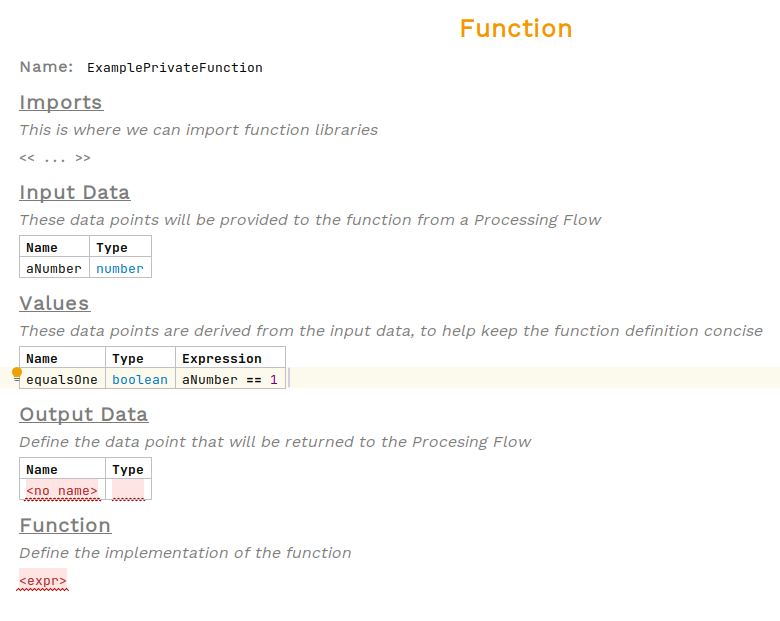
In the example below, a single value equalsOne of type boolean has been defined with the expression aNumber == 1:
5. Define Output Data
A private function must return something. Output data defines what the function will return. An output data named Outcome with <no class> will already be defined. Edit the name and select a Java class for the return type.
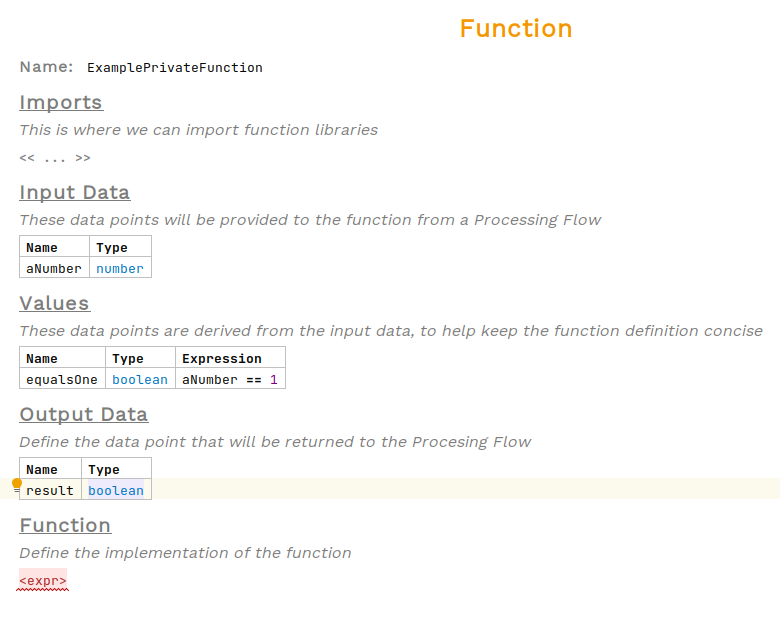
In the example below, the output data was renamed to result and the return type was set to boolean:
6. Define Private Function Body
Finally, the private function body can be defined. It must return a value that has the same type as what is defined on the output data, there will be a typesystem error otherwise. To add the function body, select the cell below Function that says <expr> and type in an expression.
To see a list of available expressions, press Ctrl + Space.
|
If a multiline expression is required, then typing { will create a block expression.
|
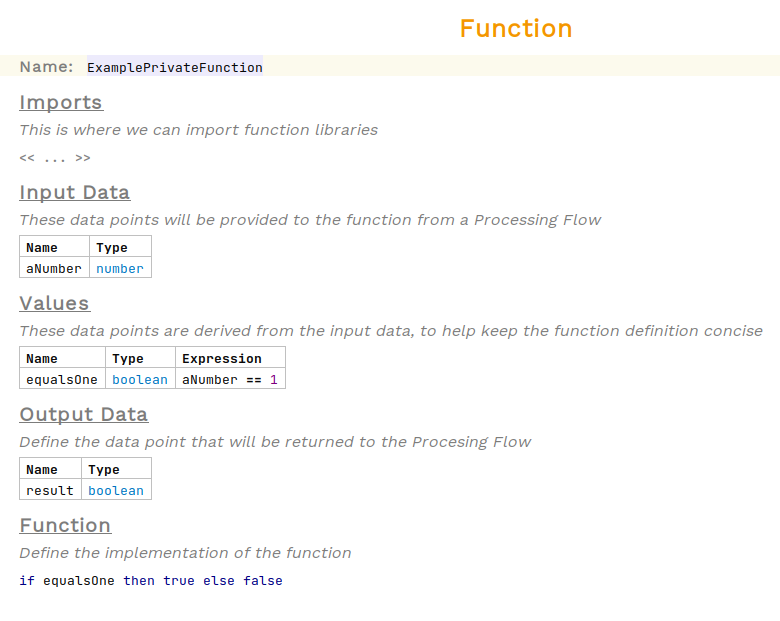
In the example below, an if expression evaluates the equalsOne boolean value and returns the outcome true if true, otherwise false: