Creating a Dynamic Variable
This guide walks through the steps to create a dynamic variable in a value library using the Rules Designer. Dynamic variables allow you to externalize configuration values that can be overridden at runtime.
Prerequisites
-
MPS (version 2022.3.1)
-
A model using the
com.iconsolutions.simple.devkit, or a devkit that uses it
Steps
1. Create or Open a Value Library
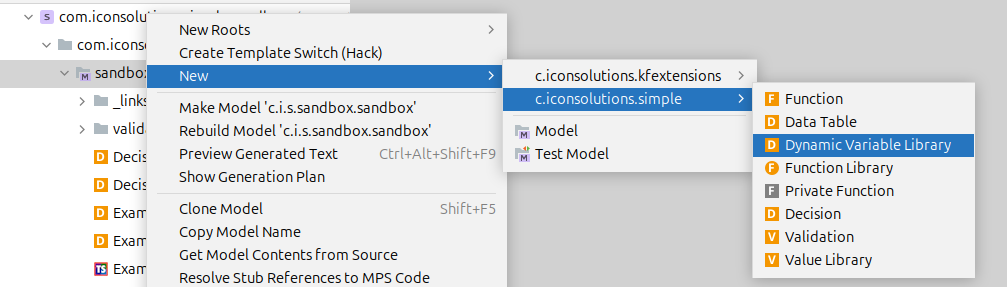
Dynamic variables are defined within value libraries. If you don’t have one already, create a new value library by right-clicking on your model in the Logical View and navigating to New > com.iconsolutions.simple > Value Library.
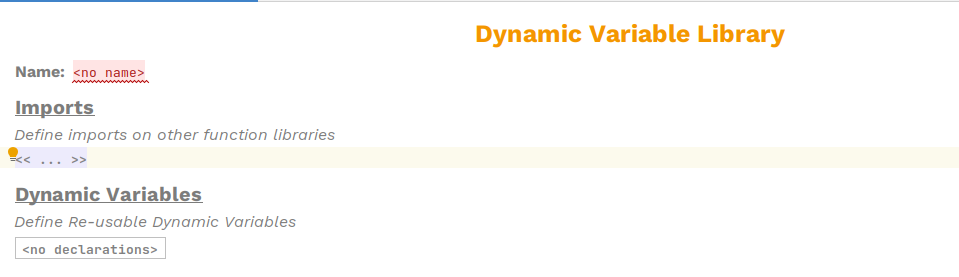
If creating a new Dynamic Variable Library, then make sure to name it.
2. Add a Dynamic Variable
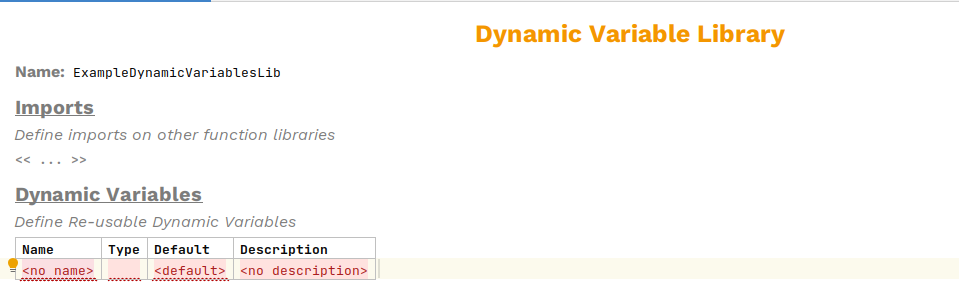
Within the value library, create a new entry by placing the cursor on the Dynamic Variable table, or where it says <no declarations> (if no variables have been defined); and press Enter. A new row in the table will be created with empty column elements ready to be defined.
3. Name the Variable
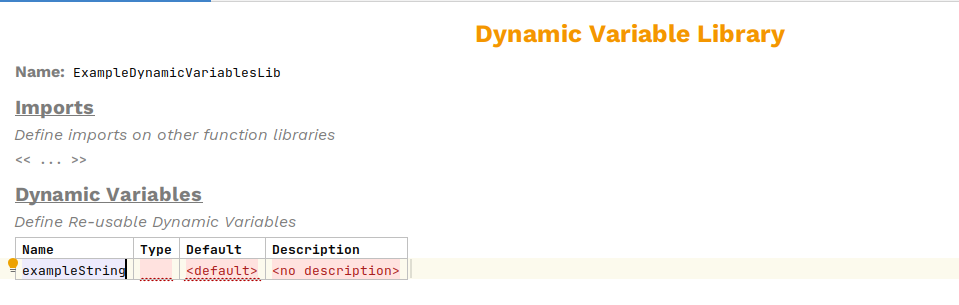
Give your dynamic variable a descriptive name. This name will be combined with the model name to form the configuration key.
For example, if your model is named paymentService and you name the variable upperBound, the configuration key will be paymentService_upperBound.
4. Set the Type
Specify the type of your dynamic variable. Supported types are:
-
number- for numeric values -
string- for text values -
boolean- for true/false values -
list<number>- for lists of numbers -
list<string>- for lists of strings -
list<boolean>- for lists of booleans
Press Ctrl+Space in the type field to see available options.
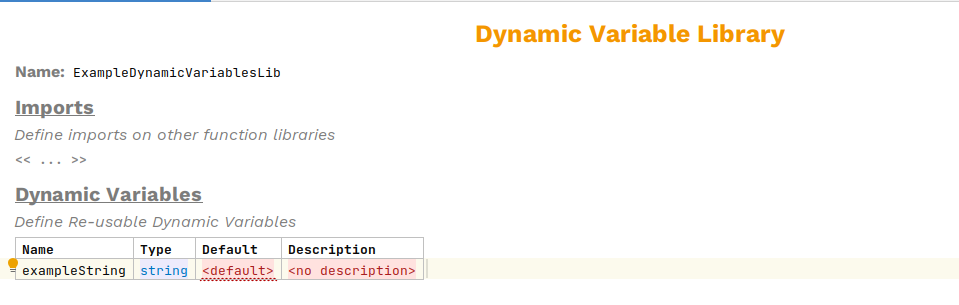
5. Set the Default Value
Every dynamic variable must have a default value. This value is used when no configuration override is provided at runtime.
Enter an appropriate default value for your type:
-
Numbers:
1000,3.14 -
Strings:
"USD" -
Booleans:
true,false -
Lists:
[1, 2, 3],["USD", "EUR"]
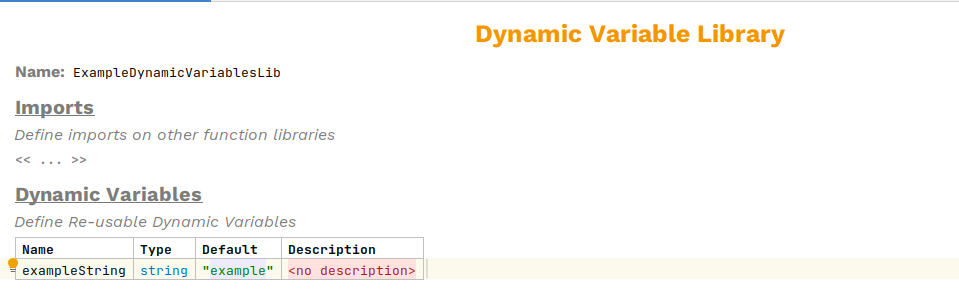
6. Set the Description
Finally, a description should be added to explain what the variable is for, or any other important information related to it.
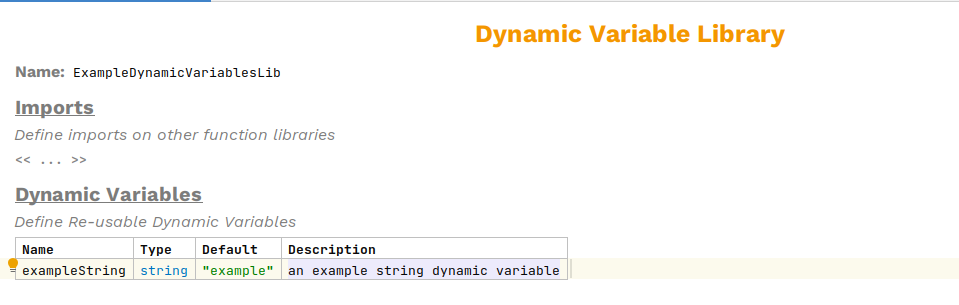
7. Complete Example
A completed value library with multiple dynamic variables might look like this:
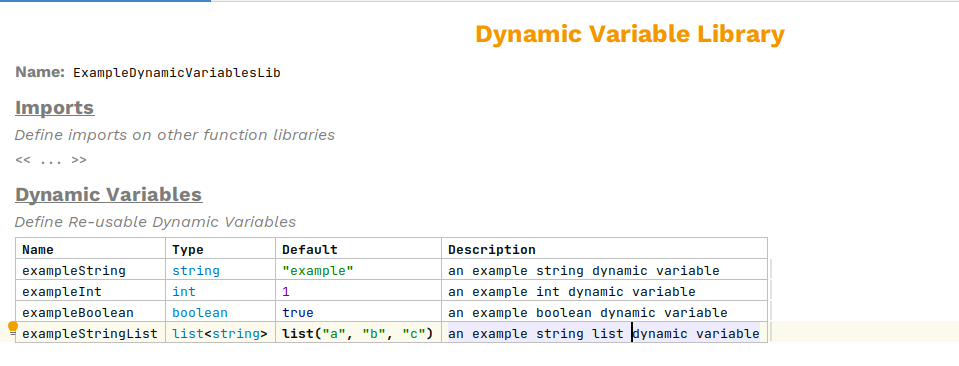
In this example:
-
exampleStringis a string with default"example" -
exampleIntis an int with default1 -
exampleBooleanis a boolean with defaulttrue -
exampleStringListis a list of strings with default["a", "b", "c"]
Generated Code
When you build your model, MPS generates a class that implements DynamicVariablesLibrary, containing:
-
Static
DynamicVariable<T>constants for each variable -
A singleton
INSTANCE -
A
getDynamicVariables()method returning all variables
public class ExampleDynamicVariablesLib implements DynamicVariableLibrary {

    public static final DynamicVariable<String> exampleString =
        new DynamicVariable<>("exampleModel", "exampleString",
            String.class, "example");

    // ... other DynamicVariable static declarations

    private final List<DynamicVariable<?>> dynamicVariables;

    public static DynamicVariableLibrary INSTANCE = new ExampleDynamicVariablesLib();
    private ExampleDynamicVariablesLib() {
        dynamicVariables = new ArrayList<>();
        dynamicVariables.add(exampleString);
        // ... adds other DynamicVariables
    }


    public static DynamicVariable<?> valueOf(String name) {
        switch(name) {
            case "exampleString":
                return exampleString;
            // ... other DynamicVariable cases
            default:
                return null;
        }
    }

    @Override
    public List<DynamicVariable<?>> getDynamicVariables() {
        return dynamicVariables;
    }
}
Next Steps
After creating your dynamic variables:
-
Build your MPS model to generate the Java code
-
Configure override values using HOCON configuration or via another dynamic value source.
-
Use the variables in your business rules - see Using Dynamic Variables in Business Rules