Creating a Value Library
The following how-to guide will walk through the steps required to create a value library using the Rules Designer in the Simple Language. The example shown is fairly trivial, however far more complicated libraries can be defined in much the same way.
Prerequisites
-
MPS (version 2022.3.1)
-
A model using the
com.iconsolutions.simple.devkit, or a devkit that uses it (e.g.v2Flo.devkit)
Steps
1. Create Value Library Node
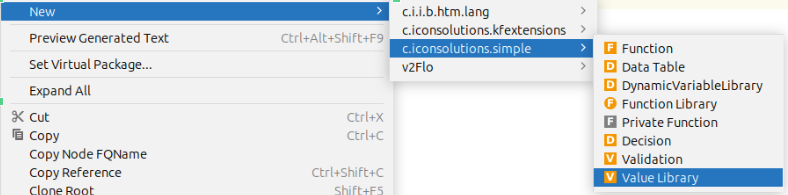
To add a value library into a model, go to the Logical View window on the left hand side of MPS and right-click on the model where the value library is required. Then navigate to New > com.iconsolutions.simple > Value Library.
It should look like the image below:
2. Name Value Library
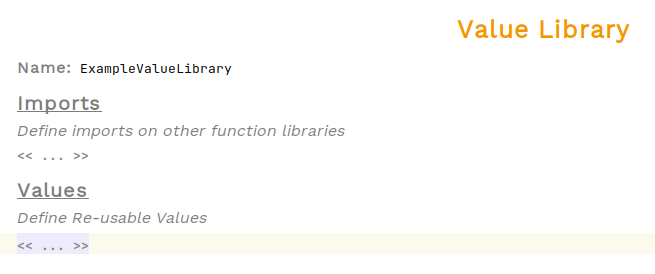
An unimplemented value library should have been created now. All value libraries need a name so that they can be referenced elsewhere. Place the cursor on the red cell that says <no name> to the right of Name: and enter the data table’s name.
In the example below, the name is set to ExampleValueLbrary:
3. Define Constants
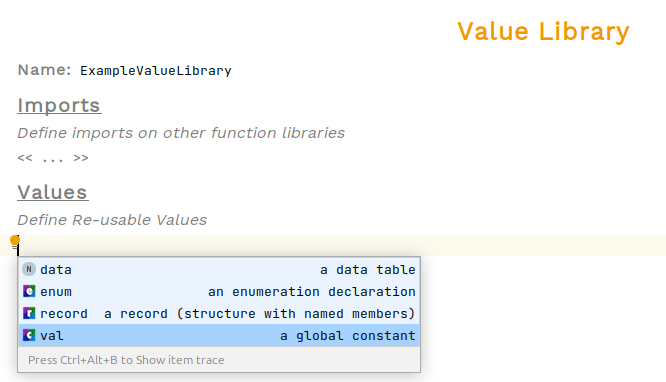
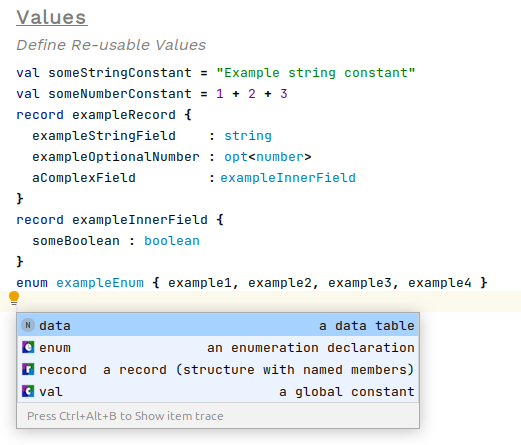
To define a constant value, create a new entry by selecting the box and pressing enter. Press Ctrl+Space to see options and choose val
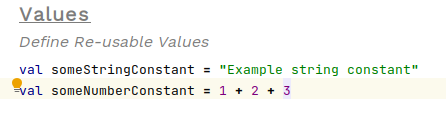
Constants need a name and an expression that determines its value
4. Define Records
Records are simple data structures that can be used within the Rules Framework directly without needing an underlying Java class.
To define a record, create a new value, press Ctrl+Space and select the record option
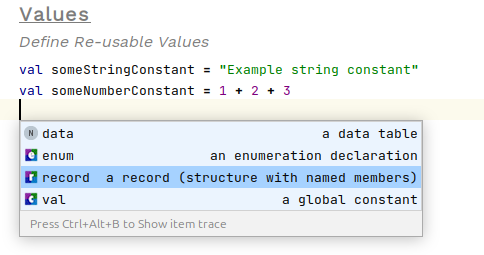
Give the record a name and within its body press enter followed by Ctrl+Space to add a new field. Each field needs a name and a data type.
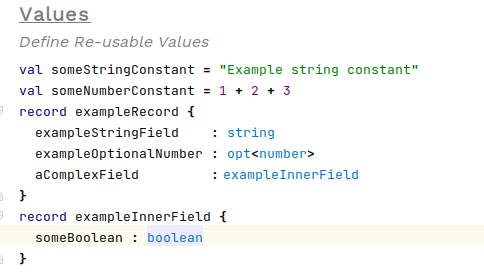
5. Define Enums
To define an enum select a new value, press Ctrl+Space and select enum.
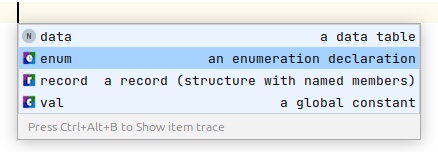
Enums have a name and a list of values. To create a new value press enter within the body of the enum.
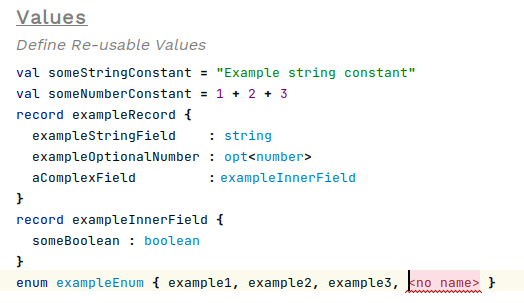
6. Define Data Table
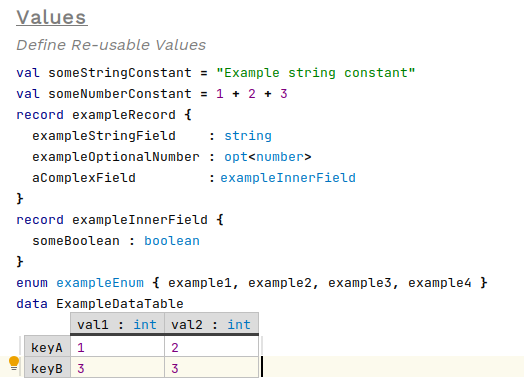
Data tables can be defined within value libraries by pressing Ctrl+Space and selecting the data option.
They are identical to their root node counterparts. See here for more details: Creating a Data Table
7. Using Value Libraries
To use the values within a data library, it must be added to the Imports list at the top of most nodes. This also applies to other nodes such as private functions, function libraries and data tables.
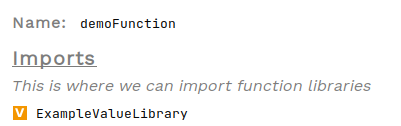
From here the values, records and tables can be referenced within any expression.