Chained Request-Reply with OAuth
How do I use the output of one synchronous call as the input to another synchronous call?
This connector example demonstrates the following features of connectors.
-
Message logging
-
Chaining request-reply connector calls (output of one call as an input to the next)
-
Request decoration for security
-
Media upload
This guide is also available in the separate connector-samples Git repository
here.
|
Setup
This example was originally written back when it was much simpler to get started developing applications for the Twitter API. Unfortunately there are some hoops we must jump through to get things set up before running the example, but hopefully it’ll be worth it!
Twitter Account
To run this example, you will need a Twitter account. If you already have one then skip to the next step.
You can sign up to Twitter using this link.
Twitter Developer Account
You also need a developer account as we will be creating a Twitter application to call APIs on behalf of your user.
You should be able to sign up for a developer account by going to the developer portal.
Twitter App
Once you have a developer account you should be able to create a new App from this page.
Elevated Access
To use the upload feature, our app must have elevated API access. To get this we must apply for it, though it just a short questionnaire to make sure we don’t have any nefarious plans with all of their data.
Elevated access can be applied for on this page.
API Keys
At this point our Twitter app should be ready to go. All we need to do is generate some credentials that can be used to authenticate requests to Twitters APIs on behalf of us. The page for the app should have a tab for "Keys and tokens" where all the credentials can be generated.
The first of the credentials are the Consumer Keys.
You may have saved them when you first created the app but if not you can regenerate them.
The second set of credentials is an Access Token and Access Token Secret, which need to be generated.
Once all the credentials have been generated, the following environment variables need to be set using them.
.setOAuthConsumerKey(System.getenv("TWITTER_CONSUMER_KEY")) // API KEY
.setOAuthConsumerSecret(System.getenv("TWITTER_CONSUMER_SECRET")) // API KEY SECRET
.setOAuthAccessToken(System.getenv("TWITTER_ACCESS_TOKEN"))
.setOAuthAccessTokenSecret(System.getenv("TWITTER_ACCESS_TOKEN_SECRET"))
Domain Types
Our Twitter connector supports two operations, and as a result we have two domain types which both extend the
TwitterRequest abstract type.
We could also create two separate for each of these request if we wanted to.
-
UploadMediaRequest: Upload some media to share in a tweet later -
StatusUpdateRequest: Update a Twitter status
And we also have their respective responses, under the TwitterResponse abstract type.
-
UploadMediaResponse: Response to media upload (containing the media ID) -
StatusUpdateResponse: Response to tweet (containing the newly created tweet)
Connector Setup
We first create an HTTP request-reply connector transport like so.
return new HttpConnectorTransport.Builder<TwitterRequest>()
        .withName("TwitterHttp")
        .withActorSystem(actorSystem)
        .withConfigRootPath("chained-request-reply-example")
        .withEnricher(httpRequest -> { (1)
            HttpHeader authorization = HttpHeader.parse("Authorization", getAuthorizationHeader(httpRequest));
            HttpRequest request = httpRequest.addHeader(authorization);
            return CompletableFuture.completedFuture(request);
        })
.build();| 1 | Note the enricher here, which adds the Authorization header containing the important OAuth 1.0 user context which Twitter will authenticate.
The inputs to this method are the HTTP method (always POST) and the URL (differs depending on whether this is a media upload or a status update) |
We then create the following RequestReplySendConnector.
var connector = new RequestReplySendConnector
        .Builder<TwitterRequest, TwitterRequest, TwitterResponse, TwitterResponse>("Twitter")
        .withConnectorTransport(connectorTransport)
        .withActorSystem(actorSystem)
        .withMessageLogger(logger()) (1)
        .withSendTransportMessageConverter(request -> { (2)
            var messageHeaders = new MessageHeaders(Map.of(
                    "httpUrl", getUrl(request),
                    "httpMethod", "POST"
            ));
            if (request instanceof UploadMediaRequest) {
                byte[] bytes = ((UploadMediaRequest) request).getData();
                var entity = HttpEntities.create(ContentTypes.APPLICATION_OCTET_STREAM, bytes);
                var payload = createStrictFormDataFromParts(createFormDataBodyPartStrict("media", entity)).toEntity();
                return new TransportMessage(messageHeaders, payload);
            }
            return new TransportMessage(messageHeaders, "");
        })
        .withReceiveTransportMessageConverter(transportMessage -> { (3)
            if (transportMessage.getPayload().toString().contains("media_id_string")) {
                return fromJson(UploadMediaResponse.class).convert(transportMessage);
            } else {
                return fromJson(StatusUpdateResponse.class).convert(transportMessage);
            }
        })
        .withManualStart(false)
.build();| 1 | Here we are defining a MessageLogger interface. We take both sent and received messages and log. This can be replaced with a database implementation where all message interactions are stored relating to this message association. |
| 2 | Here we are defining a function which takes the TwitterRequest that we want to send, and creating a
TransportMessage out of it, which is the representation of the request over the wire.
In this case we need to define a different URL based on whether this is a status update or a media upload. |
| 3 | Since this is a request-reply connector, we also need to define the reverse operation, which converts the received response back into a model POJO that we understand. We use Jackson to determine whether this is a media update response or a status update response, and map it accordingly back to the right POJO. |
Call Chain
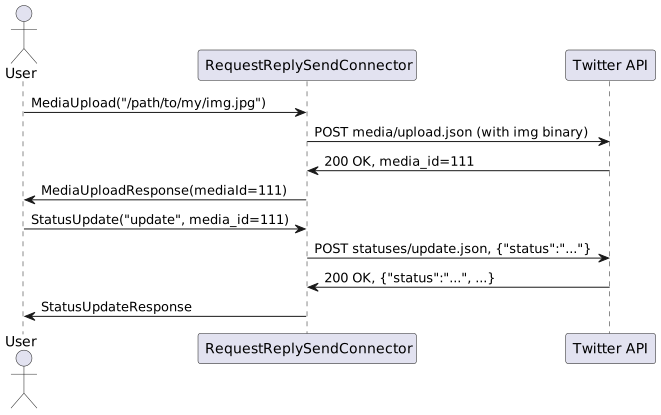
The Twitter documentation for posting media (images, GIFs, videos, etc.) states that we have to upload the media first using one of the media upload methods (simple or chunked), which will return a media_id that expires in 24 hours unless if used in a tweet before then.
We then use that media_id in our subsequent status update call, which will attach the previously uploaded media to the tweet.
connector
        .send(ProcessingContext.unknown(), new UploadMediaRequest(kittenPicBytes())) (1)
        .thenApply(twitterResponse -> (UploadMediaResponse) twitterResponse) (2)
        .thenCompose(uploadMediaResponse -> {
            String status = String.format("I am a status update at %s! Also check out this cat photo", LocalDateTime.now());
            var statusUpdateRequest = new StatusUpdateRequest(status, List.of(uploadMediaResponse.getMediaId()));
            return connector.send(ProcessingContext.unknown(), statusUpdateRequest); (3)
        })
        .toCompletableFuture()
.join();| 1 | Calling the connector for the first time to upload the photo of the kitten |
| 2 | Casting the response into an UploadMediaResponse |
| 3 | Calling the connector for the second time, with the mediaId from UploadMediaResponse to post a tweet containing the media as an attachment |
Exercises
Exercise 1: Retrieve a Remote Image
At the moment the sample is loading kitten.jpg from src/test/resources.
Try instead to add a call to the chain to - for example - the NASA Astronomy Picture of the Day (APOD) API to dynamically retrieve an image instead.
The APOD API returns a structure like this.
{
  "copyright": "Giancarlo Tinè",
  "date": "2021-11-15",
  "explanation": "What happening above that volcano? Something very unusual -- a volcanic light pillar. More typically, light pillars are caused by sunlight and so appear as a bright column that extends upward above a rising or setting Sun. Alternatively, other light pillars -- some quite colorful -- have been recorded above street and house lights. This light pillar, though, was illuminated by the red light emitted by the glowing magma of an erupting volcano. The volcano is Italy's Mount Etna, and the featured image was captured with a single shot a few hours after sunset in mid-June. Freezing temperatures above the volcano's ash cloud created ice-crystals either in cirrus clouds high above the volcano -- or in condensed water vapor expelled by Mount Etna. These ice crystals -- mostly flat toward the ground but fluttering -- then reflected away light from the volcano's caldera.   Explore Your Universe: Random APOD Generator",
  "hdurl": "https://apod.nasa.gov/apod/image/2111/EtnaLightPillar_Tine_5100.jpg",
  "media_type": "image",
  "service_version": "v1",
  "title": "Light Pillar over Volcanic Etna",
  "url": "https://apod.nasa.gov/apod/image/2111/EtnaLightPillar_Tine_960.jpg"
}
Try extending the current chain by adding two more calls at the beginning.
-
A new
RequestReplySendConnectorcall to retrieve the link to the picture of the day -
A new
RequestReplySendConnectorcall to request the image located aturlfrom the response (you will need to convert it into a byte array)
You will then need to change the contents of the MediaUpload to reference the byte array of the APOD image instead of the local image of the kitten.
Exercise 2: Using the chunked media upload API
The sample currently uses the "simple" API for uploading images to Twitter, which is a brittle method for uploading large media as it is not resilient to network outages and cannot be resumed. Twitter offers a more resilient method of uploading media called the chunked media upload API which supports pausing and resuming uploads.
The documentation for that can be found here.
Try changing the existing implementation to use the chunked media upload API, and perhaps upload some larger media, like a video or GIF. The steps would be.
-
Call to
INITto declare the start of a media upload -
Multiple calls to
APPENDchunks of the media as fragments, with an incrementing index -
Call to
FINALIZEthe media upload and receive the all-importantmedia_id -
Call to update our status using the
media_idfrom step 3