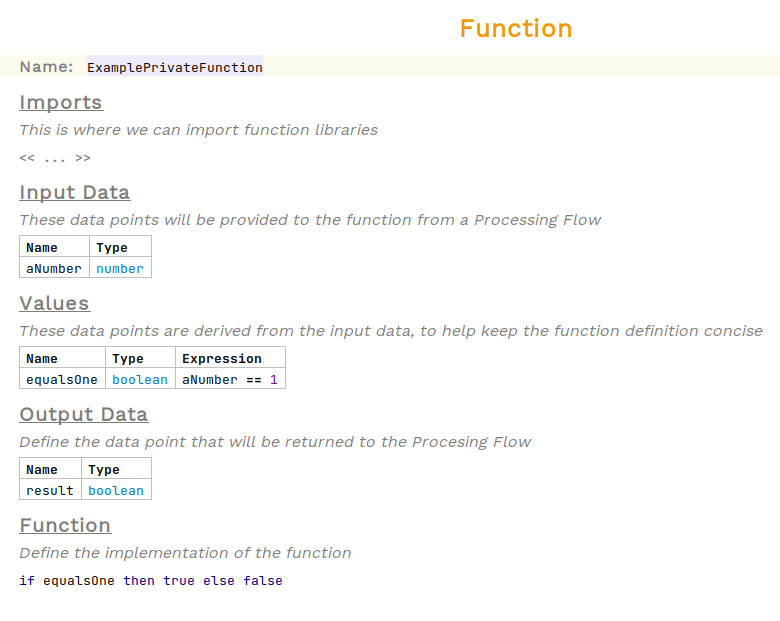
Creando una Función Privada
La siguiente guía paso a paso le mostrará los pasos necesarios para crear una función privada utilizando el Diseñador de Reglas en el Lenguaje Simple. El ejemplo mostrado es bastante trivial; sin embargo, se pueden definir funciones mucho más complicadas de manera muy similar.
Requisitos previos
-
MPS (versión 2022.3.1)
-
Un modelo que utiliza el
com.iconsolutions.simple.devkit, o un devkit que lo utilice (por ejemplo,v2Flo.devkit)
Pasos
1. Crear Nodo de Función Privada
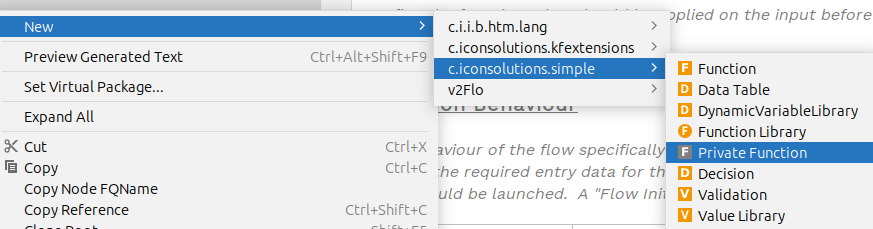
Para agregar una función privada en un modelo, diríjase a la Logical View ventana en el lado izquierdo de MPS y haga clic derecho en el modelo donde se requiere la función privada. Luego navegue a New > com.iconsolutions.simple > Private Function.
Debería verse como la imagen a continuación:
2. Nombre de la Función Privada
Una función privada no implementada debería haberse creado ahora. Todas las funciones necesitan un nombre para que puedan ser referenciadas en otros lugares. Coloque el cursor en la celda roja que dice <no name> a la derecha de Name: y escriba el nombre de la función.
En el ejemplo a continuación, el nombre se establece en ExamplePrivateFunction:

3. Defina Entradas
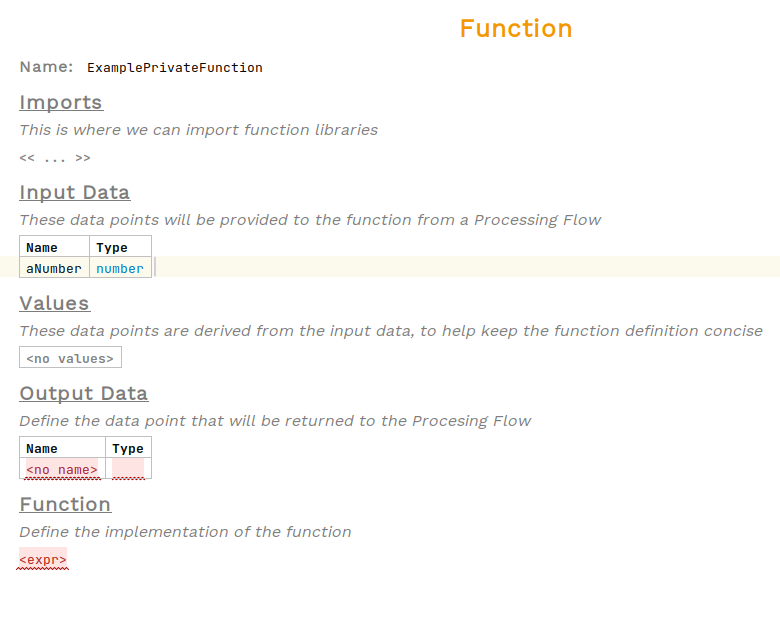
Las funciones privadas pueden aceptar cualquier número de entradas. Para agregar una, seleccione la celda a continuación.Input Data que dice <no input> y presione enter. Debería aparecer una tabla con una fila vacía. Ingrese el nombre de la entrada y seleccione un registro o tipo de Kernel F para ello. Para agregar entradas adicionales, coloque el cursor sobre una fila de la tabla y presione enter.
En el ejemplo a continuación, una única entrada aNumber de tipo number ha sido definido:
4. Defina Valores (opcional)
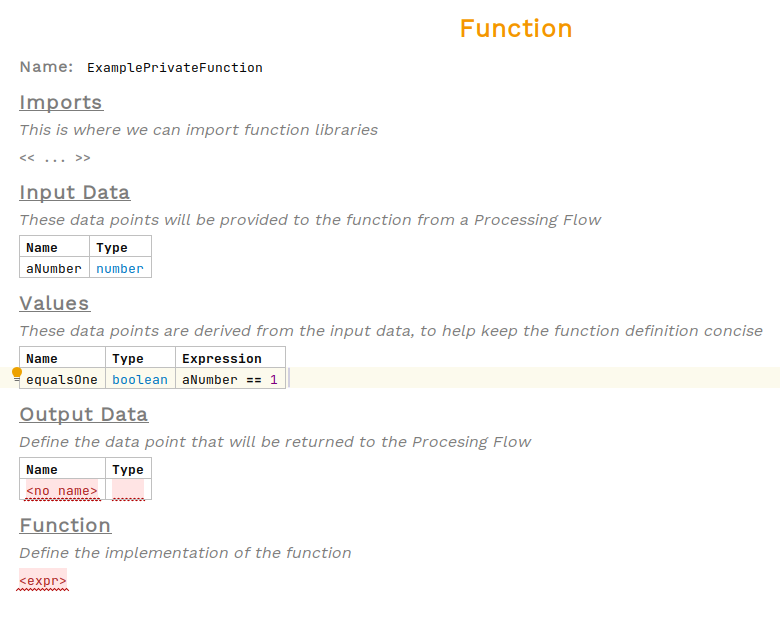
Las funciones privadas no necesitan definir ningún valor, pero pueden ser particularmente útiles para derivar valores intermedios de la entrada. Para agregar una, seleccione la celda a continuación.Values que dice <no values> y presione enter. Debería aparecer una tabla con una fila vacía. Ingrese el nombre de la entrada y seleccione un tipo para ella. La columna de expresión permite escribir una función para determinar el valor en tiempo de ejecución. Para agregar valores adicionales, coloque el cursor sobre una fila de la tabla y presione enter.
En el ejemplo a continuación, un único valor equalsOne de tipo boolean ha sido definido con la expresión aNumber == 1:
5. Defina los Datos de Salida
Una función privada debe devolver algo. Los datos de salida definen lo que la función devolverá. Un dato de salida llamado Outcome con <no class> ya estará definido. Edite el nombre y seleccione un Java clase para el tipo de retorno.
En el ejemplo a continuación, los datos de salida fueron renombrados a result y el tipo de retorno se estableció en boolean:
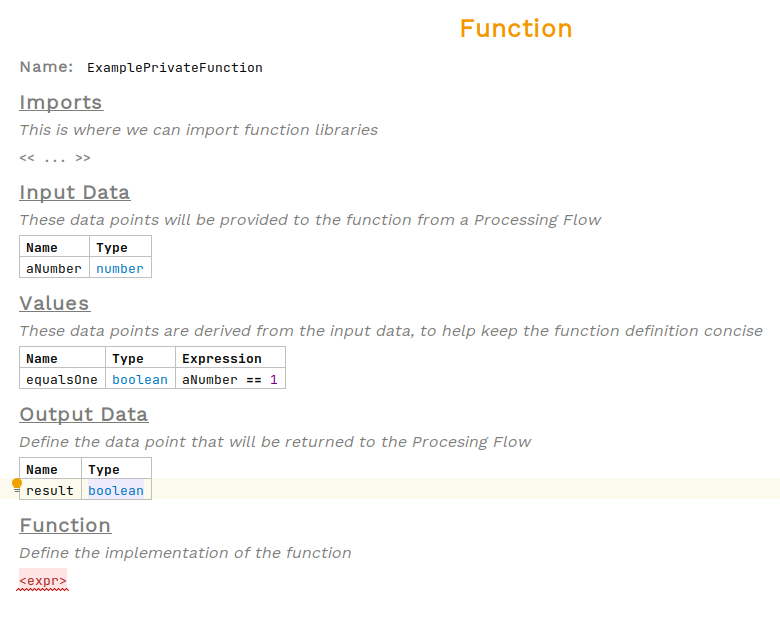
6. Defina el Cuerpo de la Función Privada
Finalmente, se puede definir el cuerpo de la función privada. Debe devolver un valor que tenga el mismo tipo que el que se define en los datos de salida; de lo contrario, habrá un error en el sistema de tipos. Para agregar el cuerpo de la función, seleccione la celda a continuación.Function que dice <expr> y escriba una expresión.
Para ver una lista de expresiones disponibles, presione Ctrl + Space.
|
Si se requiere una expresión de varias líneas, entonces escribir { creará una expresión de bloque.
|
En el ejemplo a continuación, una expresión if evalúa el equalsOne valor booleano y devuelve el resultado true si es cierto, de lo contrario false: