Human Task Manager
Introduction
This page is an introduction to the Human Task Manager module and its associated screens. These screens are designed to be used by an authorised operator to view and action tasks related to a payment journey that require human intervention before the process can resume.
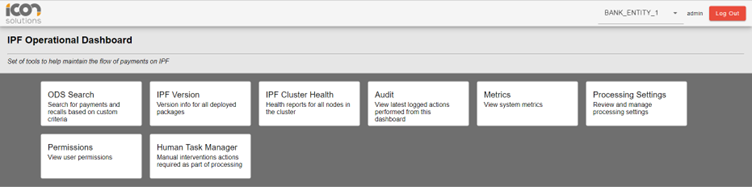
| Human Task Manager is an additional optional module and will therefore only be visible in the dashboard for clients that has purchased this module and decided to add it to their implementations. |
What is Human Task Manager?
A Human Task Manager (HTM) is a service to facilitate human intervention as part of the payment process by an operator. These tasks are automatically generated by an IPF process flow and can pertain to different business operations such as initiating payments, completing transactions, recording payments and other associated services.
Human Task Manager Search Screen
Search Identifiers
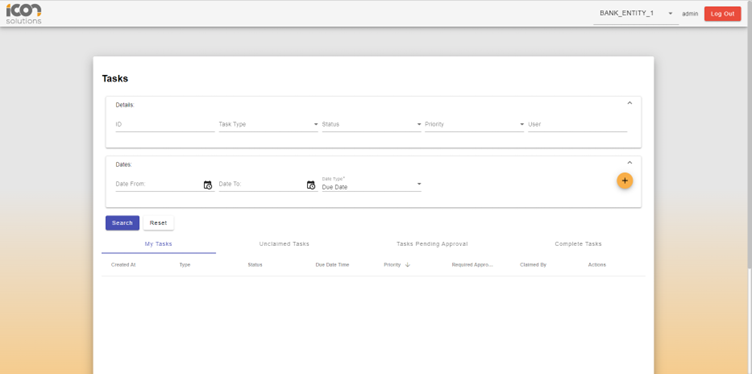
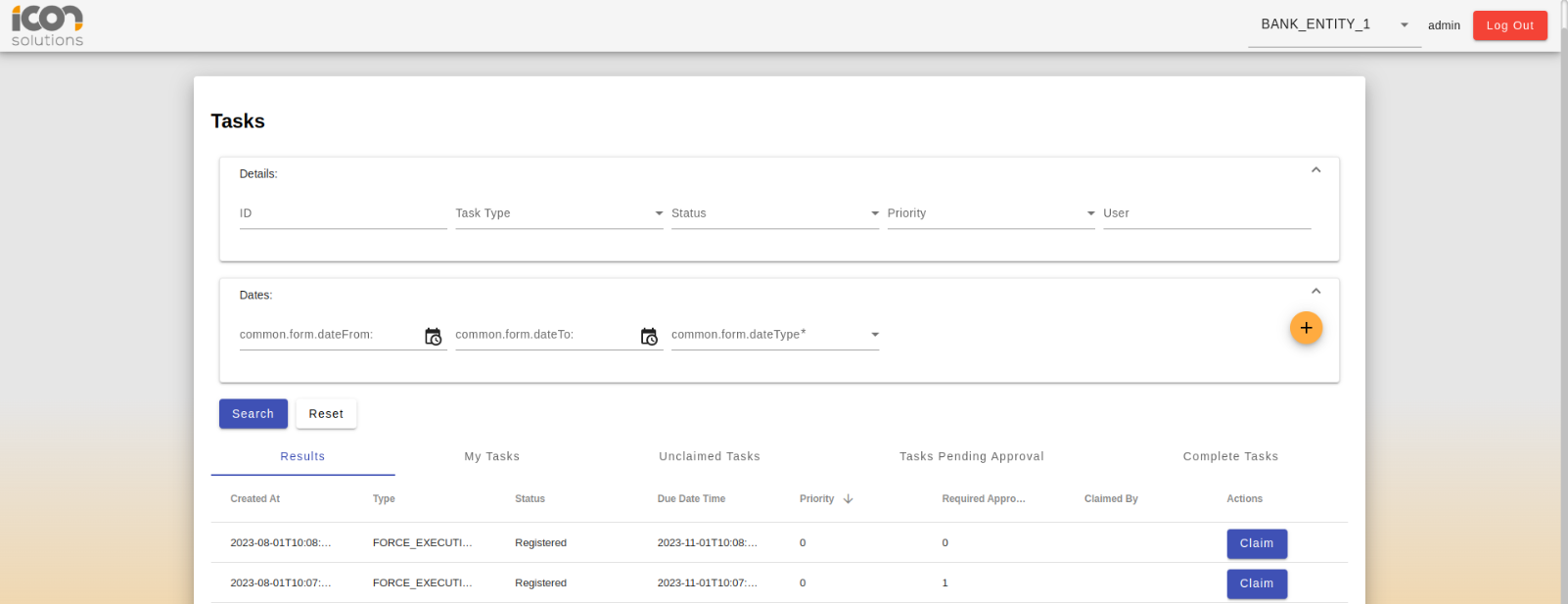
The operator will be able to enter data into any one of the available search fields and once they click search, the record/s that meets the criteria will be presented in a table.

| Type | Description |
|---|---|
Task ID |
The ID associated with the task. This can have other associated IDs e.g. Unit of Work ID that can also be searched upon within the same field. |
Task Type |
The specified task types. i.e. Enforce Execution These will be configured during implementation. |
Status |
The status associated with the task. i.e. Registered These will be configured during implementation. |
Priority |
The task priority. i.e. Range of 1 - 5 |
User |
The operator allocated to the task. |
Dates
Operators will also be able to search for tasks by date.
To search via multiple dates, use the + button:

To remove a date press the bin icon:

| Only one of each date type is selectable. |
Available date types:

Dates Can either be entered using the date picker or by typing the date directly in the search bar. The default is up to one day in the past to limit record load.
Search Results
Once the operator hits the search button, they will be presented with the relevant results. Operators can further filter results by selecting the appropriate tab. Upon navigating to the HTM search page, the 'My Tasks' tab will be selected. After a search has been done, the Results tab will be selected. In addition to those the operator also has the option to toggle between My Tasks, Unclaimed Tasks, Tasks Pending Approval and Complete Tasks.

Results can also be sorted and filtered using the table headers:

The operator can also navigate through the pages using the arrows

| The rows can be resized to help with readability of the content. |
Claiming a task
Clicking on the row within the table or clicking on the claim button will allow an operator to claim a task. The task will be moved into the ‘Allocated’ status.
To release a task, the operator can click on the ‘Unclaim’ button. This will then revert the task back to the ‘Registered’ status.

| A task can be unclaimed from within the table as per the image above or from within the task details screen. |
Task Details Page
Task Details
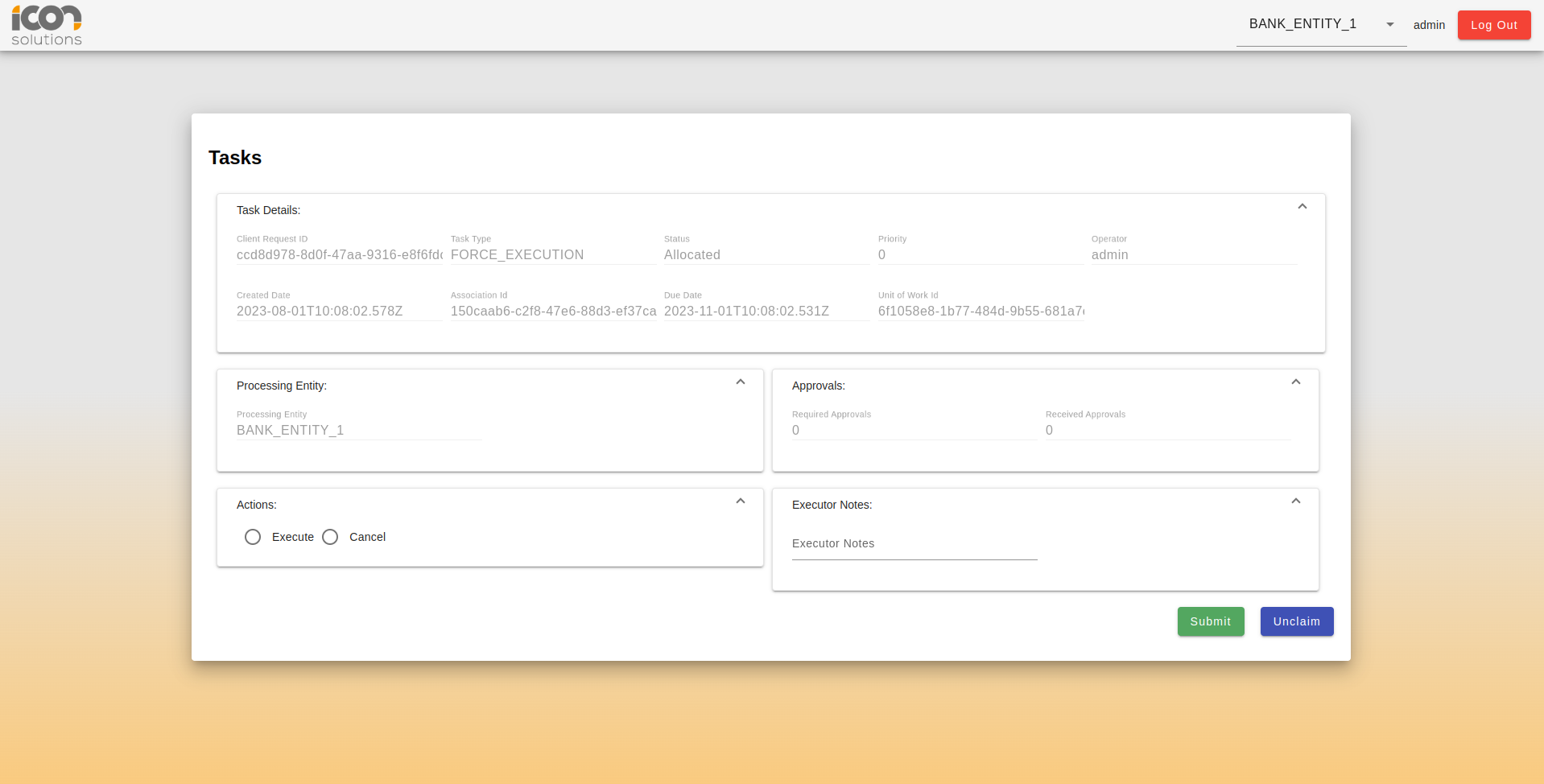
Once an operator has claimed a task, they will be presented with the task details screen. This screen is implementation specific and can be configured to meet the client’s requirements.
The example screen as seen below will display the data related to the chosen task for the previously searchable data points.

3.2 Processing Entity
Processing Entity that the task is associated is also displayed on this screen as read-only data.

Approvals
Human Task Manager supports having the result of a task execution approved by a second (or more) persons before the task is considered completed and returned to the requesting application (the process flow that submitted the request to the Task Manager).
Within the task details screen, the required number of approvals will be displayed.

| The task cannot be approved by the operator sending the ececution request. |
Actions
The actions panel will be where the operator will provide any information required to process the task via the Human Task Manager. Clients can include additional data points that their operators must include when executing a task however the core simply requires the operator to choose whether to "Execute" or "Cancel" the task.

| As part of the HTM core it is mandatory for an 'Action' option to be made before the task can be executed however this can be configured during implementation. |