RD 5 - Functions
Rules Designer Functions
Functions within the rules designer act as many-to-one mappings of business data elements. As with other concepts in the rules designer, no extra Java implementation is required to use them. More details about rules designer functions can be found here
Objective
We will use this function to extract the debtor account IBAN into a PDS object to use within the previous decision.
DSL Set Up
|
To see a completed example of this step, open the |
Creating a Function
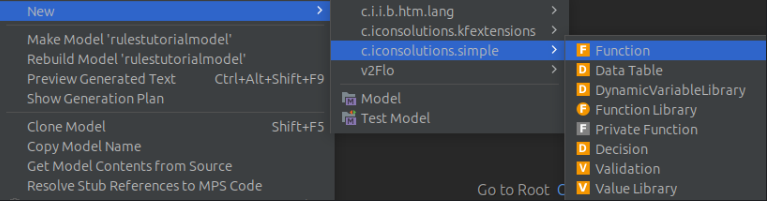
To create a new Function node in our model. Right-click on the model, then select
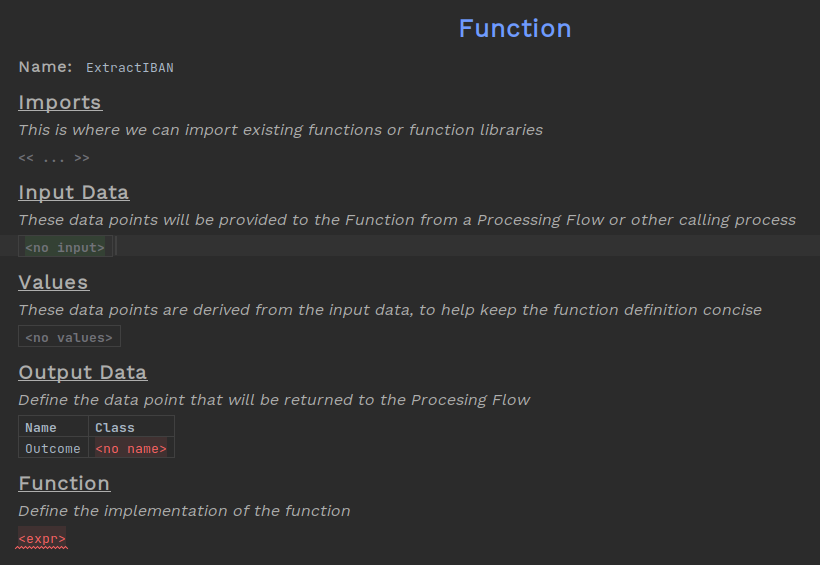
Give the function a name, we named this one ExtractIBAN
Functions take in any number of inputs, these will be business data elements from the flow. In our case this will again be the FIToFICustomerCreditTransferV08, though multiple inputs can be added by pressing Enter after selecting the end of a row.
Output data is similarly a Java class that will be the type of the business data element used for the output, but there is always exactly one outcome. We want to extract the clearing system which will be String
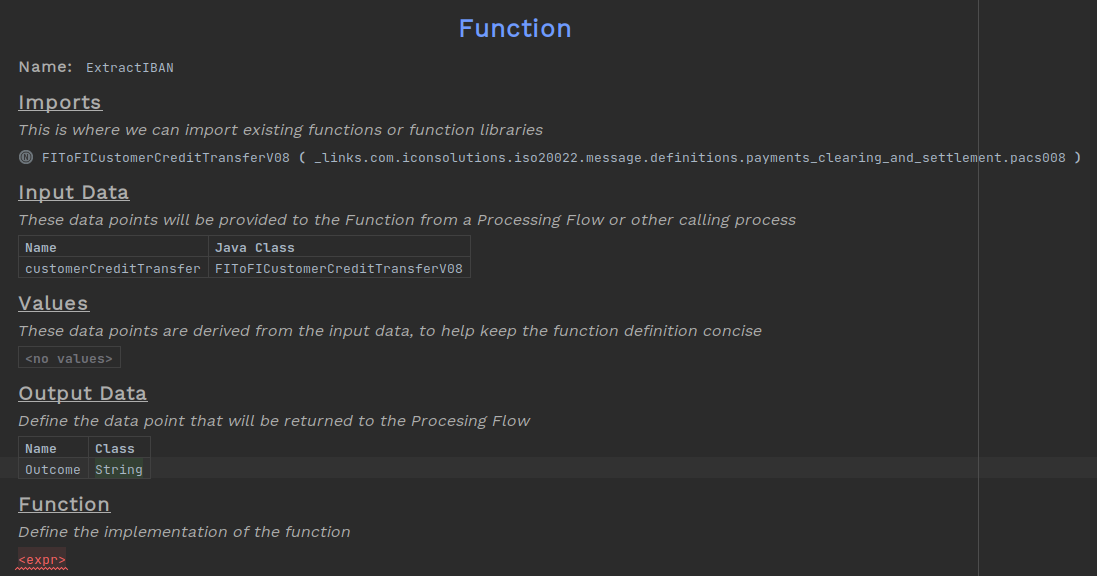
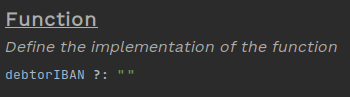
As with other rules designer concepts, some logic can be extracted out through the values table, so here we will store the IBAN value in a constant.

Now we can use an expression to check if the value is there, and if not, give an alternative.
Adding to the Flow
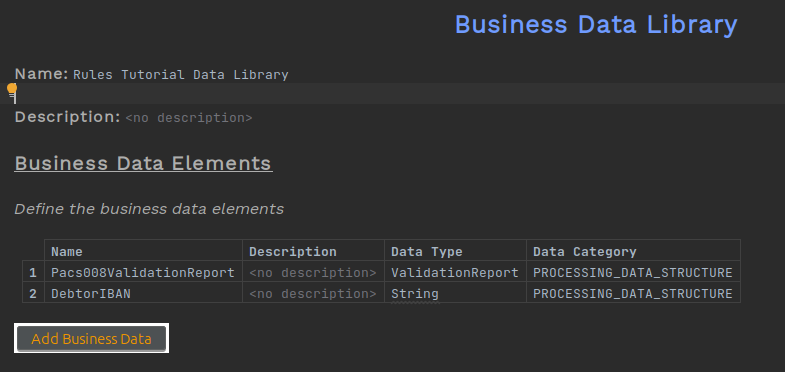
To add this function to the flow, we will need to define business data elements for the output of type String.
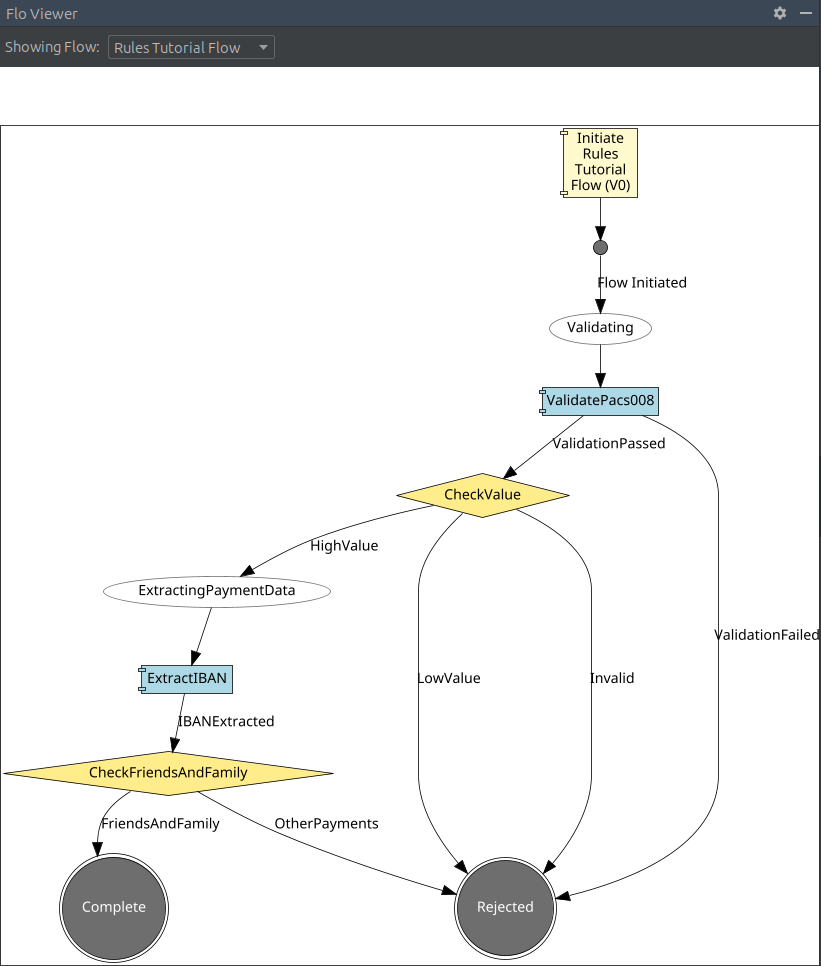
A new state, event and input behaviour need to be added for the function.
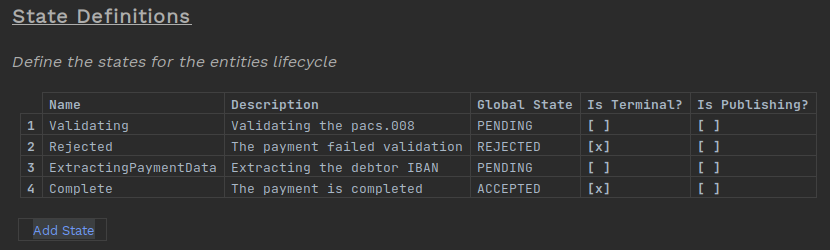
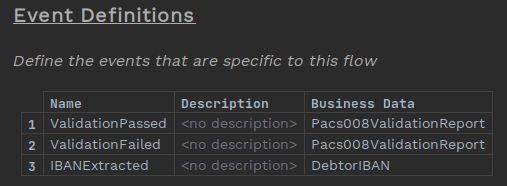
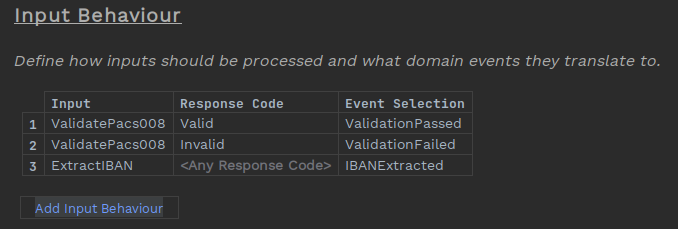
As with validations, we add functions to the behaviours as actions, and will need to open the inspector to provide the input and output business data elements.
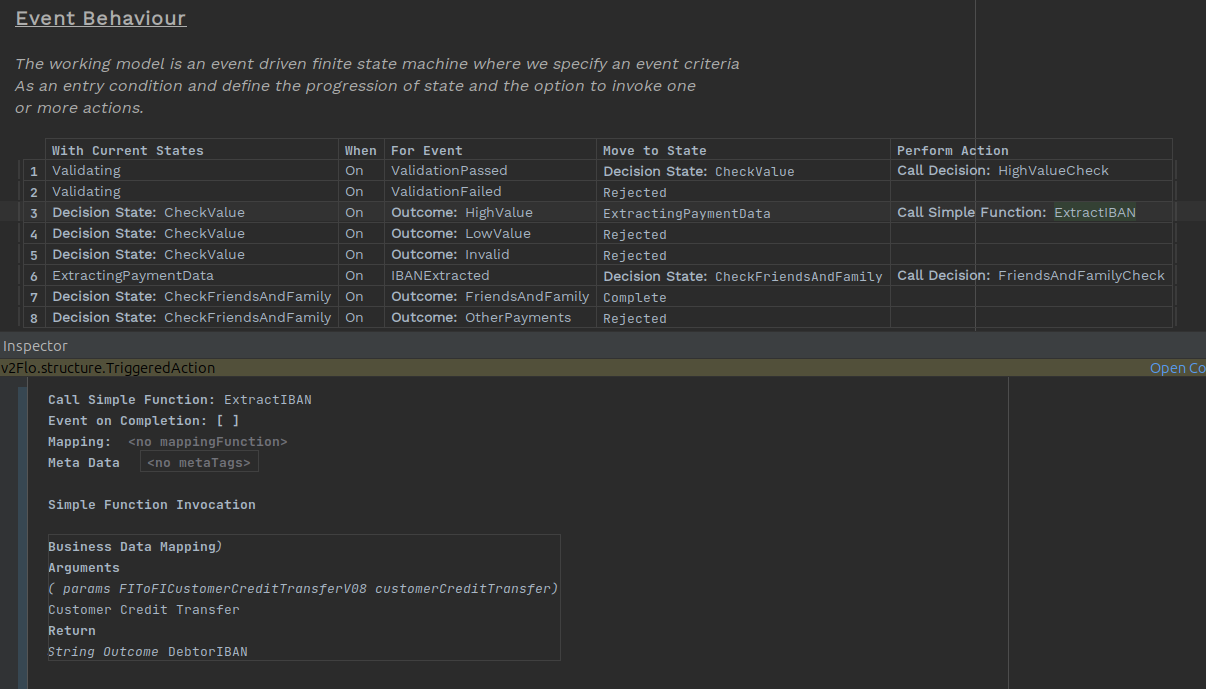
To open the inspector press Alt+2, Ctrl+Alt+I or right-click on the action and selecting Inspect Node. Then we add the customer credit transfer as the input and the new business data element as the output.
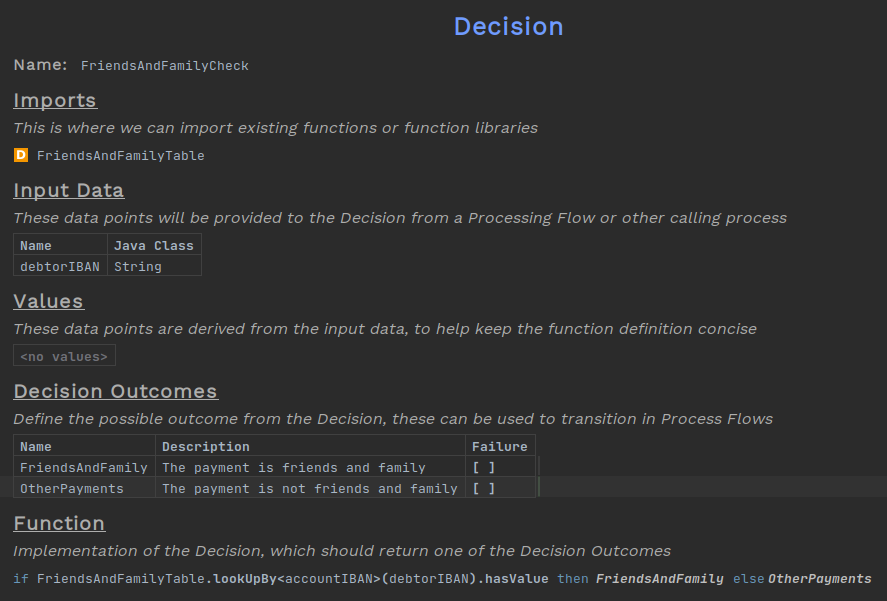
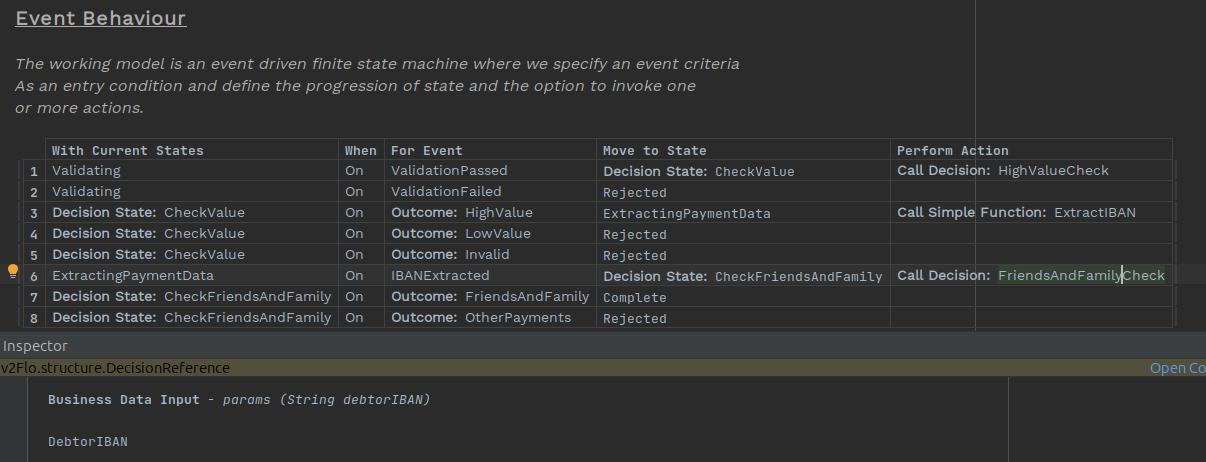
We will also need to update the friends and family decision to use the DebtorIBAN business data we just created. It should look like this. Remember to also change the input data on the behaviour via the inspector.
Looking in the flo-viewer, the diagram should look like this:
Testing
To see the value is saved to a PDS object, build the solution with
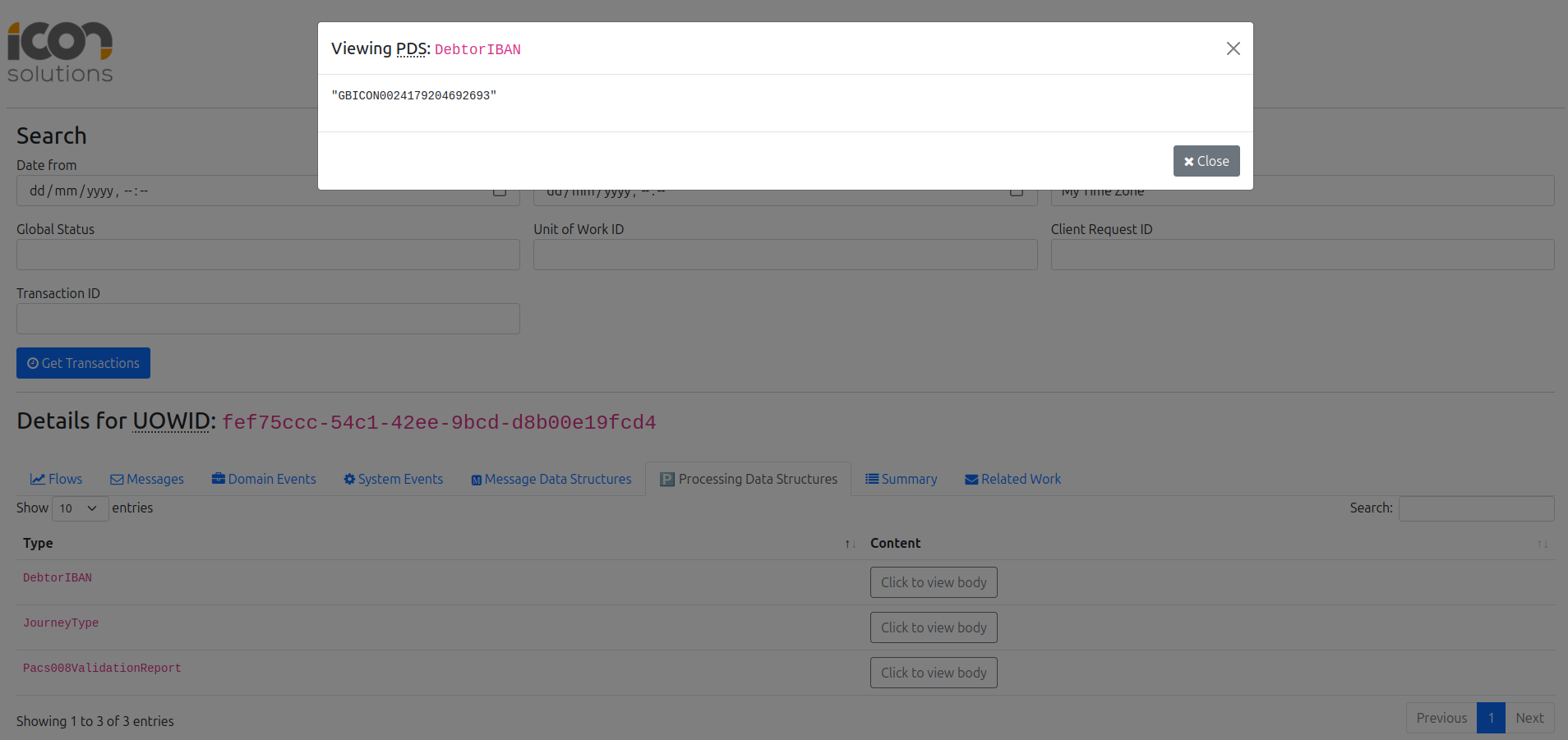
mvn clean installThen run the application and send in the following Pacs008s. In the developer app select the payments, go to Processing Data Structures then Click to view body to see the value is there.
curl -d '{"requestId":"ExtractIBANPDS","pacs008":{"grpHdr": {"msgId": "ExampleMessageId", "creDtTm": "2025-10-27T17:27:29.886889529Z", "nbOfTxs": "1", "intrBkSttlmDt": "2025-10-27", "sttlmInf": {"sttlmMtd": "CLRG", "clrSys": {"prtry": "EBA"}}}, "cdtTrfTxInf": [{"pmtId": {"endToEndId": "VIVNxmihFItoyyjAPLTqnwqOpoaWUgFHcFr", "txId": "TugAtCCIQtcUYcFfGVGAHFNfdUjeCokipAn"}, "intrBkSttlmAmt": {"value": 6000, "ccy": "GBP"}, "accptncDtTm": "2025-10-27T17:27:29.878336788Z", "chrgBr": "SLEV", "dbtr": {"nm": "James Allen", "pstlAdr": {"adrLine": ["213 South Street"]}, "id": {"orgId": {"anyBIC": "PRXYITMM"}}}, "dbtrAcct": {"id": {"iban": "GBICON0024179204692693"}, "ccy": "EUR", "nm": "Chloe Williams"}, "dbtrAgt": {"finInstnId": {"bicfi": "ICONGBA1", "clrSysMmbId": {"mmbId": "191919"}, "pstlAdr": {"adrLine": ["897 North Street"]}}}, "cdtrAgt": {"finInstnId": {"bicfi": "ICONGBA0", "clrSysMmbId": {"mmbId": "400302"}, "nm": "Chloe Hughes", "pstlAdr": {"adrLine": ["465 Main Street"]}}, "brnchId": {"id": "iWULDmNwqrZLcrNNmxlELmWDrQGgGdeOavf"}}, "cdtr": {"nm": "Sophia Phillips", "pstlAdr": {"adrLine": ["293 Kingsway"]}, "id": {"orgId": {"lei": "12345678901234567888", "anyBIC": "KJFISESS"}}}, "cdtrAcct": {"id": {"iban": "CZ6508000000192000145399"}}}]}}' -H 'Content-Type: application/json' http://localhost:8080/submit