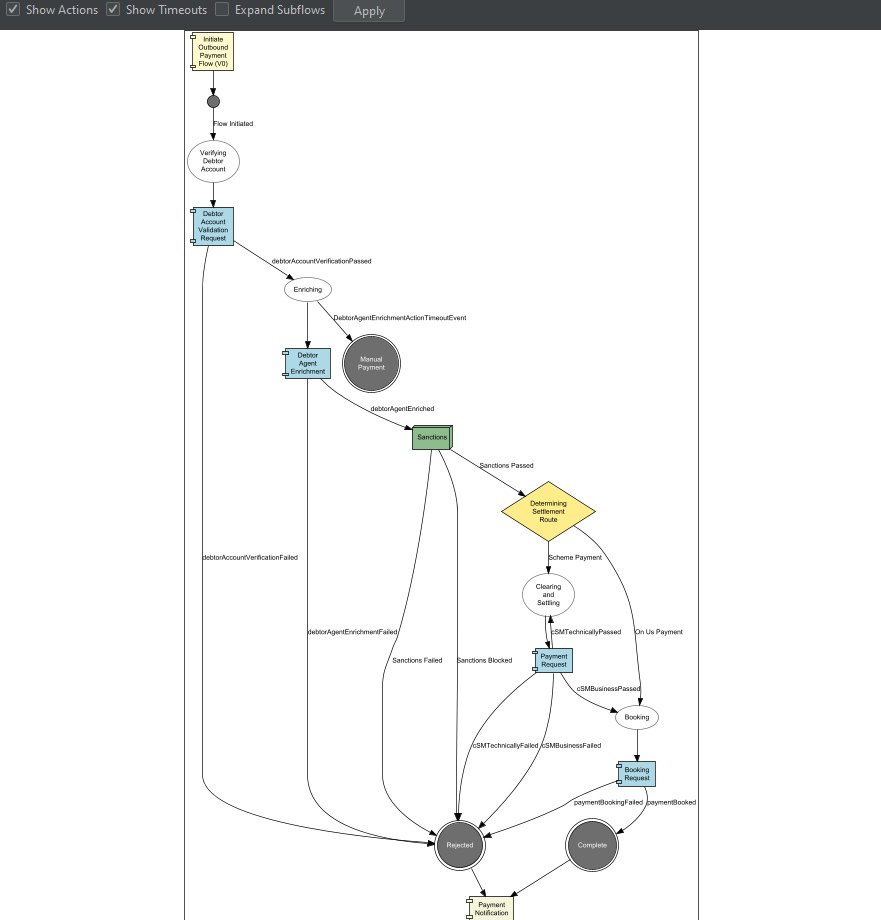
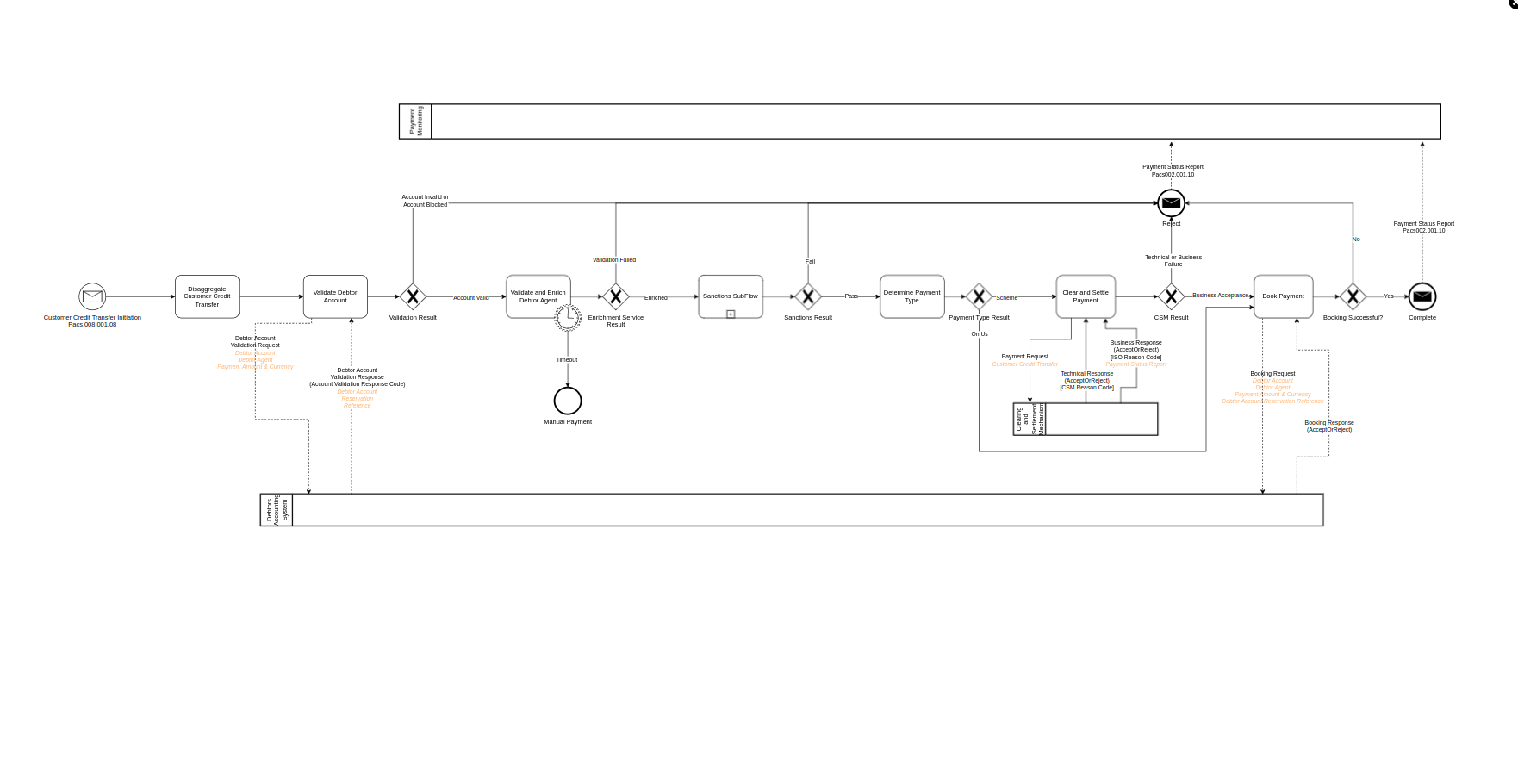
Step 11 - Add A Domain Function
Introduction to Step 11
In this step you will add a 'Domain Function' to the flow and introduce the concept of an 'Action Timeout'. A domain function is where you call upon a service that is built within your application (rather than calling out to an external system/domain using a request/response).
The domain function, like an external domain, provides back a response which is defined in a domain function library.
You will add a debtor agent enrichment service where:
-
Detailed information about the Debtor Agents are stored within the application
-
The application will send debtor agent information from the payment request to the debtor agent enrichment service
-
The debtor agent information is validated against the stored debtor agent record
-
Address data is retrieved from the debtor agent enrichment service and is added to the aggregate
-
The additional address data is used later in the Notification that is sent when a payment is completed
If we assume that the function is often slow, or sometimes doesn’t provide any response at all, then we can add a timeout to our flow so that the payment goes to a terminal state where an operator can review the payment.
Creating a Domain Function
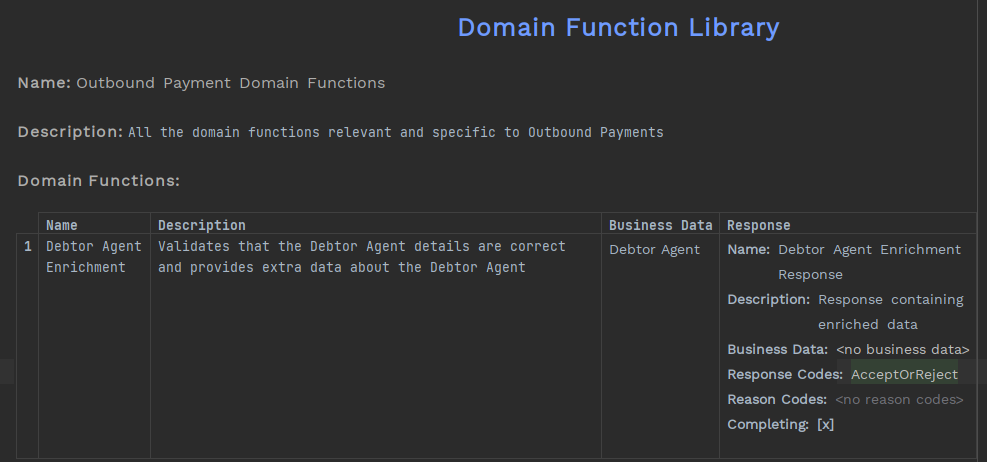
You can create a domain function library by right-clicking on the model from the left hand panel and selecting New>v2Flo>Domain Function Library.
Provide the details you already know about the function, including the response - this should result in a library that looks something like this:
Add new Business Data
We said in your use case that the enrichment service would provide back debtor agent address information.
You need to add that to the business data library before you can add it into the domain function you created.
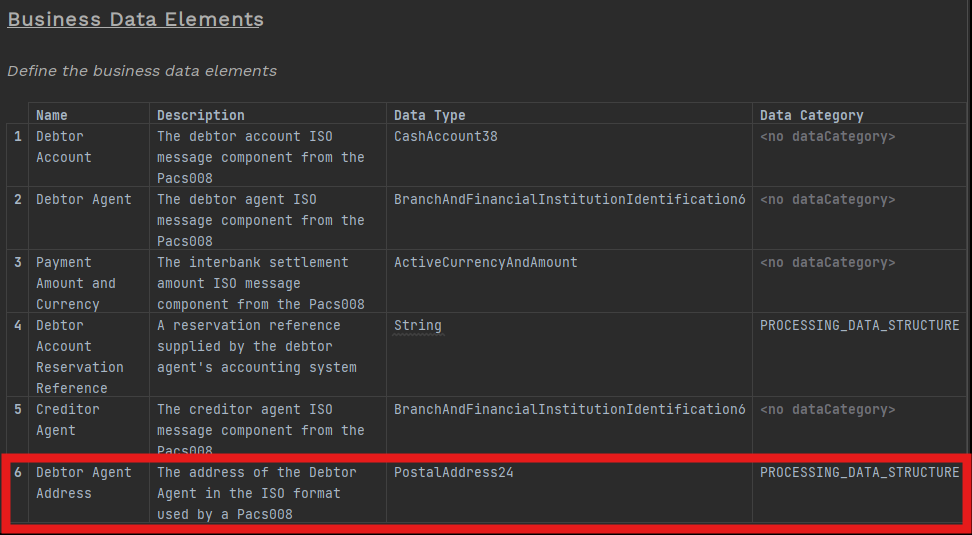
Now you have added the debtor agent address, you can go back to the domain function and add it to the response.
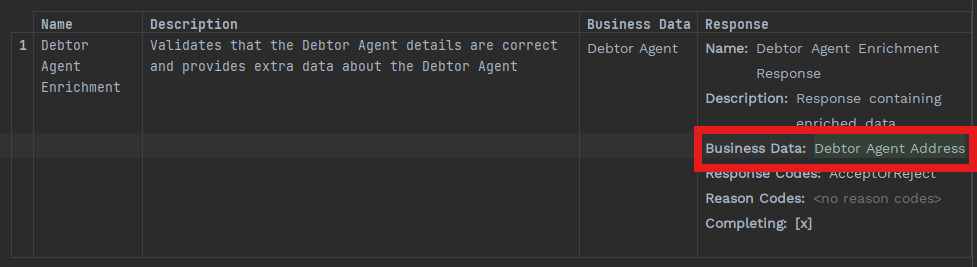
Update the Flow
You can now update the flow with the domain function and new business data you have created
State Definition
You will need to have a new state while waiting for a response from the debtor agent enrichment service.

Event Definition
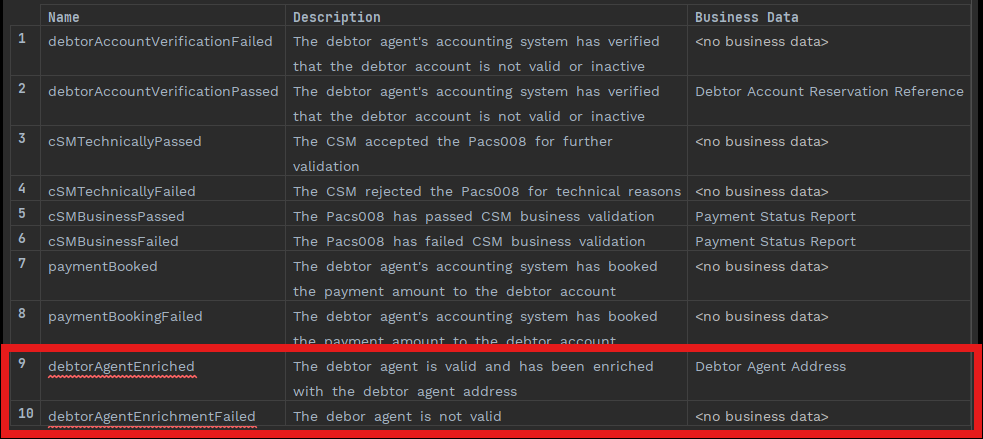
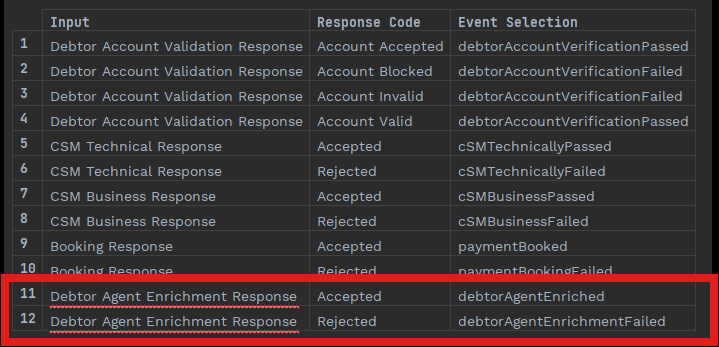
Now add two new events for the two new responses you will get back.
Don’t forget to add the new data you get back from the debtor enrichment service, so that it is added to the aggregate and can be used later for the notification.
Event Behaviour
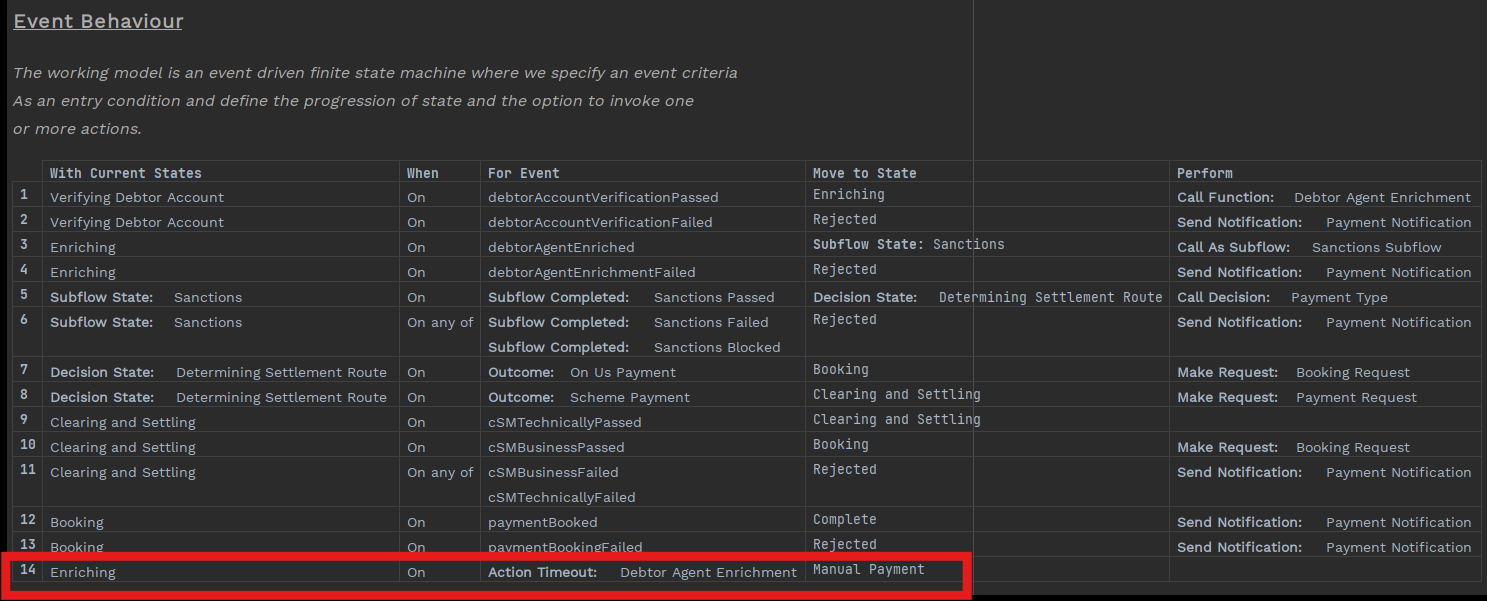
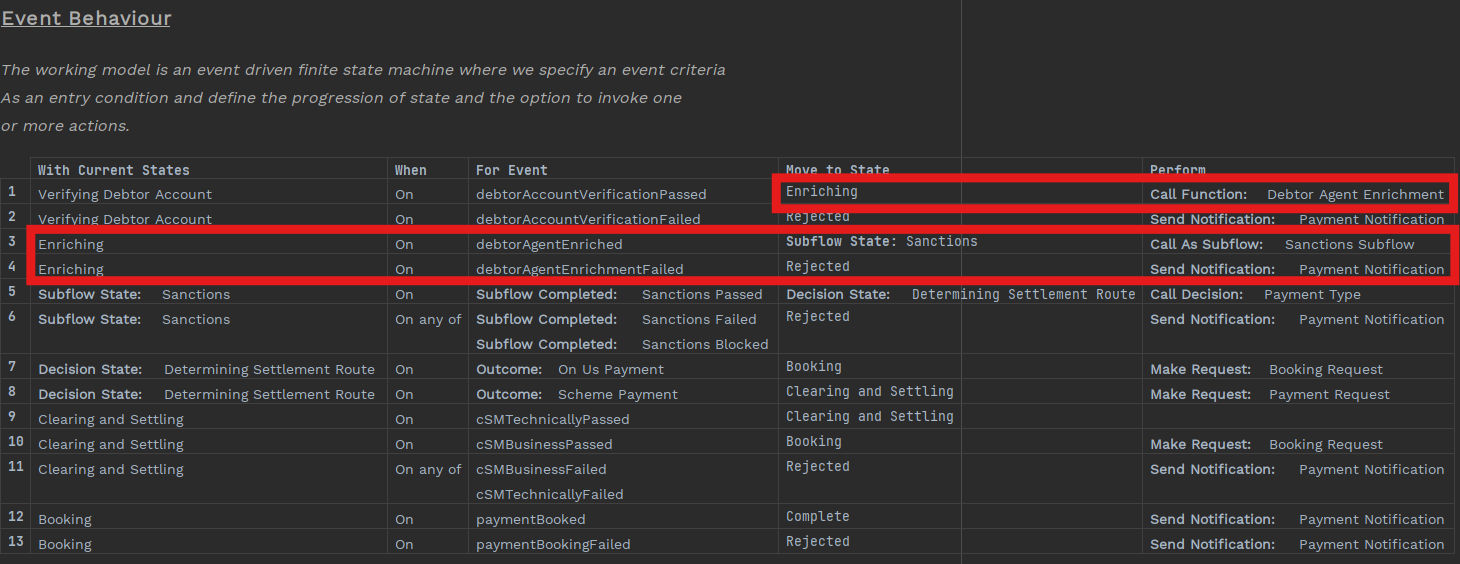
And finally, add the new 'Enriching' state with the two new events to the flow.
You will need to alter the first event behaviour so that debtor account validation passed moves the payment to an enriching state and add the new action of 'Call Function'.
You may also want to reorder to rows to make it more logical (See keyboard shortcuts).
Mapping Function Definition
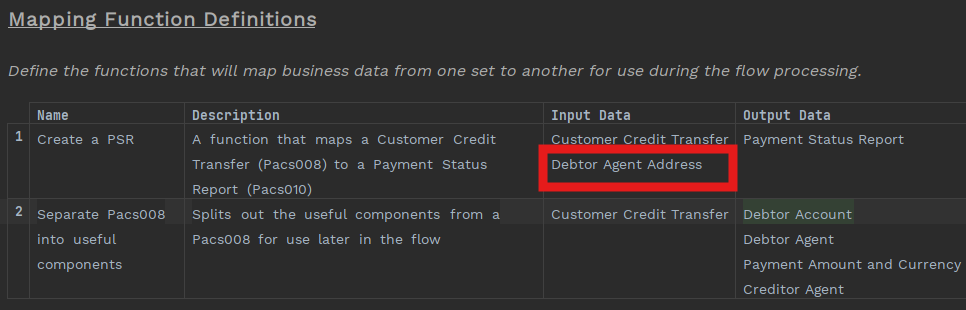
You want to make sure that the enriched debtor agent address is included in the notification (i.e. the 'Payment Status Report').
To achieve that you will need to update the mapping function definition for mapping the PSR so that the debtor agent address is included in the inputs - at the moment you are only mapping from the Pacs008.
Once you have done that, it should look like this:
This is a fairly simple mapping scenario. It assumes that the domain function will provide the debtor agents address in an ISO format. If you needed to convert that address from a format into ISO and make that data available in the event journal then you could use the input enricher. If you are not a developer you might not be getting into this level of detail with business data - the Flow Designer is a collaborative tool for use by developers and non-developers together.
Action Timeout
Now you have updated the flow, you can add the final step, the action timeout.
An action timeout is a specialised event that, instead of being generated as a result of an input (usually a response), is created as a result of a configured timeout after an action has been performed.
In our use case, the 'action' is the request to the 'Debtor Agent Enrichment' domain function and the compensating action we want to perform is to move the state to a terminal state for manual action.
If you have the Human Task Manager (HTM) module then you could pause the flow while the payment is being reviewed and then continue - in this use case HTM is not being used and a new transaction would have to submitted to the flow.
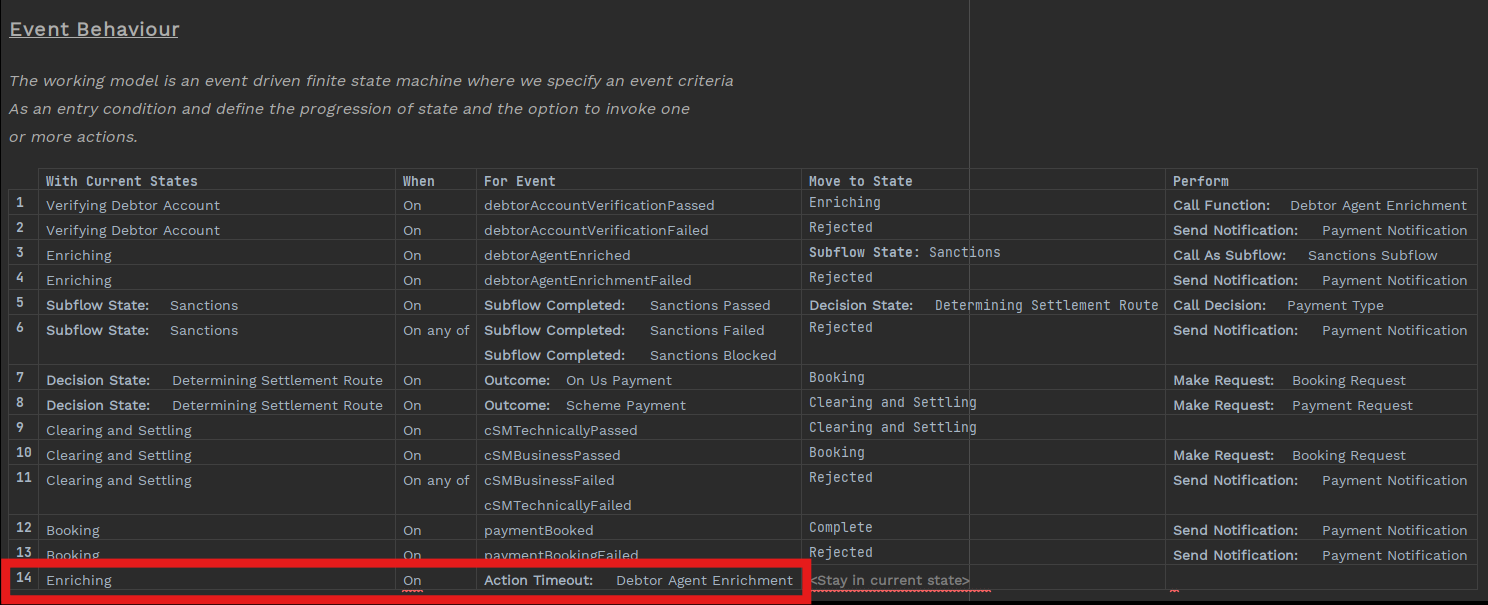
Add the Action Timeout to Event Behaviour
To add an action timeout:
-
Open the flow
-
Find event behaviour
-
Click 'Add Event Behaviour'
-
Select 'Enriching' in the 'With Current States' cell in the new row
-
In the For Event cell select 'Action Timeout' and then select 'Debtor Agent Enrichment' in the 'any action' portion of the cell
Create the new Manual Payment terminal state
You can try the 'Intentions' function to quickly move from Event Behaviour to create the new manual state that you want:
Click the cursor in the Move To State cell Press ALT+Enter and select 'Add Move To State' You will now be taken straight up the state definition section of the flow where you can add the new state.
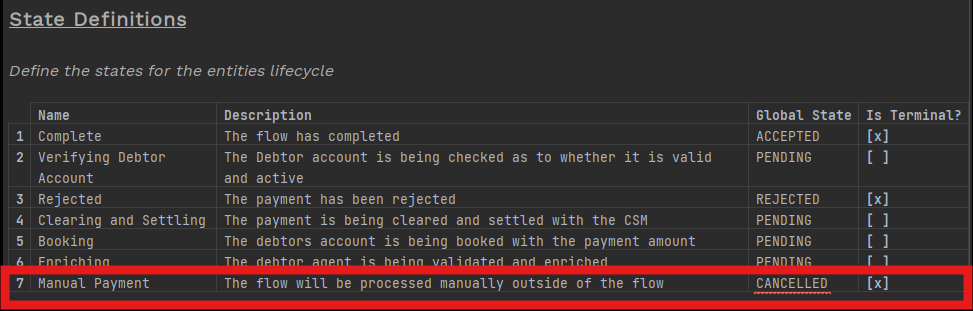
| We have chosen to use the global state of CANCELLED so that is more obvious on the IPF dashboard that a conscious decision has been made by the bank to cancel a payment. |