DSL 6 - Mapping Functions
|
Getting Started
The tutorial step uses the If at any time you want to see the solution to this step, this can be found on the |
What is a Mapping Function?
A mapping function is simply a function that performs a many-to-many translation of business data elements. There are three places within the DSL that it’s possible to use mapping functions. These are described below:
Enriching the aggregate - 'Aggregate Functions'
An aggregate is the live data store for a particular payment, it’s kind of the summary of all the events received to date in one place so that it can be quickly used and passed on where needed. However, what happens if you want to perform an action against that aggregate, say transform some data, track updates or do a calculation? We refer to this type of mapping as an 'Aggregate Function', it’s the capability for us to run a function against the aggregate data when a new event comes in.
An 'aggregate function' therefore is relatively simple to define:
-
An aggregate function occurs on receipt of a given event
-
An aggregate function has access to the events data and any data previously on the aggregate
-
An aggregate function defines which data it provides in return - this could either be an update of previous data or the generation of new data.
| Data generated by an aggregate function is not persisted to the master journal, but will be re-run during node recovery. Therefore, care should be taken when calculating dynamic values such as dates. |
Enriching the event - 'Input Enrichment'
The second use of mapping functions is when we want to enrich an event with the data we receive from the input together with the data currently held on the aggregate. We call this type of mapping an 'input enrichment'.
An 'input enrichment' can similarly be simply defined as:
-
An input enrichment occurs before an event is saved.
-
An input enrichment function has access to the events data and any data previously on the aggregate
-
An input enrichment function defines which data it provides in return - this could either be an update of previous data or the generation of new data.
-
The updated data points are added to the event.
| Data generated by an input enrichment is persisted on the event and is therefore long-lived and will be sent downstream via processing data features. |
Supplying data for an action call
The final use of a mapping function is on an action call. If when calling an action it needs a data point that is not provided elsewhere in the flow then it is possible to create that data using the mapping. We’ll refer to this as an "Action Mapping".
An 'action mapping' can therefore be simply defined as:
-
An action mapping is executed when the domain calls out to an action.
-
An action function has access to all the aggregate data.
-
An action function defines which data it provides in return.
-
The action function generated data does not get retained so it is point in time only.
Mapping Function Types Table
| Type | Called when… | Data Available | Side Effect | Persisted | Use case |
|---|---|---|---|---|---|
Aggregate Function |
Event received |
event, aggregate |
New data or update existing |
No |
perform calculations on transient count data |
Input Enrichment |
Before saving event |
event, aggregate |
New data or update existing |
Yes |
perform calculations that need to be persisted to the journal |
Action Mapping |
Action called |
aggregate |
none |
No |
data generation where that data is not relevant elsewhere in the flow |
Using a mapping function.
We’re going to use an aggregate function as a method of being more precise in what we send to our accounting system when we made our Validate Account request in. In that case we sent the entire pacs008 to the accounting system call, now we want to just send the part of the pacs008 that has the account information in. So let’s use an aggregate function as a way of splitting up the pacs.008 and just making the relevant information available.
DSL Set Up
Setting up a new Business Data Point
Up until now we haven’t really considered business data, only using the supplied customer credit transfer. Now that we want to use a different type of data we will need to define that to make it available to our flow. This is where business data comes in.
Let’s start by creating a new business data library by right-clicking on our ipftutorialmodel and selecting (New > v2Flo > Business Data Library).
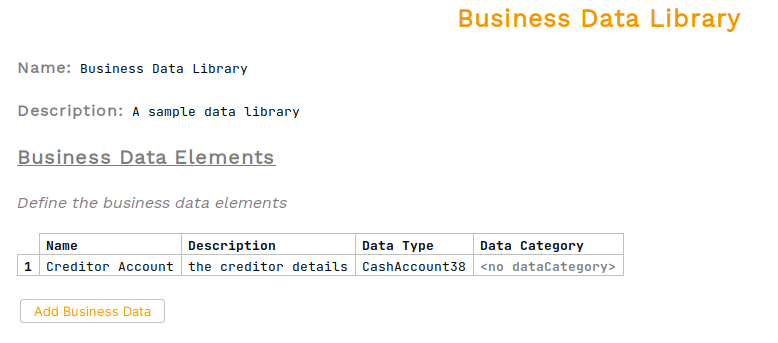
You’ll be presented with the business data library screen where we’ll set:
-
A description of "A sample data library"
-
A business data element (clicking "Add Business Data") containing:
-
A name of "Creditor Account"
-
A description of "the creditor details"
-
For the data type we’ll select "CashAccount38" (note - there are types for each ISO message type, you will need the pacs008 version)
-
Once done we should see:
|
Top Tip
Any java object can be used as a business data type. These java types can be imported into the project (we’ll cover this in Using custom business data. If the type is in scope but not showing in the type ahead, trying pressing Ctrl+R as this will search across objects not currently imported that the model can see too! |
Updating the Request
Now that we have our data type, the first job is simply to swap out the "Business Data" on the call to the "Account Validation Request" so that instead of taking the "Customer Credit Transfer" as input business data we now take the "Creditor Account". Once done the new request definition should look like:

That’s all the supporting setup complete, now it’s time to actually create our aggregate function. If we remember, the function was due to extract the creditor details from the customer credit transfer. In our case, the customer credit transfer details come in on the "Flow Initiation" event, so let’s use that to set up our aggregate function.
Creating a Mapping Function to Update Our Aggregate Data
So we start by clicking the "Add Function" button on our flow and then entering the following parameters:
-
A name of "Extract Creditor Account"
-
A description for "Extracts the creditor account from the pacs008"
-
the Input data as "Customer Credit Transfer"
-
the output data as "Creditor Account"
So here’s we are simply providing a simple function that can extract the creditor details from the customer credit transfer so that it can be used later in the flow. Our new function should look like:

Next we need to define where we want our function to run. In our case, we want this to run on start up of the flow when we receive the initial customer credit transfer. To do this we simply update the initiation behaviour with the aggregate function we have defined:

That’s all our flow work done, the flow will now extract the creditor account details from the pacs008 and use that to send on to the accounting system.
Now let’s look at the implementation side of this requirement.
Java Implementation
Let’s now switch back to Intellij and look at how we plug this into our implementation code. As normal, we’ll start by running a build from a terminal window:
mvn clean installOnce built, we can again look at the generated code in /domain-root/domain/target, and we should now find the port for calling out to our function like this (/domain-root/domain/target/classes/com/iconsolutions/ipf/tutorial/ipftutorialmodel/mapping):
public interface IpftutorialflowMappingPort {

  ExtractCreditorAccountForFlowIpftutorialflowMappingOutput performExtractCreditorAccount(ExtractCreditorAccountForFlowIpftutorialflowMappingParameters parameters);

}
Here we can see the definition of our function port, it’s pretty straight forward. So we now need an adapter implementation for it. We do this as normal by adding it to the domain declaration in the IPF Tutorial configuration. Try and do that now and an implementation is below:
@Bean
public IpftutorialmodelDomain init(ActorSystem actorSystem) {
       // All adapters should be added to the domain model
        return new IpftutorialmodelDomain.Builder(actorSystem)
                .withTutorialDomainFunctionLibraryAdapter(input -> CompletableFuture.completedStage(new DuplicateCheckResponseInput.Builder(input.getId(), AcceptOrRejectCodes.Accepted).build()))
                .withAccountingSystemActionAdapter(new SampleAccountingSystemActionAdapter())
                .withFraudSystemActionAdapter(new SampleFraudSystemActionAdapter())
                .withDecisionLibraryAdapter(input ->
                        input.getCustomerCreditTransfer().getCdtTrfTxInf().get(0).getIntrBkSttlmAmt().getValue().compareTo(BigDecimal.TEN)>0 ?
                                RunFraudCheckDecisionOutcomes.FRAUDREQUIRED : RunFraudCheckDecisionOutcomes.SKIPFRAUD)
                .withIpftutorialflowMappingAdapter(input -> new ExtractCreditorAccountForFlowIpftutorialflowMappingOutput(input.getCustomerCreditTransfer().getCdtTrfTxInf().get(0).getCdtrAcct()))
                .build();
}
Checking our Solution
Here we can see that we have added our aggregate function to our configuration and everything is now complete and ready to test, so as normal let’s now check out solution works. Start up the application as previously (instructions are available in Reviewing the initial application if you need a refresher!)
Then we can send in a payment:
curl -X POST localhost:8080/submit -H 'Content-Type: application/json' -d '{"value": "5"}' | jqNote - the choice of payment value is fairly arbitrary here as we’re only interested in seeing the change to accounting data. To check our change is working, we’ll need to look at the aggregate itself. So this time we’ll query for the whole aggregate:
Let’s bring up the payment in the Developer GUI and bring up the aggregate view (search by unit of work id → click "view" → "click to view aggregate data") and then towards the end of the aggregate details we should see the new creditor account details:
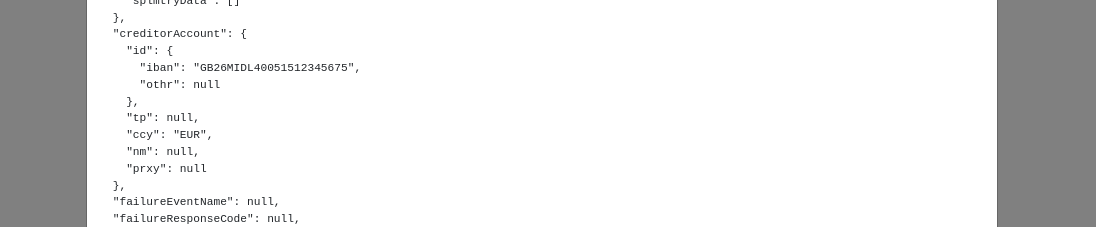
So there we have it, we have successfully extracted out the creditor details from our aggregate and can now use it elsewhere in the flow!
Alternatives
As mentioned above, there are multiple ways of using mapping functions. We can try this here to provide different ways of sourcing the data needed for the accounting call.
Mapping at call time
The first approach is to set the mapping function at the point the function is called. To do this we right-click on the account validation call:

and select "Inspector" from the drop-down (or press Ctrl+Alt+I) and this brings up the options for the call. Here we could then just apply our mapping function:
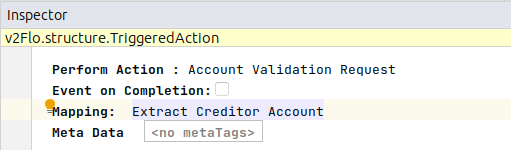
We wouldn’t then need our mapping function in the initiation behaviour but from an implementation viewpoint nothing would change.
The only major difference here is that if you looked at the aggregate (for example by loading the transaction in the developer app and clicking the view aggregate button) then the data would not be shown here.
Mapping as an initiation enrichment
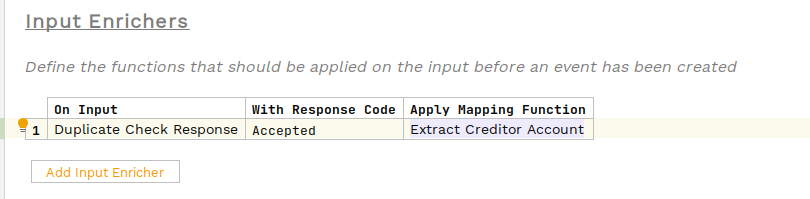
The next option is to change it from an aggregate function to an input enrichment. We could do this simply by moving the function on the input behaviour to an input enrichment.

Again here no changes would be needed to the implementation. We could see the difference here by looking at the 'FLow Initiated' domain event on the developer app, now the creditor account would be persisted as a data element here.
Mapping as an aggregate function on other steps
We can also run aggregate functions on steps other than enrichment. To do we add an aggregate function here:

When we click on the 'Add Aggregate Function' button we can supply the event and mapping function we want to apply post that event being received. This will work just the same as the initiation one except for the event it is invoked after. Again, no implementation changes are required but remember this data will not be persisted either and will be recreated on flow revival.
Conclusions
In this section we’ve:
-
learnt how to use aggregate functions to convert data types.
Now having configured our application to use an aggregate function, let’s look another capability in: DSL 7 - Handling Timeouts