How to Adjust a Payment
When scheduling payments, you will likely have the requirement to be able to adjust the payments.
Example use cases are:
-
change the amount in a transaction
-
cancel a transaction
-
cancel a batch of transactions (called an 'Instruction' in this guide)
|
Cancelling is the only adjustment feature currently available. Further adjustment capabilities are not yet available. |
|
This guide assumes handling payment adjustments is part of your Scheduled Payments application. Your Scheduled Payments solution may be different (e.g. spread over multiple applications). Please bear this in mind when reading this guide. |
1. Getting Started
In your initiating application, you need to wire-in connectors to send adjustment requests to the Scheduled Payments application. You can refer to the Payment-Adjustment Setting up the Sending Application documentation to bring in the dependency for your choice of transport.
In your Scheduled Payments application, you need to wire-in connectors to receive adjustment requests from your initiating application. You can refer to the Payment-Adjustment Setting up the Receiving Application documentation to bring in the dependency for your choice of transport.
The final step is creating an adaptor in your Scheduled Payments application for the PaymentAdjustmentPort interface.
This is where your implementation will go.
For now, you can create a placeholder implementation of the PaymentAdjustmentPort, and at the end of this guide you can initiate your flows inside the port implementation.
2. Build Cancellation Flows
To handle cancelling Instruction’s and Transaction’s you can create a flow for each in MPS (one for Instruction cancellation and one for Transaction cancellation).
Cancel Transaction Flow
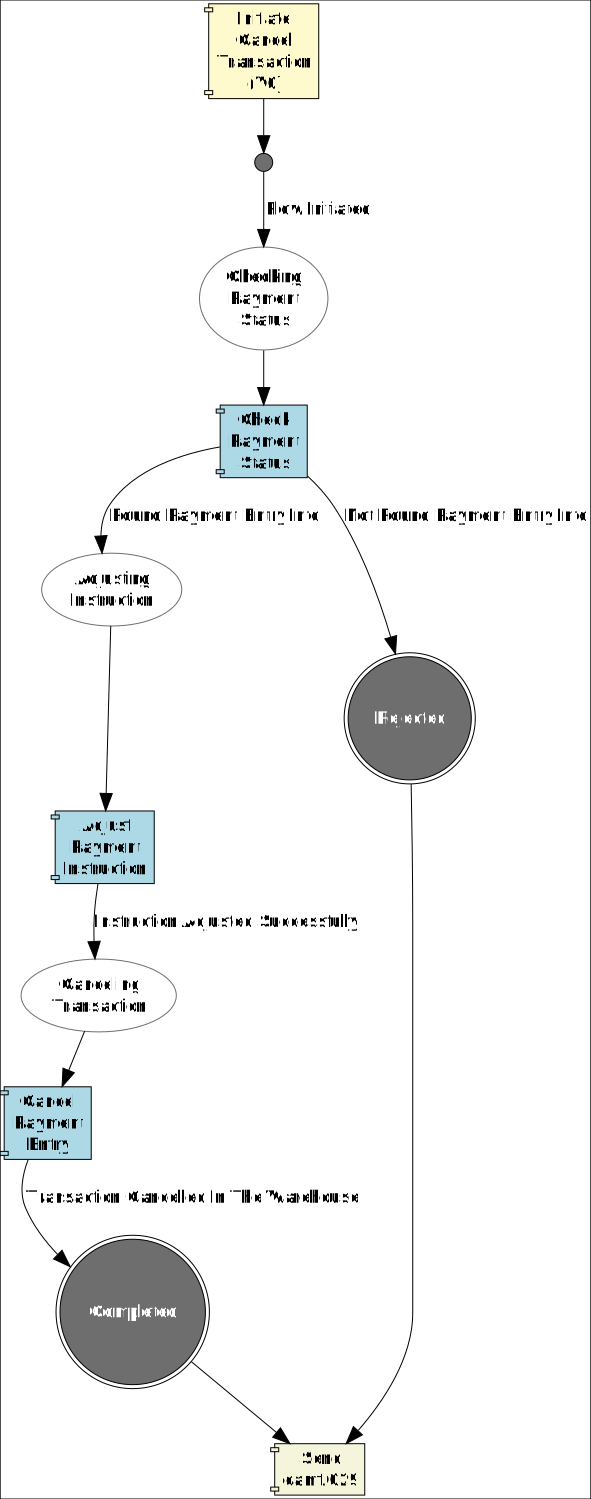
The happy-path states of the Cancel Transaction flow should be as follows:
-
Checking Payment Status in the Payment Warehouse: make sure the Transaction exists and is in a pending-release state
-
Adjusting the Instruction in the Payment Warehouse: update fields on the containing Instruction (e.g. the number of transactions, the total amount). This should also include a 'Check Payment Status in Warehouse' to ensure the Instruction exists and is in a pending-release state.
-
Cancelling the Transaction in the Payment Warehouse: mark the globalState field of the Transaction in the Warehouse as "CANCELLED"
You’ll notice there are no updates given to the Scheduler. This is because our Scheduled Payments solution schedules Instructions, not individual Transactions. The Instruction release will still be released, along with the remaining Transactions.
The final global state of the flow should be 'CANCELLED' and marked as a 'Terminal' state.
A sample flow is shown below:
Cancel Instruction Flow
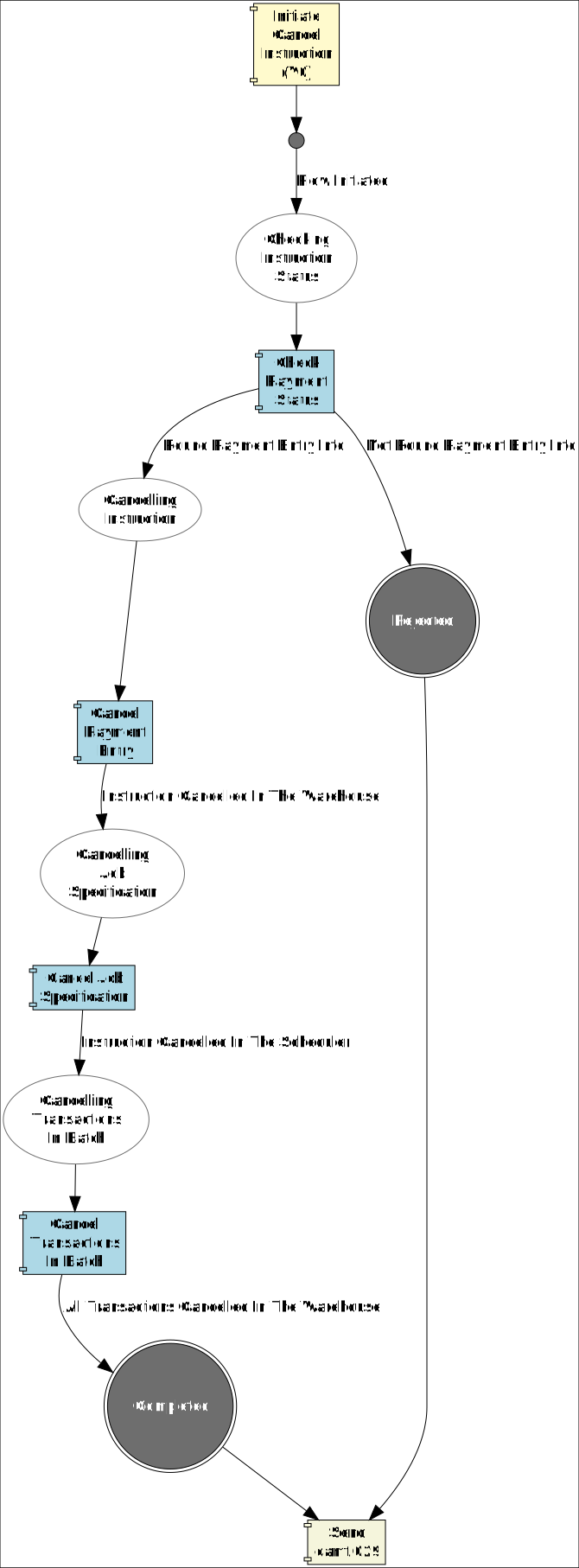
The happy-path states of the Cancel Instruction flow should be as follows:
-
Checking Payment Status in the Payment Warehouse: make sure the Instruction exists and is in a pending-release state
-
Cancelling the Instruction in the Payment Warehouse: mark the globalState field of the Instruction in the Warehouse as "CANCELLED"
-
Cancelling the Instruction in the Payment Scheduler: call the cancel operation on the Scheduler interface
-
Cancelling the contained Transactions in the Payment Warehouse: mark the globalState field of each as Transaction in the Warehouse as "CANCELLED"
The final global state of the flow should be 'CANCELLED' and marked as a 'Terminal' state.
A sample flow is shown below:
Send Camt029 Response
Once a cancellation flow is complete, you can send a camt.029 message back to the initiating application. This can be done by using Spring Beans provided in the server connectors you previously imported. There are 2 Spring Beans we’ll use:
-
PaymentAdjustmentResponseMapper: converts the original cancellation request and an optional failure code into a camt.029
-
PaymentAdjustmentResponseSender: sends the camt.029 over your chosen transport
Below is an example of how you might do this in a Cancellation flow adaptor.
import com.iconsolutions.ipf.core.shared.api.Payload;
import com.iconsolutions.ipf.payments.adjustment.server.common.PaymentAdjustmentResponseMapper;
import com.iconsolutions.ipf.payments.adjustment.server.common.PaymentAdjustmentResponseSender;
import com.iconsolutions.ipf.payments.api.model.PaymentCancellationRequest;
import com.iconsolutions.iso20022.message.definitions.cash_management.camt055.CustomerPaymentCancellationRequestV08;
import lombok.RequiredArgsConstructor;
import paymentadjustment.actions.SendCamt029Action;
import paymentadjustment.adapters.CancellationFlowExternalDomainActionPort;

import java.util.concurrent.CompletionStage;

@RequiredArgsConstructor
public class CancellationFlowExternalDomainActionAdapter implements CancellationFlowExternalDomainActionPort {

    private final PaymentAdjustmentResponseSender sender;
    private final PaymentAdjustmentResponseMapper mapper;

    @Override
    public CompletionStage<Void> execute(SendCamt029Action action) {
        var payload = new Payload<CustomerPaymentCancellationRequestV08>();
        payload.setContent(action.getCustomerPaymentCancellationRequest());
        var paymentCancellationRequest = PaymentCancellationRequest.builder()
                .payload(payload)
                .build();

        return sender.initiateResponse(
                paymentCancellationRequest,
                mapper.convertValidMessage(paymentCancellationRequest, action.getFailureReasonCode()));
    }

}
3. Building Validation Flows
Now you’ve got the main Cancellation flows in place, you can expand your solution to include validation(s). You can either extend the existing flows or create new validation flows.
It is recommended to have validation in a separate flow to protect from duplicate flows affecting the same Payment. An example of this could be a person triggering 'cancel transaction' via the Operational Dashboard, and they click the 'cancel' button twice in quick succession. Another example is when a request to the Payment Warehouse fails, and so the flow retries; however, both have ended up updating the PaymentEntry in the warehouse.
The main reason for this recommendation is due to the persistenceID of each flow guarding against processing multiple times. You can use this concept to set the PersistenceID of each flow like so:
-
Validation flow: uses the unitOfWorkID and requestID as the persistenceID
-
Cancellation flow: uses just the unitOfWorkID as the persistenceID.
This approach means the Validation flow can be carried out multiple times by different requests for a single unitOfWorkID, but the Cancellation flow is only carried out once for a single UnitOfWorkID.
To ensure the persistenceID is not the same across both the Validation and Cancellation flows, you cannot use 'flow-to-flow' as the persistenceID will carry between the flows. To get started, you could call the Cancel Flow via an adaptor at the end of the Validation flow to achieve the requirement. We recommend you consider your implementation and preferences when approaching the topic of guarding against duplicate processing of a Payment cancellation.
| If you are separating your Validation flow from your Cancellation flow, you’ll have to remember to send back a camt029 response if the Validation flow was unsuccessful. |
Validate Cancel Transaction/Instruction Flow
There are various validations you can do to ensure your Payment is ready to be cancelled. Below are some suggested validation checks.
| These are merely suggestions, the checks you perform will depend on your implementation and requirements. |
-
Check the Payment Status in the Warehouse
-
An initial check that the Payment exists in the Warehouse and is in a pending-release state.
-
-
Is it too late to cancel?
-
For example, your requirements may be that you cannot cancel a payment within 5 hours of its scheduled release.
-
You can find the scheduled release time of the Transaction by using the Find operation on the Scheduler
-
You can configure the
CancellationTimeValidatorto determine if a cancellation request is too late as per the Cancellation Time Validator documentation.
-
-
(Only applies when validating a Transaction) Check if the Transaction is part of a Batch
-
This can be confirmed if the Warehouse contains an entry for the Instruction UnitOfWorkID
-
If the Transaction is not part of a Batch, or if you expect it to be part of a Batch but you cannot find it in the Warehouse, you may want to process differently
-
Considerations
Below is a list of considerations that you may or may not have thought of during implementation. These are listed to prompt you to consider them if you have not already.
-
Preventing duplicate processing
-
Covered in 3. Building Validation Flows
-
-
Adjusting the amount in an Instruction when cancelling a Transaction
-
Covered in Cancel Transaction Flow
-
-
Cancelling an Instruction if all Transactions are cancelled
-
Covered below in Cancelling an Instruction when all transactions are cancelled
-
-
Sequences in the Warehouse
-
Covered below in Consider Sequence ID when Cancelling
-
Consider Sequence ID when Cancelling
The sequence ID of a Unit Of Work in the Warehouse is not necessarily the same as the sequence ID for the same Unit Of Work in ODS. Further operations can happen to a Unit of Work that is not recorded in the Warehouse, thus making the Warehouse and ODS out of synchronisation.
Given that the cancellation should always be the 'last' thing to happen to a Payment, Icon suggests adding an arbitrarily large number (e.g. 100) to the previous sequence ID. This will ensure that the latest action on the Unit Of Work in both data stores will be the cancellation.
| This is a suggestion to deal with the issue, and your implementation and requirements may require a different solution. |
Cancelling an Instruction when all transactions are cancelled
You may choose to cancel an instruction(batch) altogether when all the transactions present in the instruction are cancelled.
This can be achieved by the following steps:
-
When cancelling a transaction, query the payment warehouse to find all the payment entries with the same relatedUnitOfWorkId.
-
When the latest payment entries for all transactions have been marked cancelled, the instruction can be marked as cancelled.
| After the instruction has been cancelled, it is also worth cancelling the scheduled job to prevent it from getting triggered. |