Operational Search Screen for ODS
| Should you already be familiar with MPS, event sourcing based on our other documentation - please skip to section 4. |
Introduction
This page will give an introduction to the IPF Operational search and detail screens. These are designed to be used by an operator to view the information stored on IPF’s ODS (Operational Data Store) and represents the data and processing view as understood by Icon.
Getting Started
To use the ODS module in your application, you will need to add the following to the app routing module:
{
    path: 'ods',
    loadChildren: () => import('@iconsolutions/ods').then((m) => m.OdsSearchModule),
    data: { roles: ['ROLE_PAYMENT'] }
    canActivate: [roleGuard],
}
Dependencies
Peer Dependencies
AG Grid
AG Grid is a feature rich datagrid designed for the major JavaScript Frameworks.
AG Grid is used widely with good documentation and releases seem to coincide with Angular releases.
-
"@ag-grid-community/angular"
-
"@ag-grid-community/client-side-row-model"
-
"@ag-grid-community/core"
NGRX
NgRx Store provides reactive state management for Angular apps inspired by Redux.
Well maintained, good documentation. A high quality dependency.
-
"@ngrx/effects"
-
"@ngrx/store"
-
"rxjs"
vkBeautify
vkBeautify javascript plugin to pretty-print or minify text in XML, JSON, CSS and SQL formats.
Last maintained 5 years ago. Used inside our prettifyString pipe.
This dependency is not Angular dependant.
-
"vkbeautify"
CodeMirror
CodeMirror is a code editor component for the web.
Well maintained, good documentation. A high quality dependency.
-
"@ctrl/ngx-codemirror"
-
"codemirror"
D3
D3 is a JavaScript library for bespoke data visualization.
Well maintained, good documentation. A high quality dependency.
This dependency is not Angular dependant.
-
"d3"
-
"d3-graphviz"
Diff Match Patch
diff-match-patch is a high-performance library in multiple languages that manipulates plain text.
Well maintained by Google, good documentation. A high quality dependency.
This dependency is not Angular dependant.
-
"diff-match-patch"
1. What is ODS?
IPF’s operational data store (ODS) is Icon’s optional offering for the storing of operational data. It is designed for an operator or processing system to retrieve data related to processing in near real time.
Example use cases: 1 - Payment processing service needing to retrieve previous record data for enrichment purposes (e.g. Recalls) 2 - Operator attempting to diagnose issue raised by client
As a result, ODS focuses on speed of query and retrieving data related to a single record. It is not optimised for bulk reporting and should not be used for mass aggregation.
2. Introduction to Event processing
Most operators using these search screens will be familiar with data being stored in a transaction record(s) that is updated over time. IPF instead uses an Event based model where each state receives an input, produces data and then generate the input for the next state.
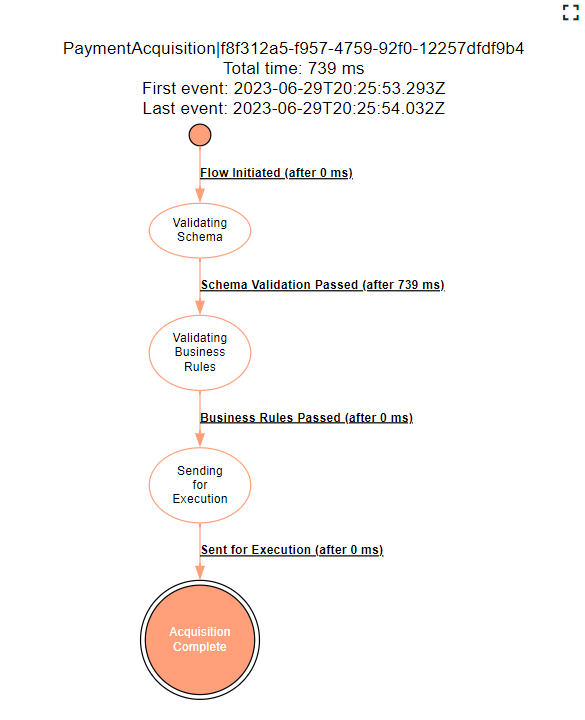
Take the simple flow above, the input would be the pain.001 received from the channel - it will then generate payment objects and messages to bank systems during the validation step. It will then prepare the execution message input for the next state based on the coding logic defined.
We can summarise the generation of data in IPF below.
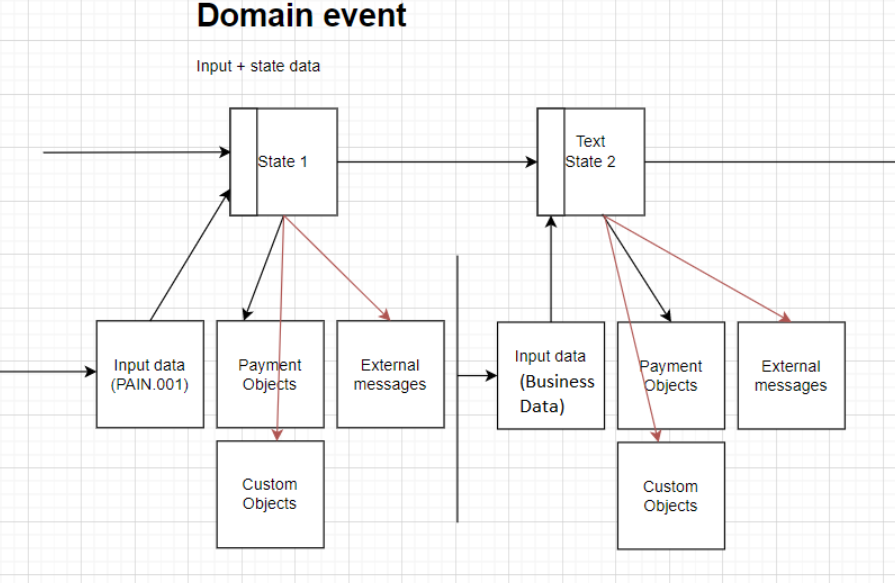
The different message and objects types will be explained in the appropriate screens.
3. What is a Journey Type?
Though IPF can be used to process transactions, it can be leveraged for any number of orchestrating tasks that may not result in a transaction or a payment. With that in mind IPF and ODS will refer to a collection of processing flow as a Journey Type.
The currently available Journey types are as follows:
-
PAYMENT → Pacs.008, Pain.001, Pacs.002, Camt.054 based
-
RECALL → Camt.056, Pacs.004, Camt.029
-
BULK → Pain.001 group header or Pacs.008 group header
-
BATCH → Pain.001 Payment Information
ODS will use these journey types to map relevant data from the received objects to the summary ready for searching. For more information on this mapping, refer to the ODS documentation.
4. ODS Search Screen
Though there are 4 types of search screen, the functionality is largely the same with changes to the searchable fields and returned data. This guide will focus on the payment search screen.
4.1 Payment search
When the ODS search tile is clicked, the user is presented with the empty search screen.
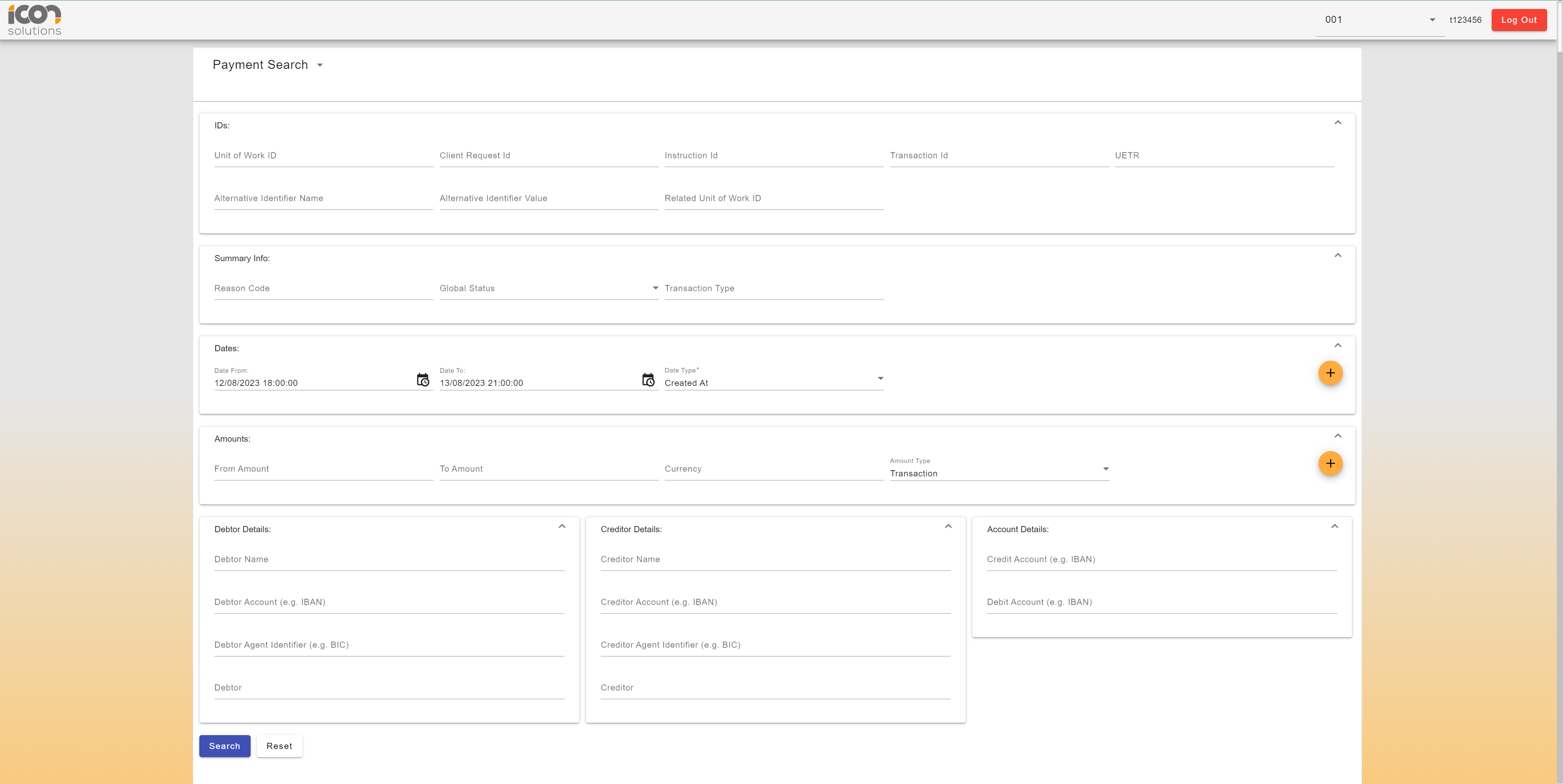
This screen will by default select the payment search and the user can change the search type by clicking the arrow next to Payment Search at the top of the left of the container.
The user can enter the below data to retrieve the single record that is relevant to their case. If multiple records are found, a table will be shown. Otherwise, if a single record is found, it will be automatically selected.
| ODS has a limit of the number of records that can be returned by one query. The default is 1k, a notification will be shown if the user query exceeds that limit. The user will then need to add more parameters to the search table if they wish to narrow the result set. |
4.1.1 Identifiers
This section will enable the operator to search by various identifiers that may be present on the summary record.
| Type | Description |
|---|---|
Unit Of Work ID |
The IPF end to end ID that relates all processing object together. The purpose of the search screen is to identify this id for the target record |
Client Request ID |
An ID provided by the implementation that will be relevant to the operator. This could be the channel ID |
Instruction ID |
Exact match on the pacs.008 pmtId.instrId |
Transaction ID |
Exact match on pacs.008 pmtId.txId |
UETR |
Exact match on the pacs.008 pmtId.uetr |
Alternative Identifiers |
A key value pair of an ID that would be relevant to the user’s processing. For example a PEGA case ID or a booking request ID. These are specific to the implementation. They can be searched just by the value or with the key to help reduce the search.
The |
Related Unit of Work |
The unit of work ID of a related record. This can we useful when searching for records as part of a batch or with an associated recall |
4.1.2 Summary Information
This section will allow for searching on some processing metadata for a payment
| Type | Description |
|---|---|
Reason code |
The last reason code received on an event processed by IPF. This could be a success or more likely a failure code such as DT01 (invalid date). When the user starts typing, a configured list of potential codes with descriptions will be presented. |
Global Status |
The status of the payment across the flows triggerred as part of processing. This list is configured to match the statuses available in the implementation of IPF |
Transaction Type |
The business name for a given transaction type. This can be used to differentiate between different types of payments and is defined by the implementation. E.g. |
4.1.3 Dates
Set of dates searchable on the summary. The default is created date though this can be configured for the user’s deployment. To search via multiple dates, use the + button.

To remove a date press the bin icon.
| Only one of each date type is selectable |
Available date types:
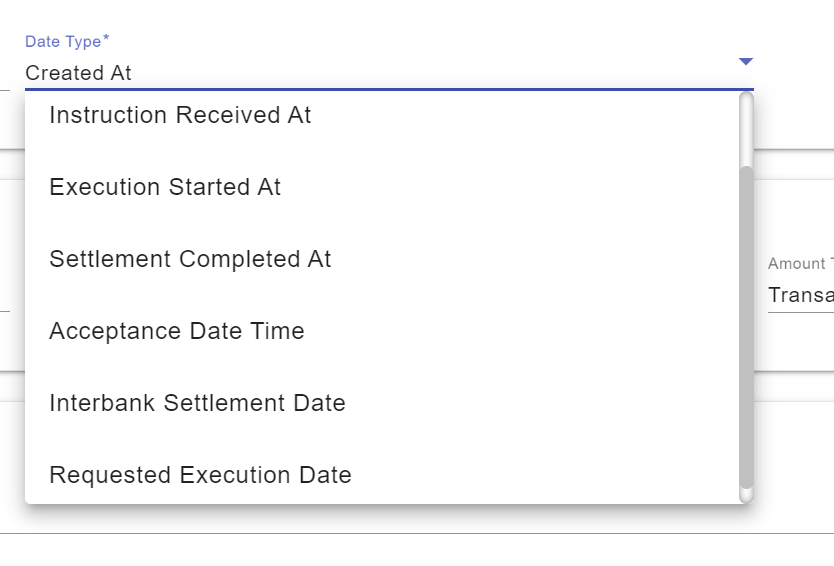
Dates can either be entered using the date picker or by typing the date directly in the search bar. The default is up to one day in the past to limit record load.
4.1.4 Amounts
Set of amounts searchable on the summary. The default is the transaction amount though this can be configured for the user’s deployment. To search via multiple amounts, use the + button.

To remove an amount press the bin icon.
| Only one of each amount type is selectable. |
Available amount types:
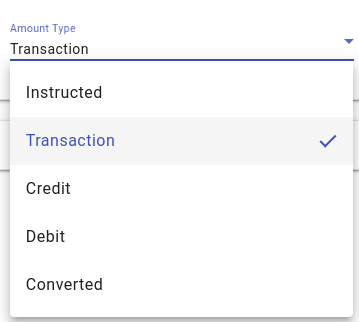
Amounts can be entered in full e.g. 10000 or using shorthand such as 1k which will then be converted.
The currency field will autocomplete as the user starts typing. This autocomplete can be changed by supplying your own payment-search-currency-codes.conf to render the currency codes you desire for this module.
| Type | Description |
|---|---|
Instructed |
Amount of money to be moved between the debtor and creditor, before deduction of charges, expressed in the currency as ordered by the initiating party. |
Transaction |
Amount of money to be moved between the debtor and creditor, after deduction of charges, expressed in the currency as ordered by the initiating party. |
Credit |
Amount of money transferred to the creditor’s account. |
Debit |
Amount of money deducted from the debtor’s account. |
Converted |
Amount of money moved between the debtor and creditor after foreign exchange has taken place. |
4.1.5 Debtor Information
Search on details related to the debtor side of a payment. Mapped either from the pain.001 or pacs.008
4.2 Search Results
Once the user hits the search button, they will be presented with some results
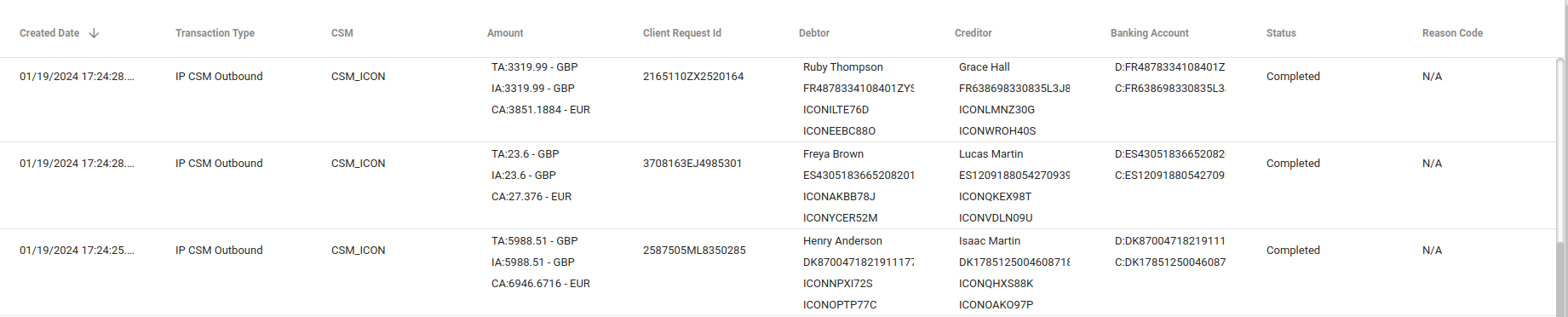
These can be sorted and filtered using the headers
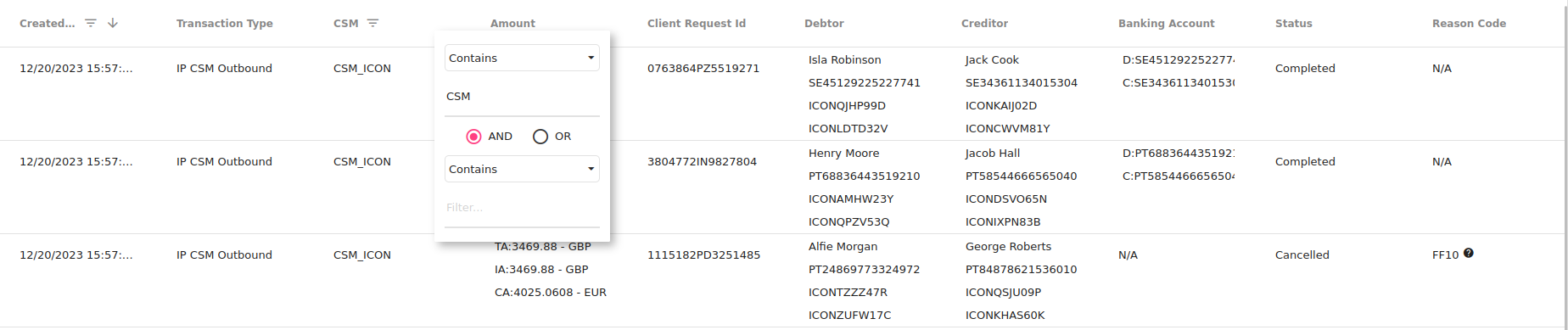
The user can also navigate through the pages using the arrows

The records summary can also be exported using the export button.
| The rows can be resized to help with readability of the content |
5. Summary screen
Once a user has identified a record that they wish to view and clicks on it - they will be presented with the summary screen.
The summary screen is the latest view of a payment, as default it is a direct representation of what is available on the ODS summary object. This can be changed by supplying your own summary-layout.conf to render and layout the various summary pages as you desire.
This contains all the searchable fields for a given journey (Payment, Recall, Batch, Bulk) and is a good start to what an operator may want to see.
The adoption of the ISO20022 Business Data Model makes the latest Processing Data Structures (PDS) and Message Data Structures (MDS) available on the ODS summary object. This allows for fields that are not searchable to also be on the summary screen.
| The purpose of this screen is to answer "What is the current state of my transaction/journey?" |
5.1 Configuration
You can specify the following config to build the summary page:
-
Name of a box and the width it should take on a screen (1-3)
-
Name of the data item translation key
-
Path of the item
-
Fallback option should the path not be resolvable (N/A) by default
-
Whether we should apply some basic styling (bold, colour)
The above allows you to control the location and content of each summary page.
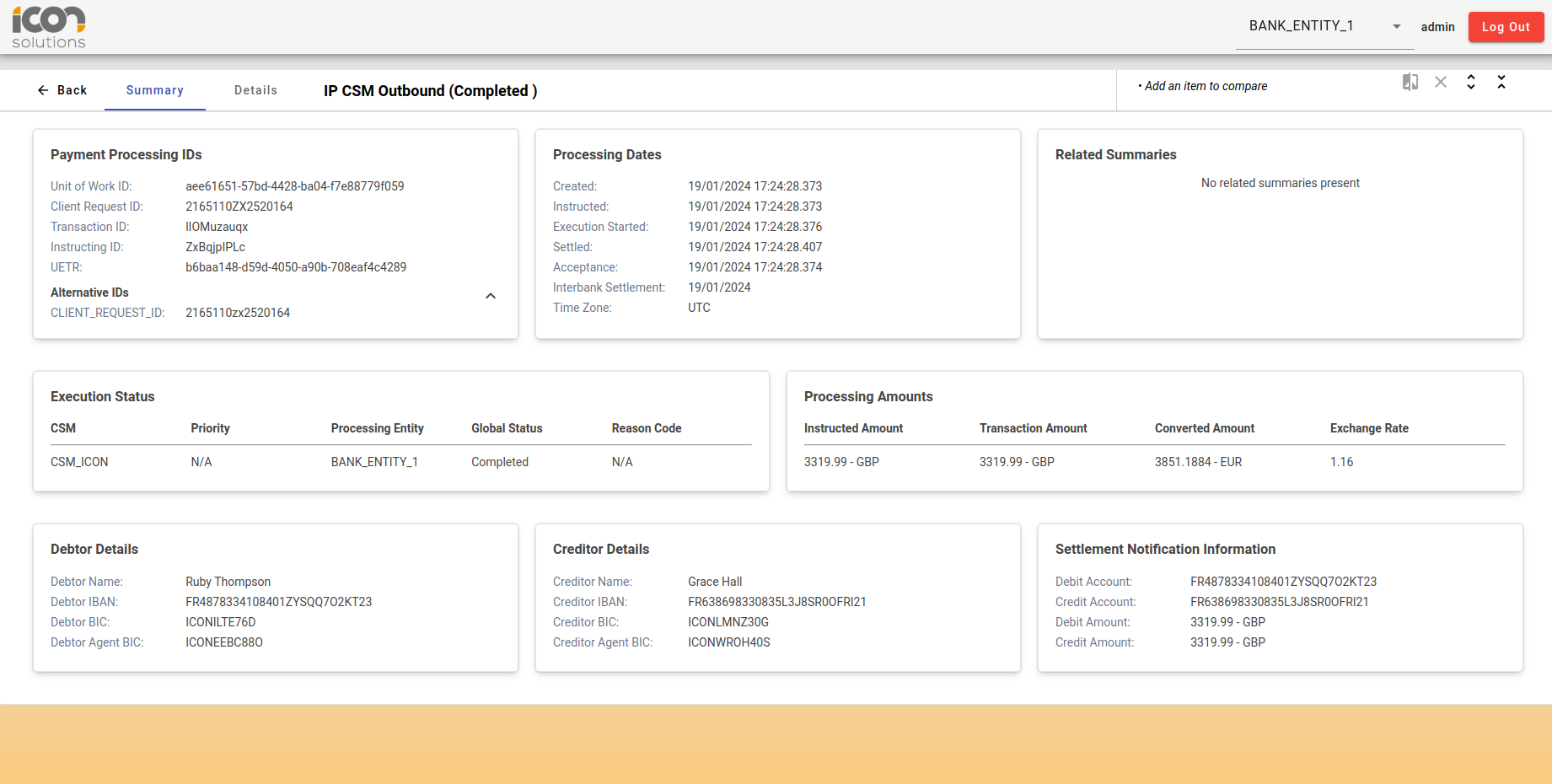
5.2 Completed Payment
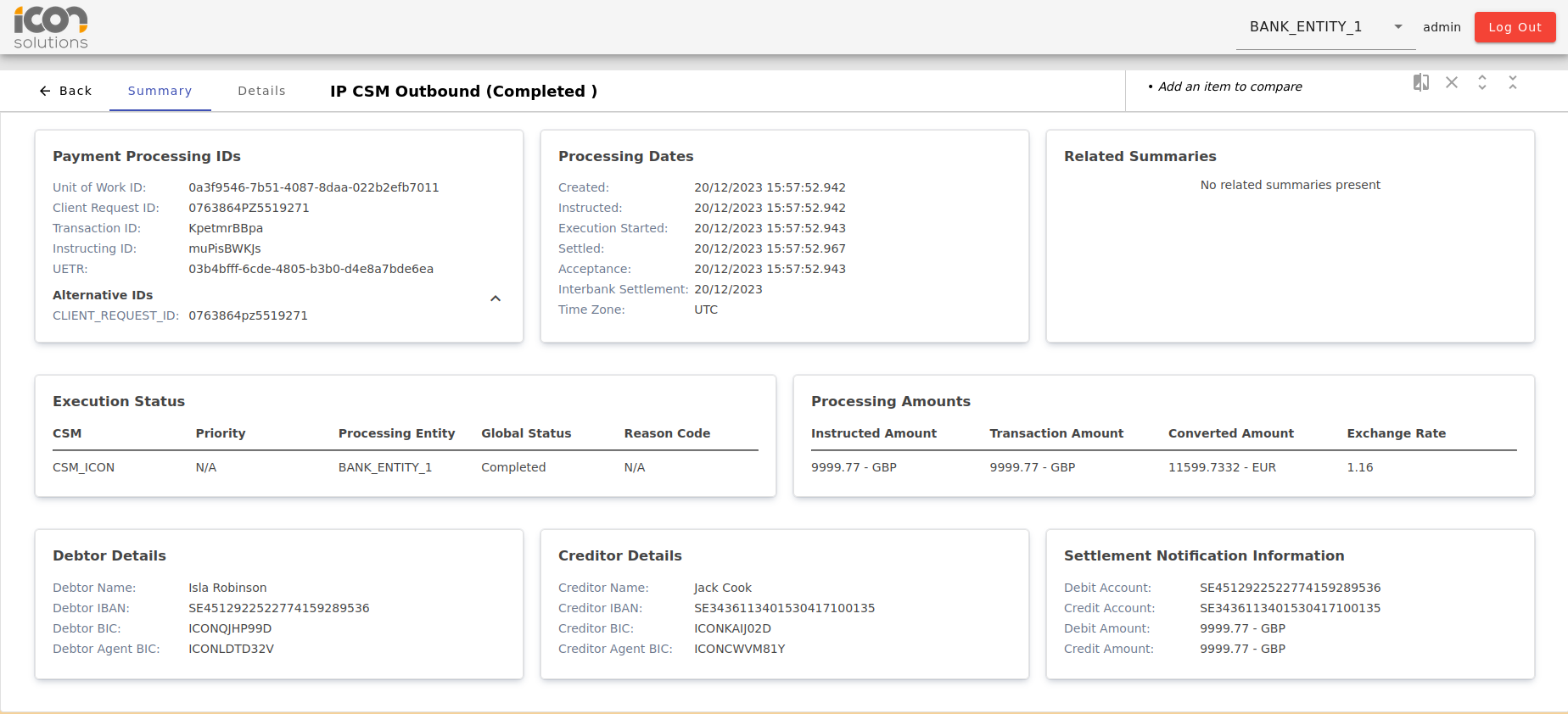
This image shows a summary page for a completed payment. The fields displayed here are currently an exact match for the searchable fields in section 4.1 Payment Search
5.3 Cancel Future Dated Payment
| The ability to cancel a future dated payment is not currently active. It will be available in the near future. |
When a user has the correct permissions then an option to amend a future dated payment will be visible.
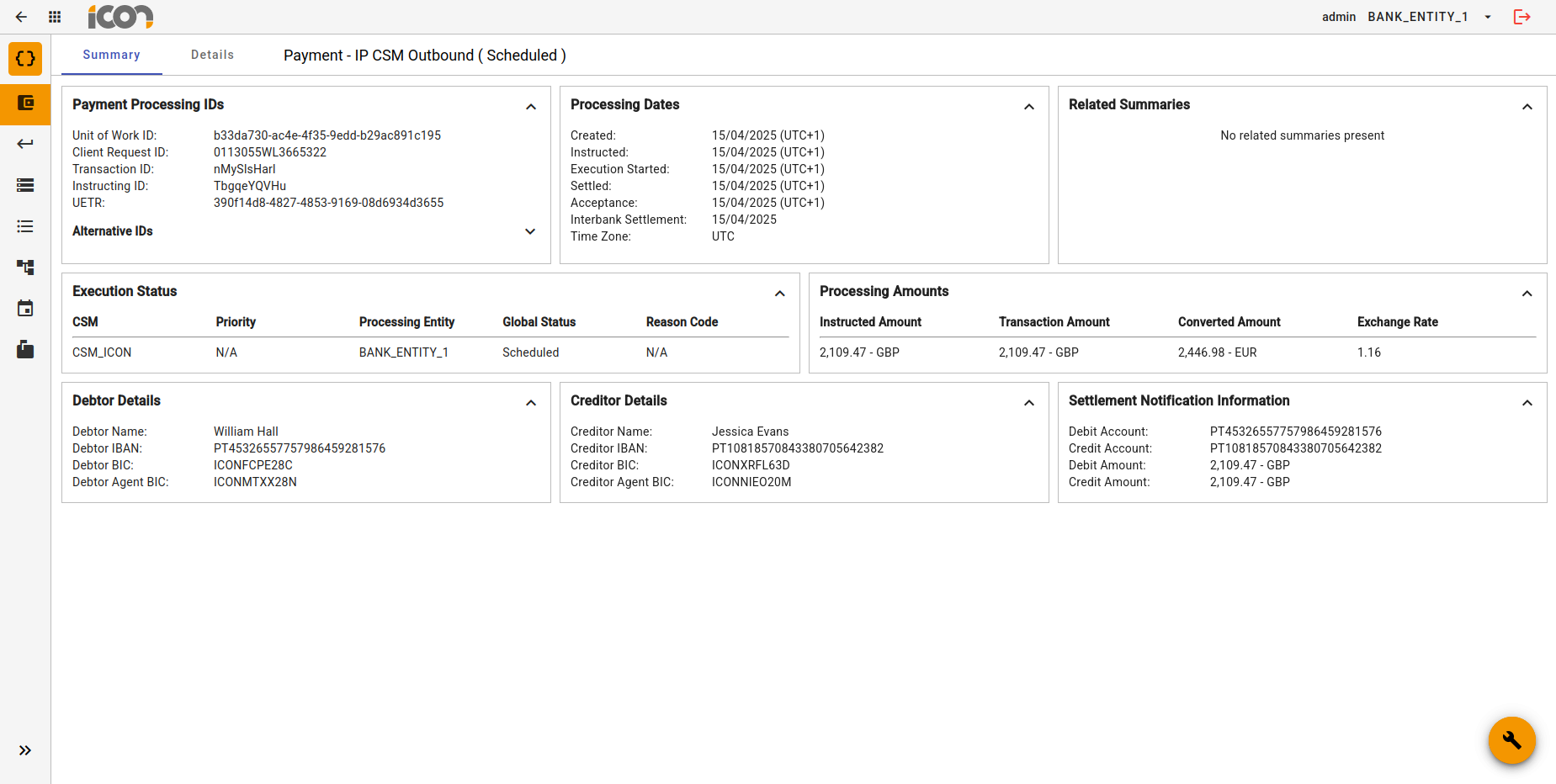
As long as the Journey Type is PAYMENT or BATCH and the payment is in a valid global status for a future dated payment, when a user chooses to amend a payment they can then choose to cancel the payment.

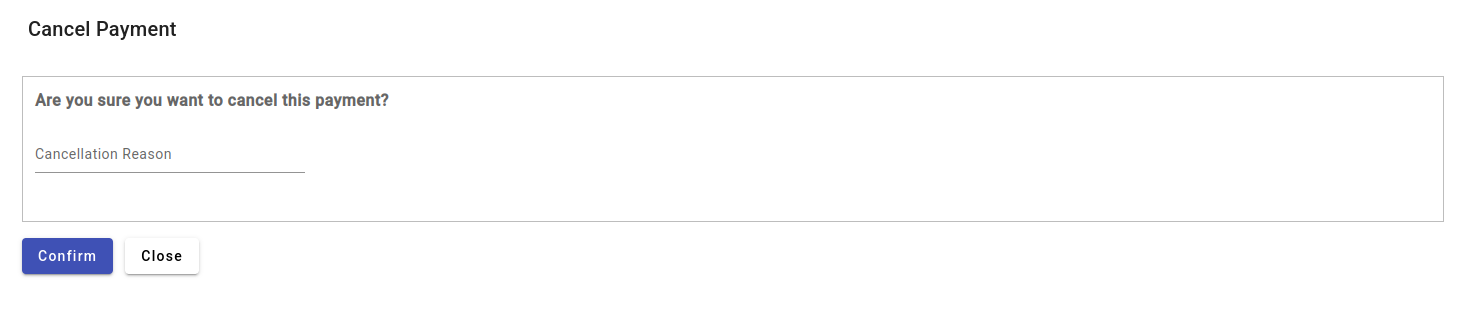
Once selected, the user will have to confirm their choice and have the option to provide a reason for the cancellation.
When a payment is cancelled the summary page will appear as below.
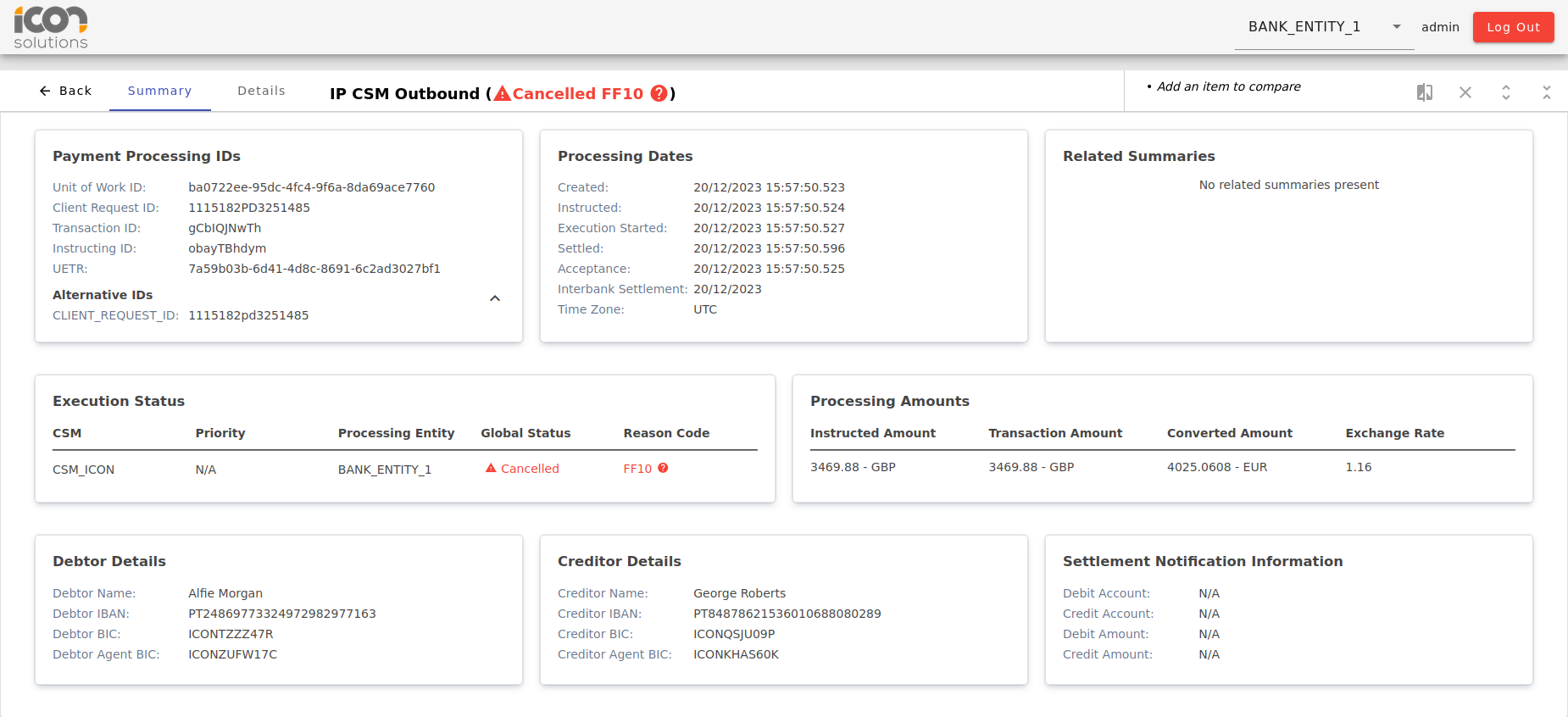
The status and reason code are highlighted in red for better visibility.
In addition, the operator can navigate to a related payment or other journey should it be available by clicking the link the in the Related Summaries box.
6. Details screen
Whereas the summary screen explains the current state, the details screen helps delve into the history of a payment.
The details screen aims to highlight what has been produced as part of the processing journey. It focuses on a flow centric view to align as much as possible with the truth of IPF processing.
The purpose of this screen is to answer "What happened to my transaction/journey and when?".
A user can cancel a future payment from this screen in the same way that they can from the summary screen.
It is important to consider that IPF is event sourced, not CRUD (Create Read Update Delete) based and as such there is no transaction record as explained in section 2. Introduction to Event Processing
6.1 Flow view
Initially, the details screen will present a list of the flows that have been executed during processing in chronological order.
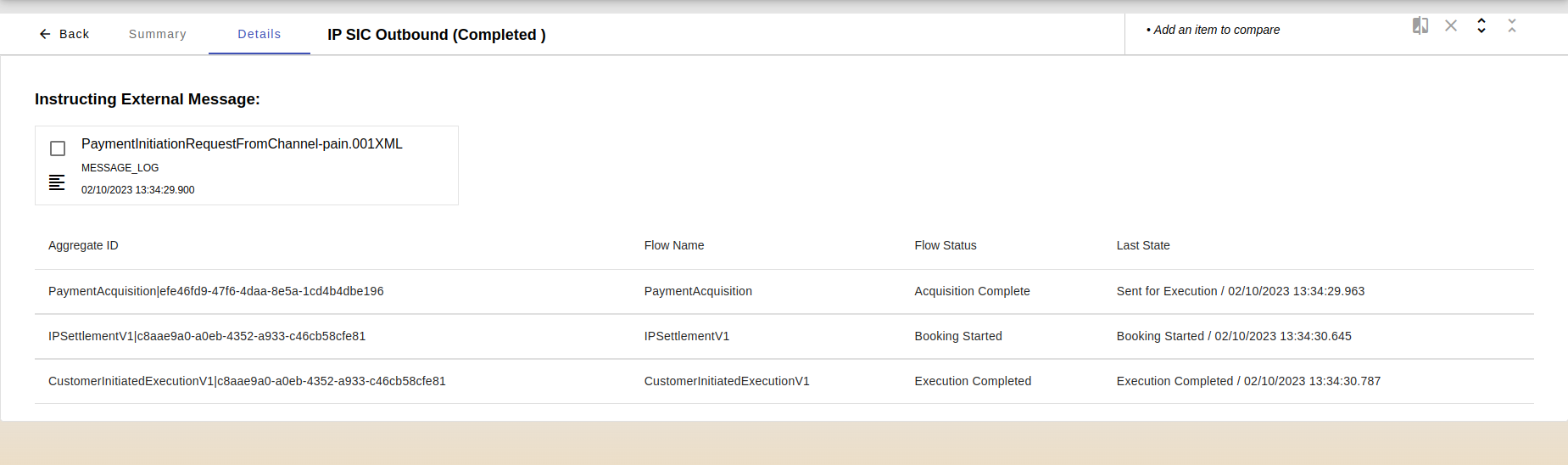
The flow name and flow status should give a good indication of the final state of processing and will show the error state in red in those scenarios. By opening each flow it is easy to follow the journey and find the root cause of the error status.
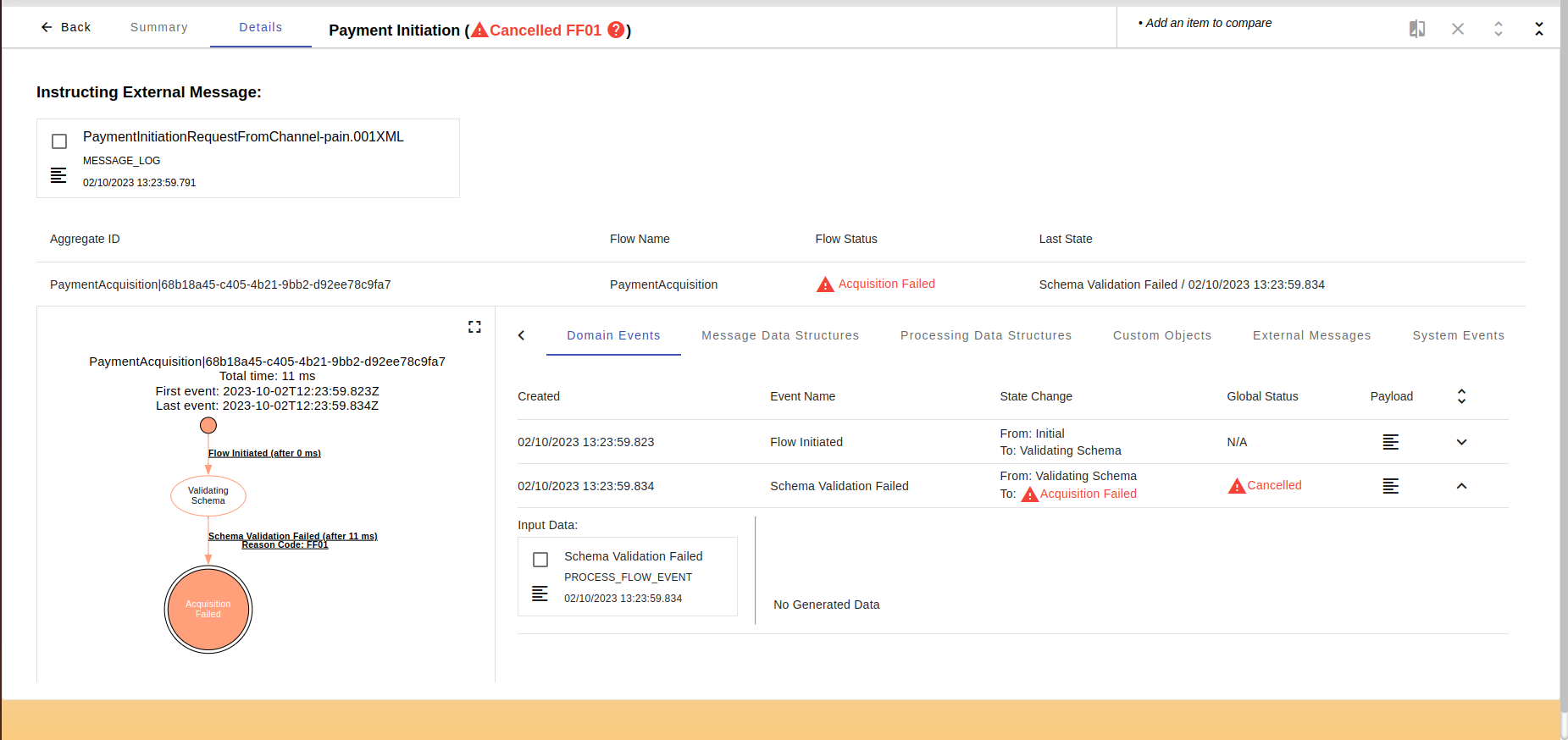
Clicking on a flow will expand it. Clicking on the row again will collapse it.
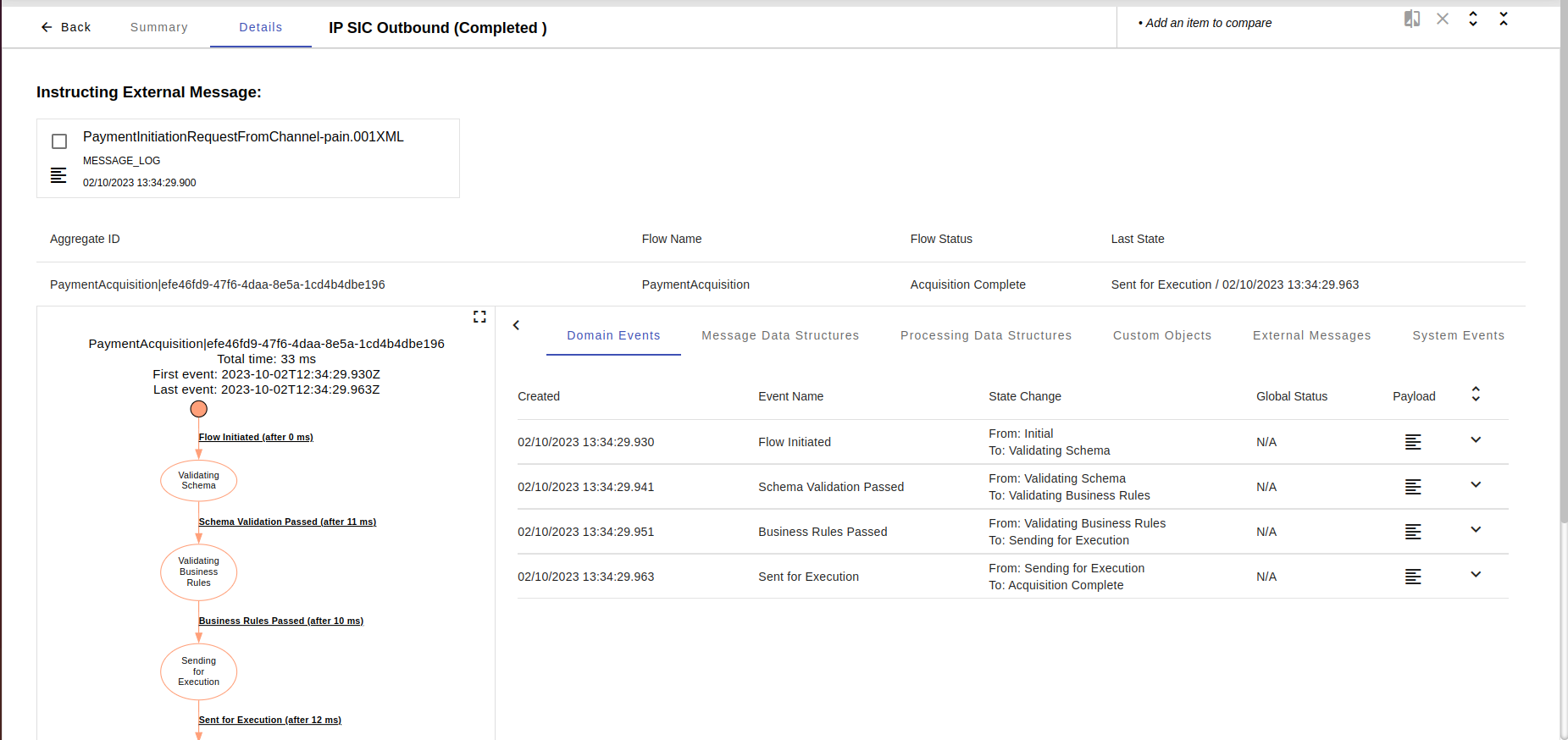
In this view the user will be presented with the graph view of the processing as well as the list of events matching each of the transitions in the graph.
A list of the following tabs will contain the data related to the payment processing.
6.2 Domain events
The rows contain the information relating to the state transitions of the flow
The name, change to the global status and the transition.
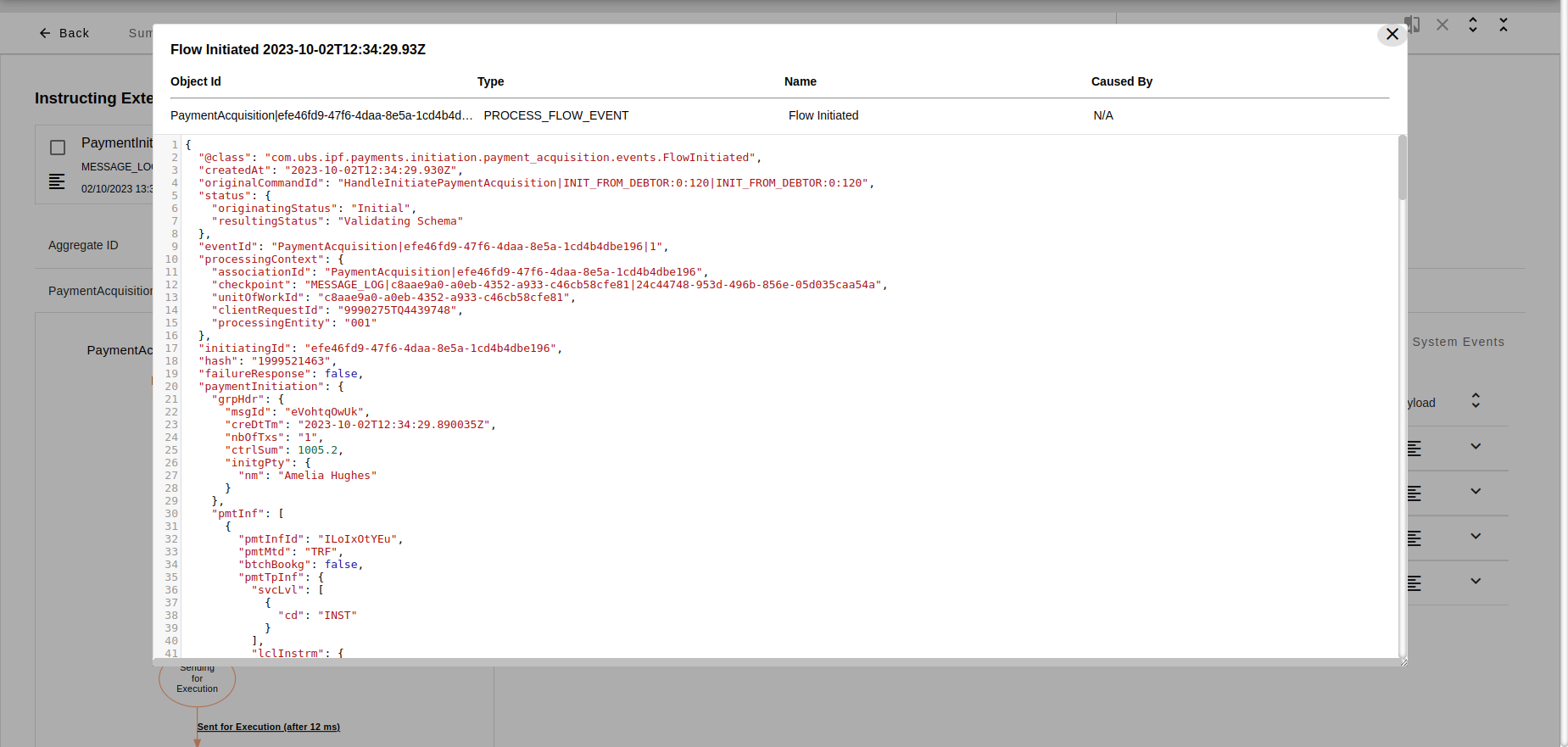
Clicking on the payload button will show the input of the event as explained in section [_2_introduction_to_event_processing]
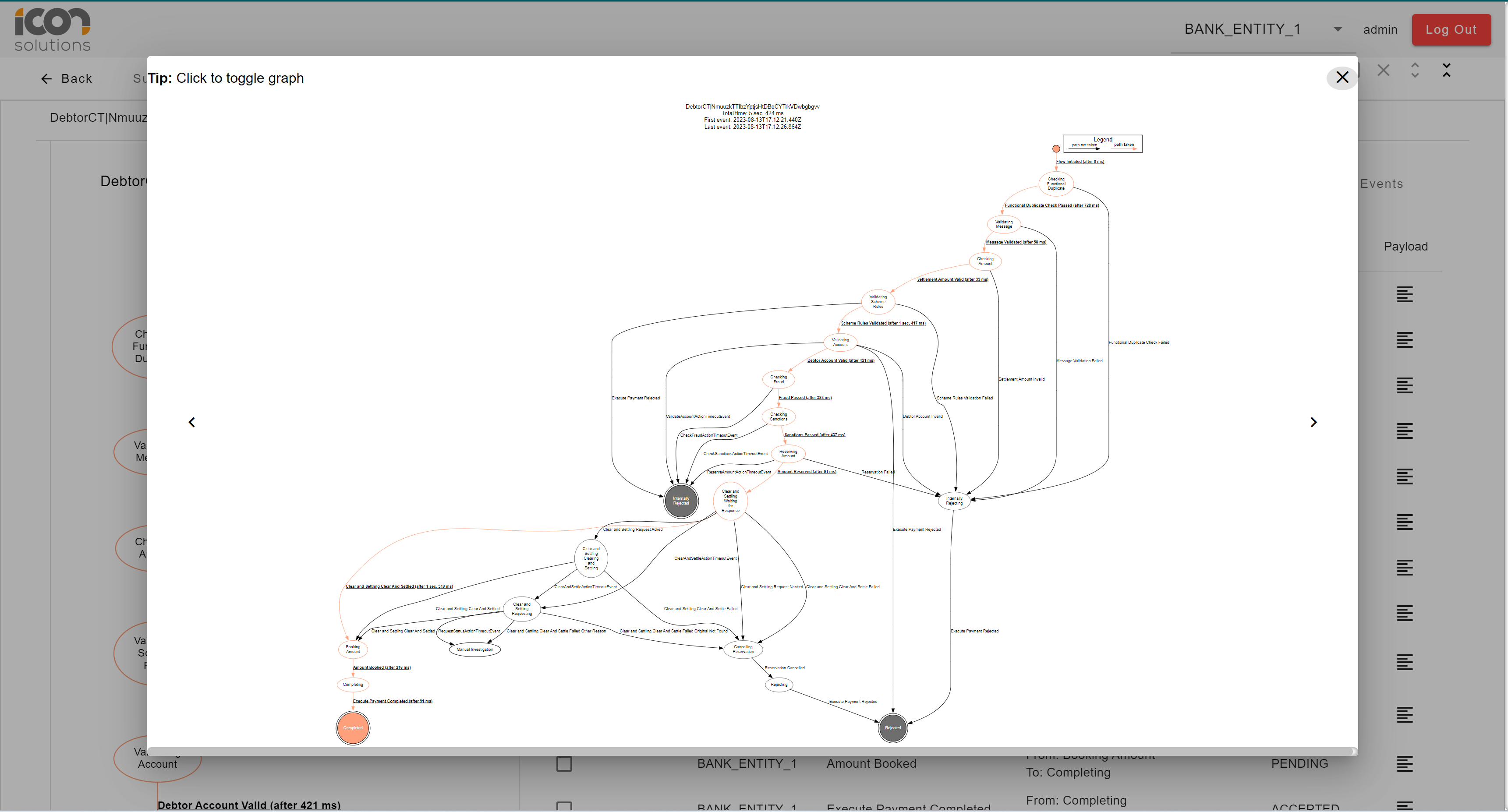
Clicking on the expand button will show all possible paths a payment could have taken for this flow.
6.3 Message Data Structures
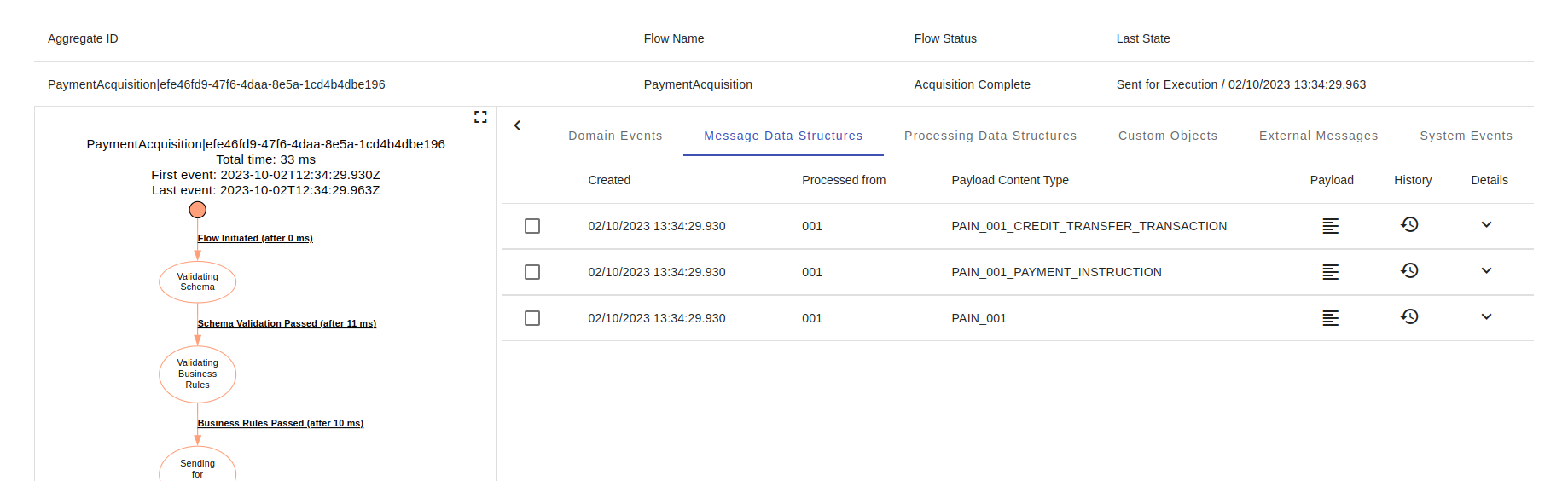
A message data structure (MDS) is based on ISO20022 message definitions and is the canonical record used by IPF during processing. New versions will be created over time with enriched data to eventually be sent to the scheme or converted to another canonical type.
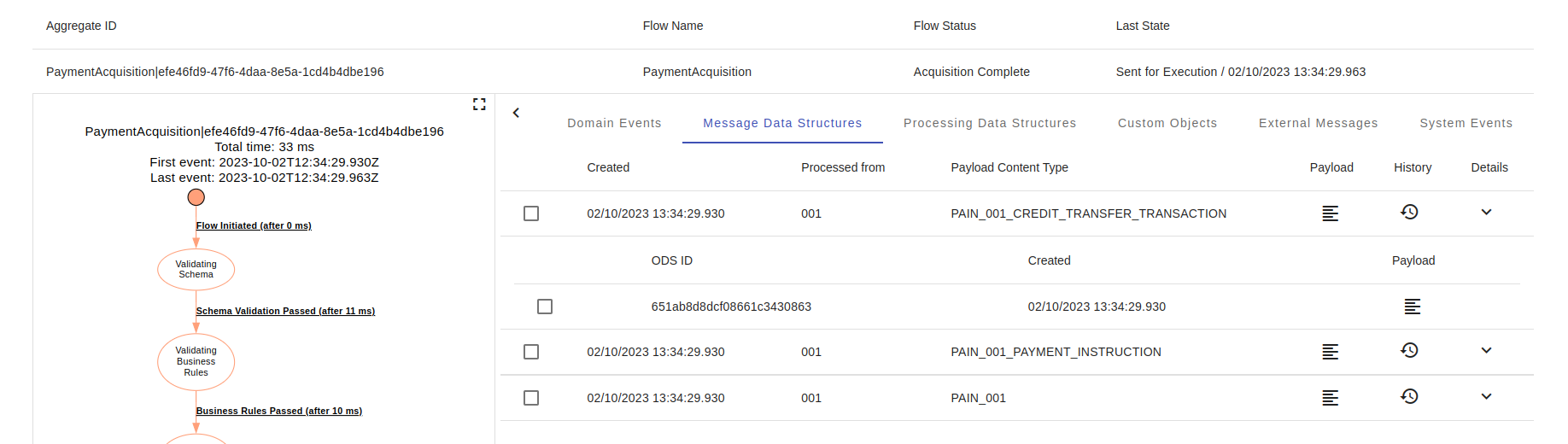
Each MDS has a history that can be viewed by clicking the clock icon.
Each version of that object will now be viewable and can be compared using the Comparison Tool
| The IPF canonical Payment Objects are based on the ISO message types |
6.4 Processing Data Structures
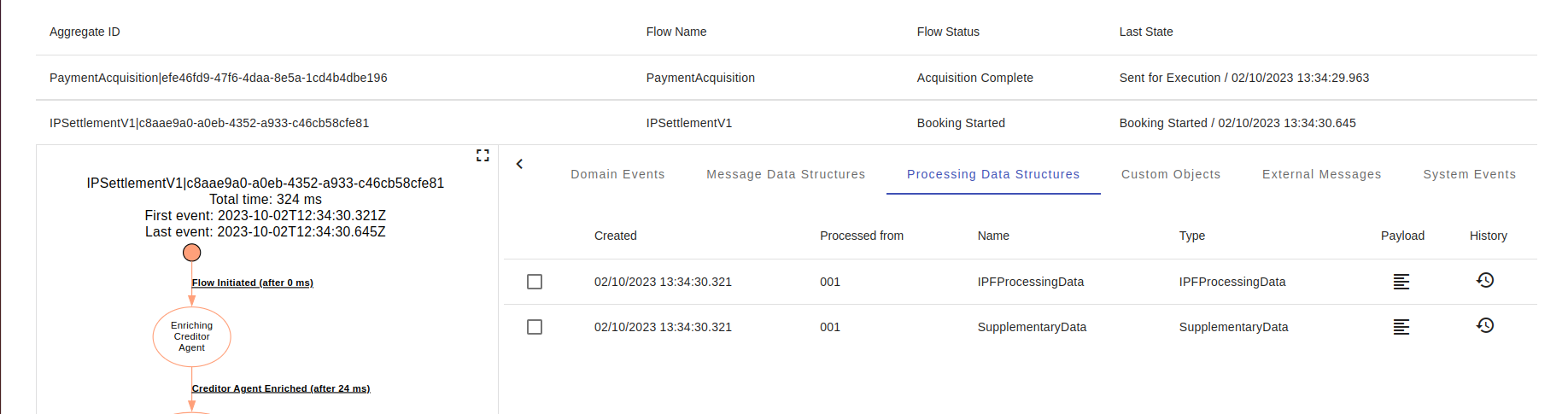
Processing data structures (PDS) are not related to a particular ISO20022 message definition or message element but related to either IPF flow standards or other IPF Features designed to be called from a flow which may be called and used to enrich a payments message.
6.5 Custom Objects
Custom Objects contain bank specific data that occurred during processing but is not suitable for storing in the payment objects. This could include supplementary data or IDs that are specific to the implementation.
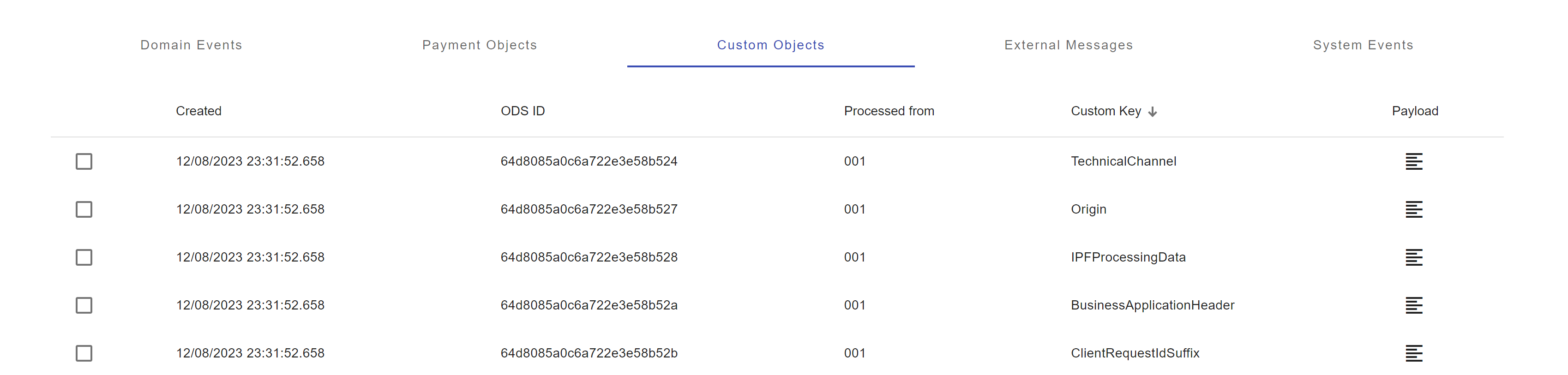
As per all the tabs, clicking on the payload button will show the full record. Each of these records can be compared using the Comparison Tool
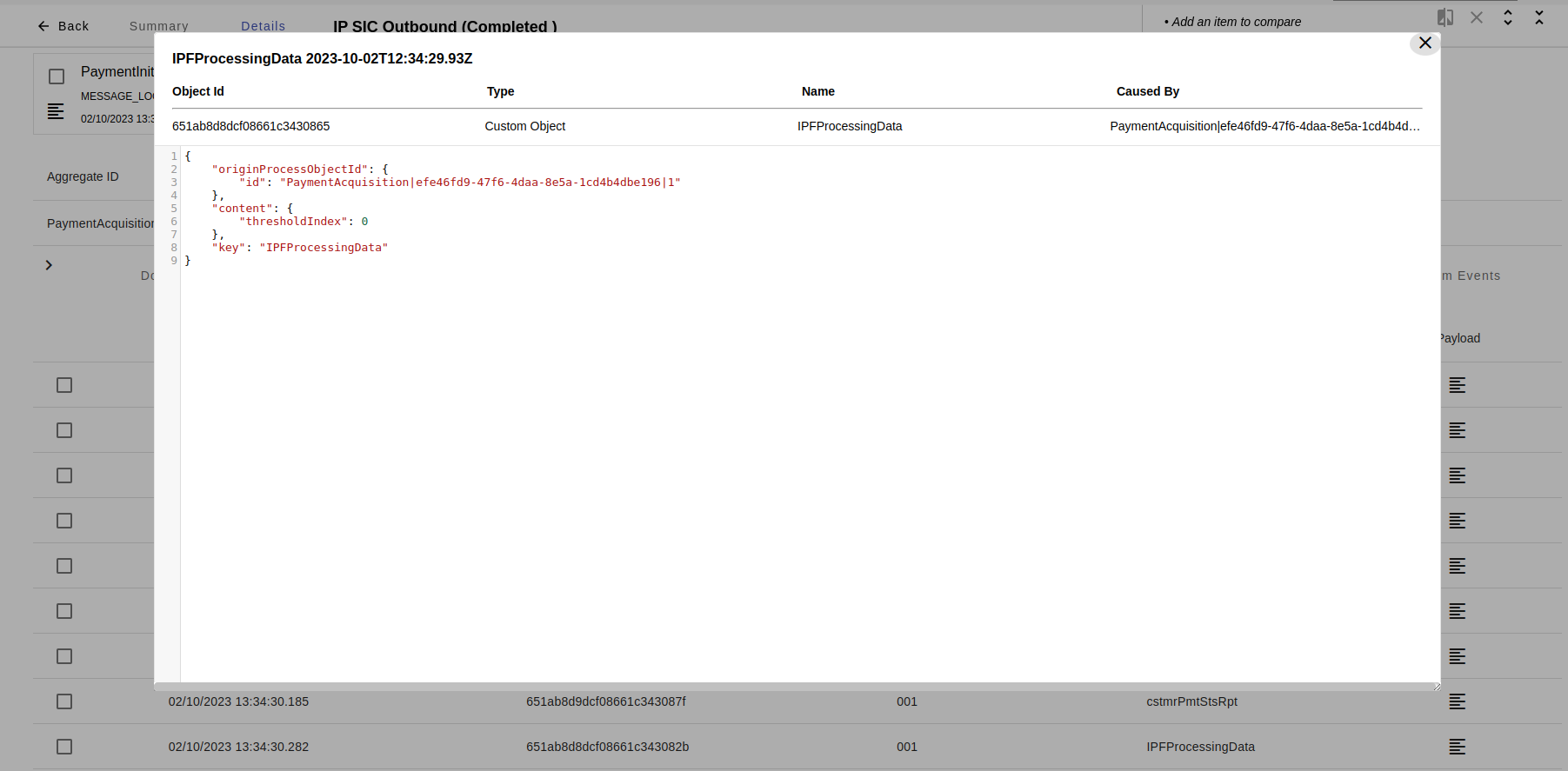
| IPF does not presently preserve the link between custom objects and flows. This means the list of custom objects will be the same for each flows. |
6.6 External Messages
External messages are any communications between IPF and an external system. These could be messages to the scheme (e.g Pacs.008) or messages to a bank system (e.g. Booking request). These will typically be either XML or JSON.
The row item allows the operator to view either the content of the message or the transport headers should they be available.
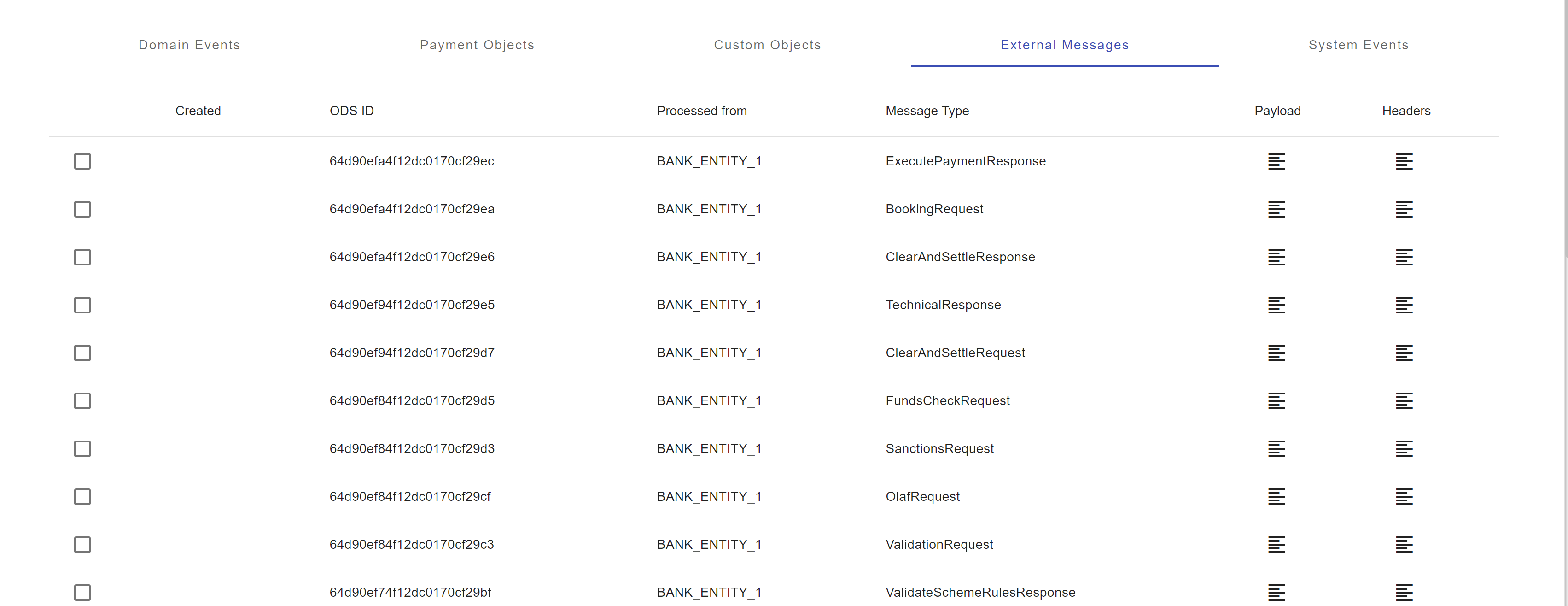
This tab is primarily intended for technical debugging or to view the responses from bank systems before they are processed.
| Some messages cannot be correlated to a given flow and will be in a secondary table titled "Messages not correlated to flows". This could be due to an implementation issue or due to the message occurring outside IPF’s flows. |
6.7 System events
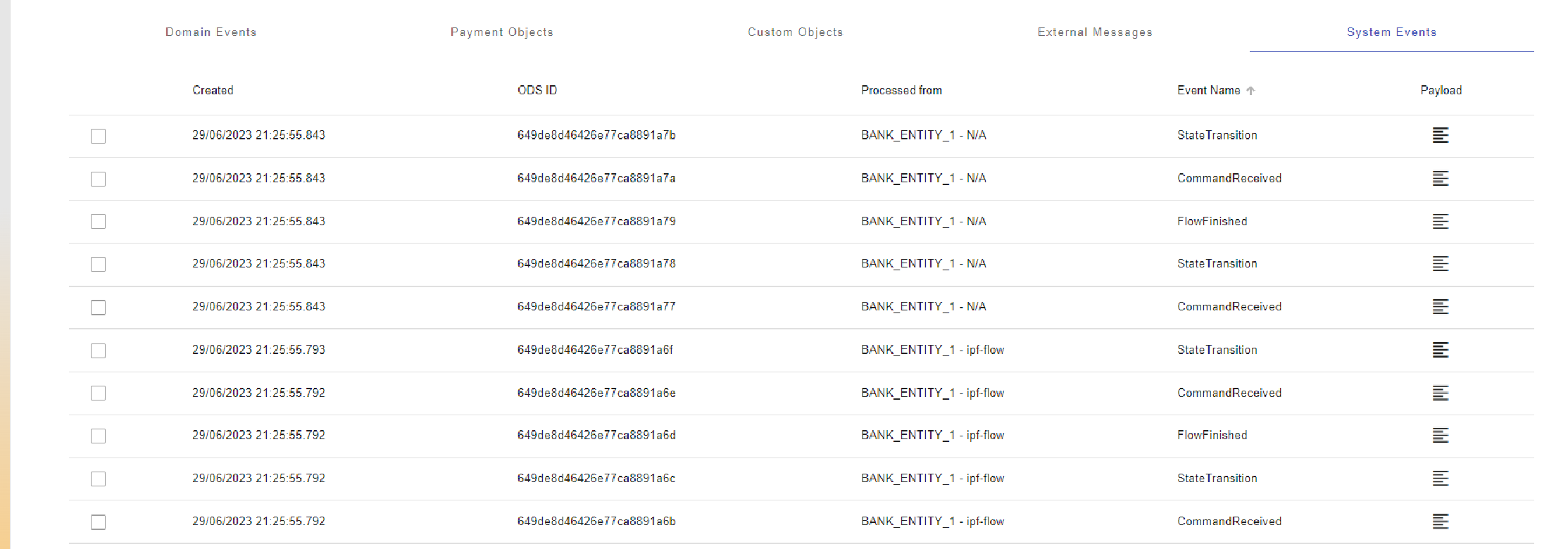
System events are micro notifications produced by IPF. These can either be TECHNICAL or FUNCTIONAL.
It is recommended that technical events be sent to a log aggregating platform and that only business (Functional) system events be sent to ODS and the UI.
The system event objects are presented in the same way as for custom data and can also be compared.
6.8 Comparison tool
2 items can be added to the comparison basket by clicking the selection box next to any row.

This allows the operator to compare 2 technical messages and identify the differences. This is particularly useful for comparing objects of the same type. It can however be used to compare any 2 objects in the same transactions.
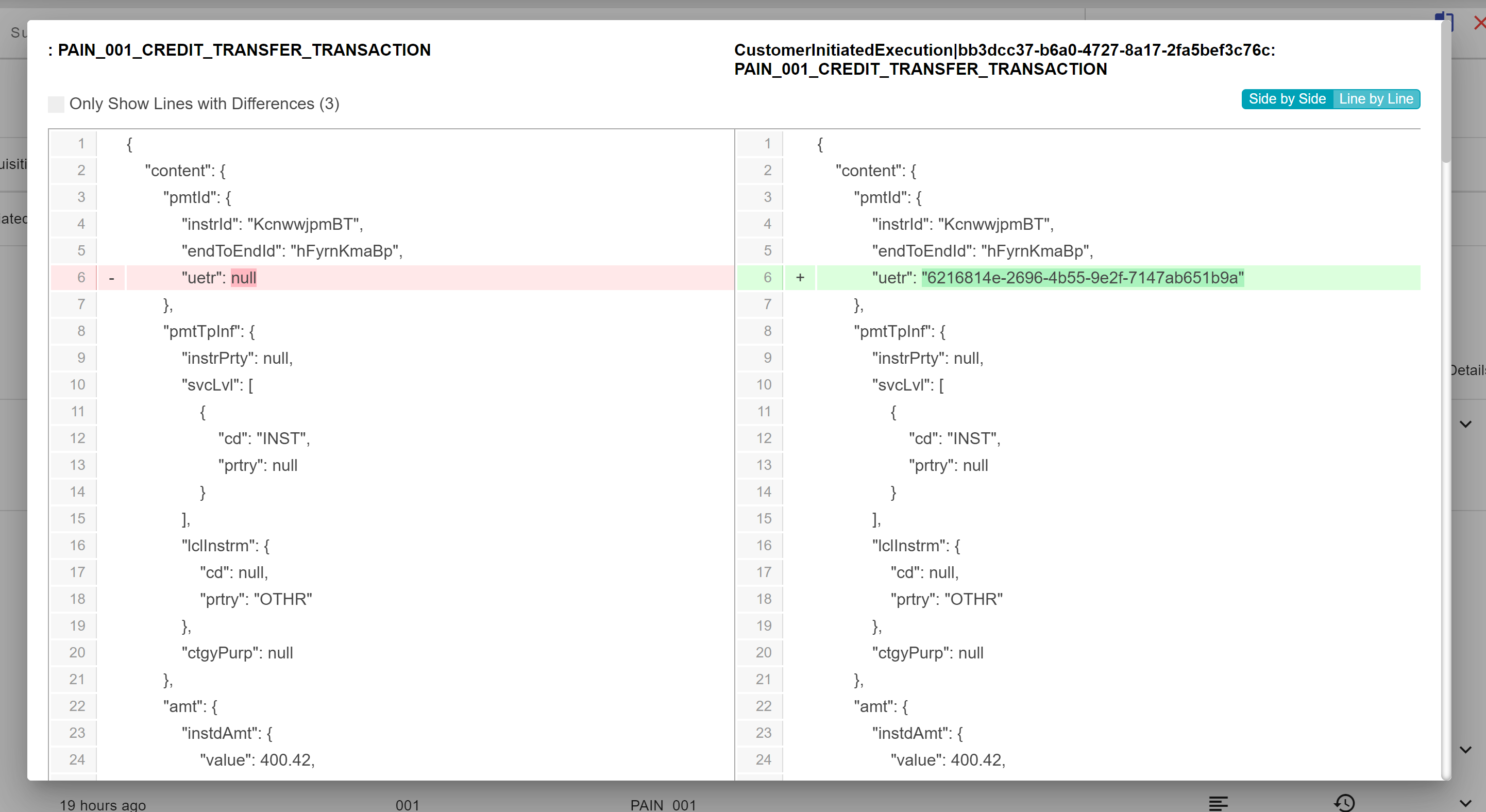
The operator can chose to only show the lines with differences
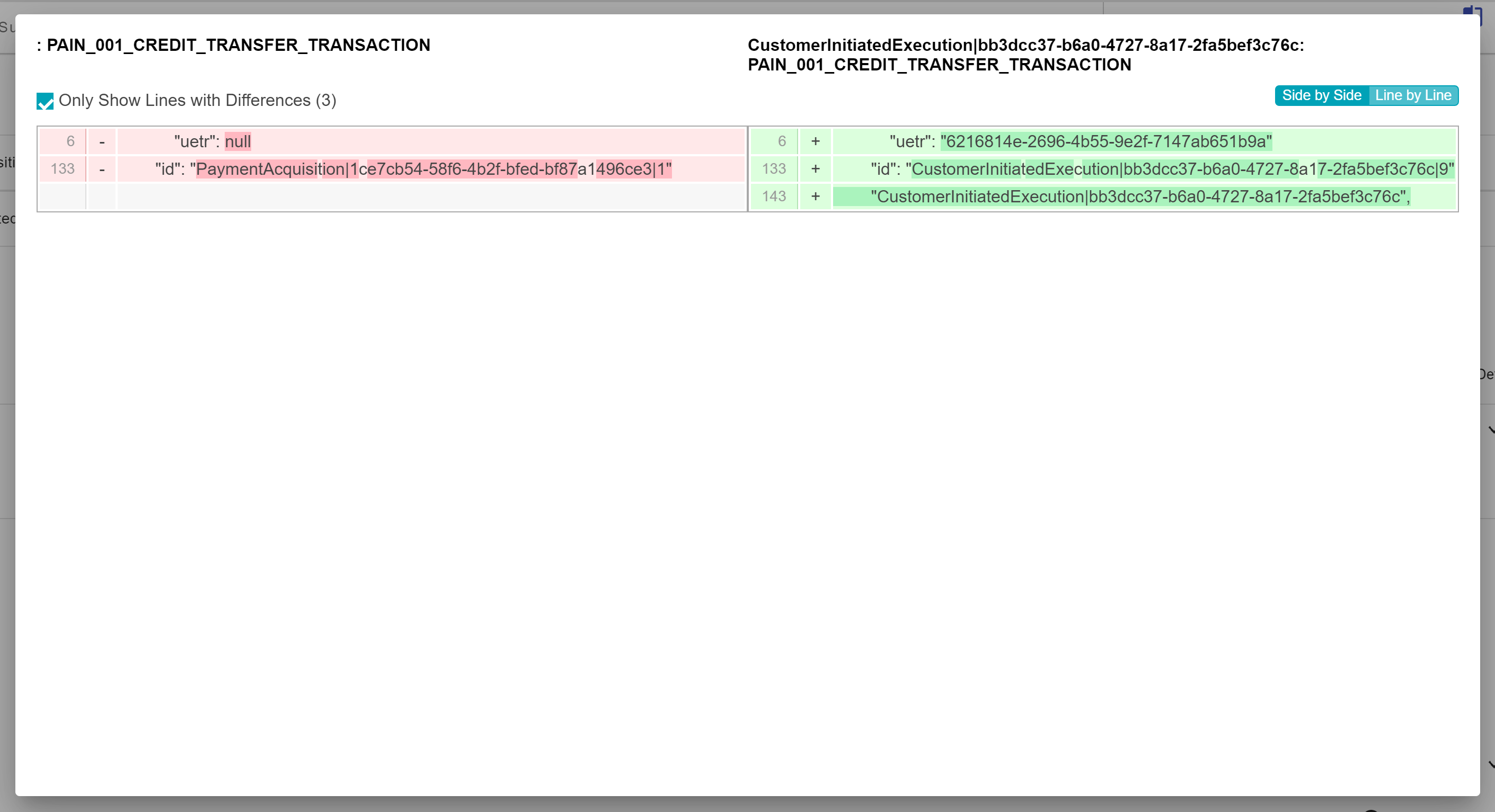
To compare 2 other objects, the comparison basket must be cleared by either deselecting the items or clicking the red X.
