Generic Processing Settings
Introduction
Generic Processing Settings are settings not specific to Agents. These are processing entity level settings expressed in a generic way. IPF Core supports these three generic processing settings:
| Generic processing settings can also be extended by client implementations to define their own custom setting categories as per requirements. |
To navigate to the Generic Processing Settings page, operators should navigate into Processing Settings tile from the dashboard Homepage and then click on the Generic Processing Settings tile. Whilst in the Processing Settings module, users can also use the side navigation bar at any point to navigate to Generic Processing Settings. All sub settings are managed from a single page.

Intra Entity Parties
The configurations allow registering entities that are part of the processing entity. The entities specified on the Intra Entity Parties do not need a settlement account used when exchanging payments with the Processing Entity. The entities are part of the same banking group but are different from an Agent with the flag Intra Group set to true.
An Intra Group agent is part of wider banking group as that of the processing entity but still uses a settlement account when settling payments with processing entity and has a separate ledger. Intra Entity parties share ledger with the Processing Entity. Usually branches of Processing entities can be configured as Intra Entity parties.
Managing Intra Entity Parties
Create
To create an Intra Entity Party, operators can click on the link within the Intra Entity Parties card. This action will open a form for the operator to complete with the required information. After filling out the form, the operator can click the 'Create' button to submit the new setting for approval.
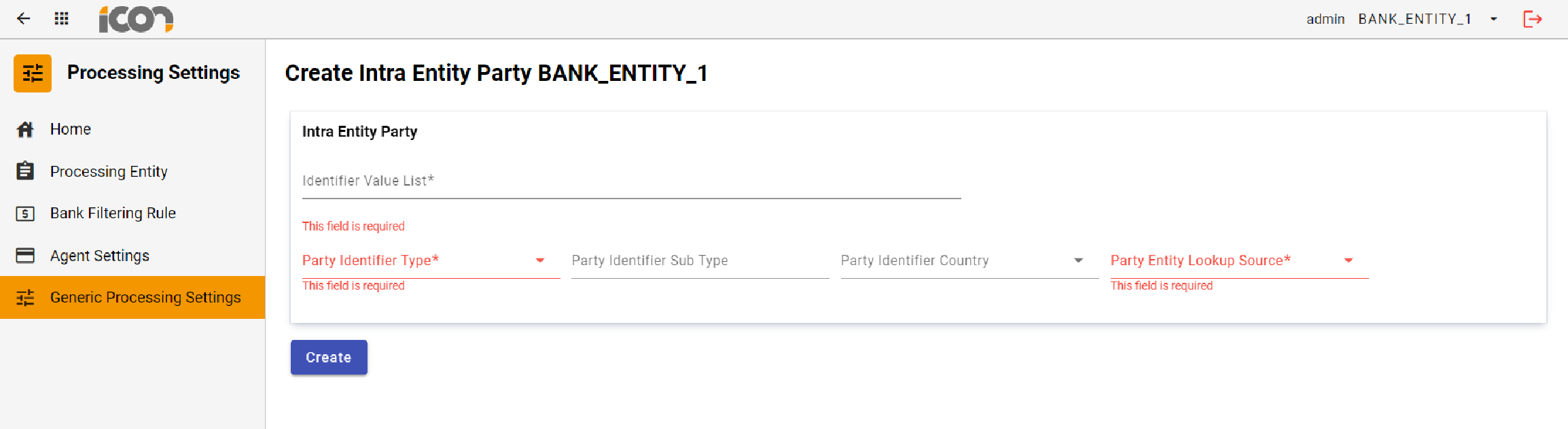
| Required fields are marked with an asterisk. Where required information has not been provided, an error will be displayed under the required field. |
Modification
Once a record is in a status of Active, the 'Edit' and 'Delete' buttons will be visible. Clicking on the 'Edit' icon allows operators to modify the record, navigating them to a screen displaying the current data input for the Intra Entity Parties. All fields can be modified. Upon clicking save, the changes will be stored and the record will transition to an 'Active Pending Approval' status. If required data is missing, errors will be displayed under the respective fields.
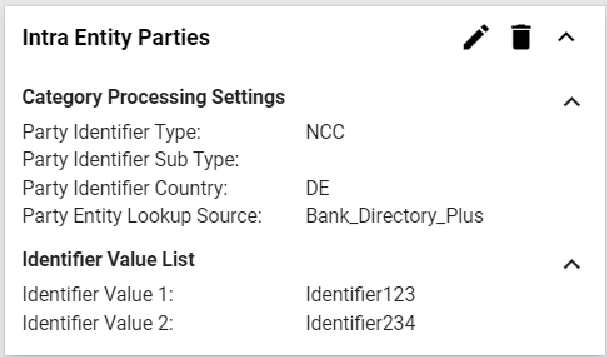
| To navigate out of the edit screen, operators can use the global back button located at the left hand corner of top navigation bar. |
Clicking the 'Delete' icon initiates the deletion process, transitioning the record to an 'Active Pending Approval' status. Once the deletion is approved, the record will be permanently deleted.
Approvals
Upon creating, modifying, or deleting an Intra Entity Party setting, the record will transition to a 'Pending Approval' status. During this status users will see a 'Review' icon on the screen. When an operator clicks on the 'Review' button the approval process will commence.
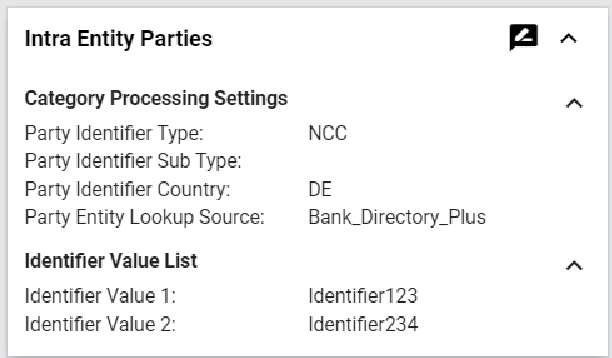
A modal will display the record details, highlighting modifications: additions or changes in green and deletions in red. The operator can approve or reject the creation, modification, or deletion of the record, provide a reason for their choice, and confirm the action.
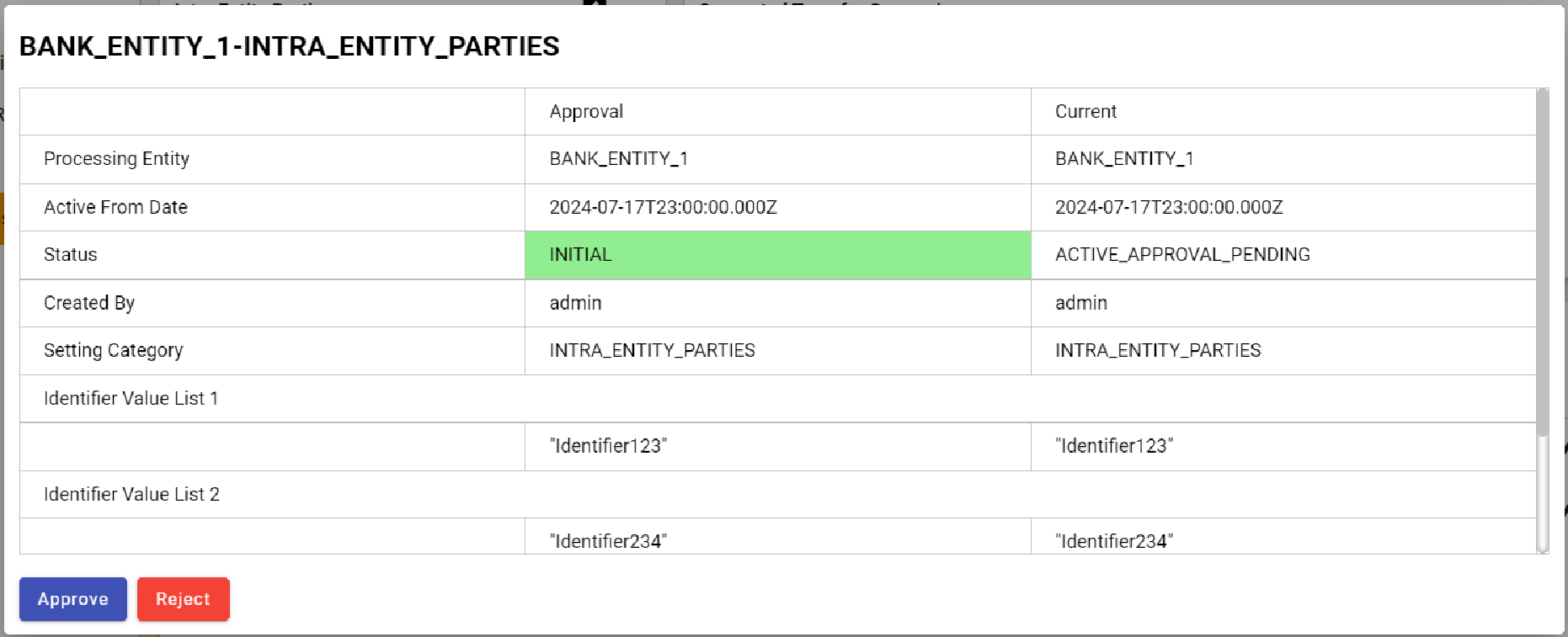
| Clicking out of the modal will cancel the action without saving any changes. |
Supported Transfer Currencies
Supported transfer currencies is a dynamic configuration that allows maintenance of a list of supported transfer currencies by the Processing Entity.
For each currency, a further support in terms of intra entity transfer, intra group transfer or extra group transfer can be maintained.
Managing Supporting Transfer Currencies
Create
To add a Supporting Transfer Currency, operators can click on the 'plus' icon within the Supported Transfer Currencies card. This action will open a modal for the operator to complete with the required information. After populating the modal, the operator can click the 'Create' button to submit the transfer currency for approval.
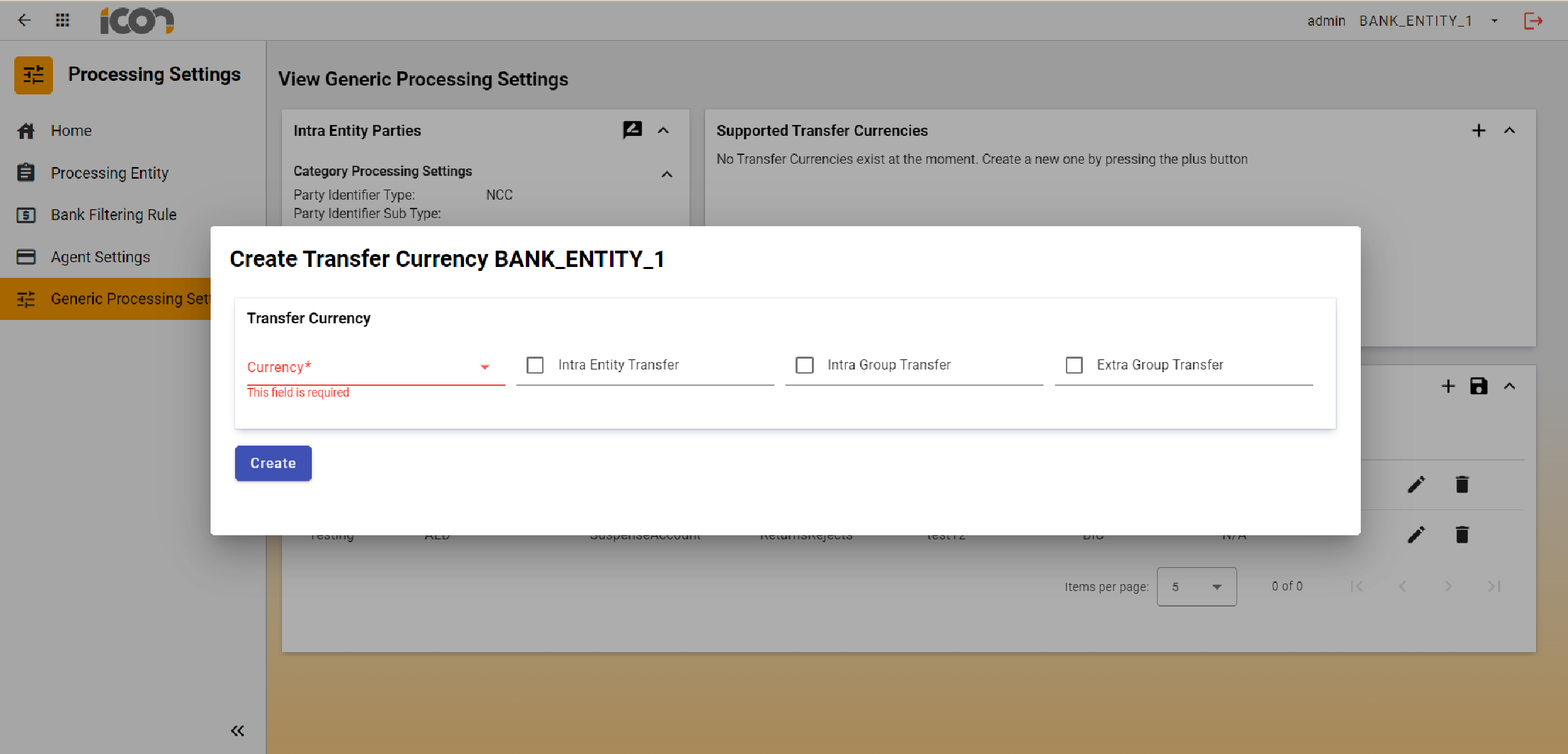
| Required fields are marked with an asterisk. Where required information has not been provided, an error will be displayed under the required field. |
| Clicking out of the modal will cancel the action without saving any changes. |
Modification
Once a record is in a status of Active, the record will be editable from within the Supported Transfer Currencies card. Once an edit has been made to the record, the operator must click the 'Save' icon. This will submit the record for approval.
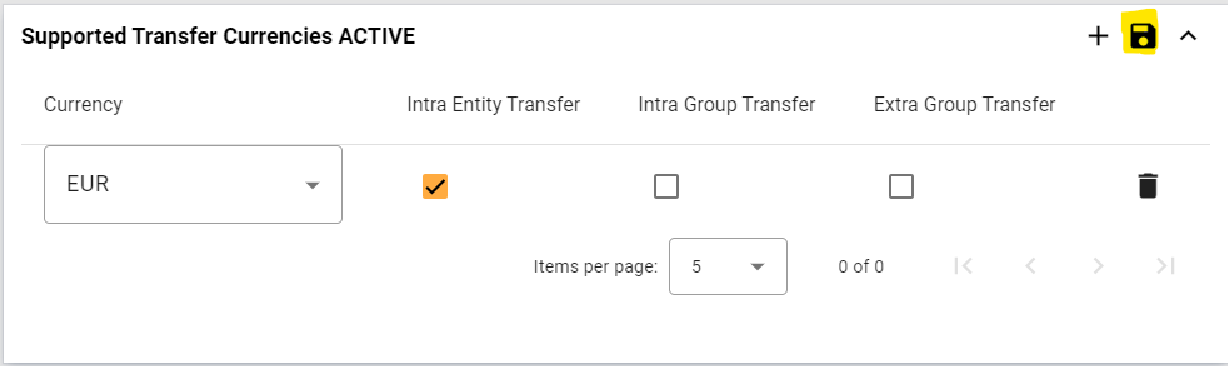
To delete a record, there must be no records with unsaved changes or records pending approval. If there are, the delete icon will not be visible. Clicking the 'Delete' icon initiates the deletion process, transitioning the record to an 'Active Pending Approval' status. Once the deletion is approved, the record will be permanently deleted.
Approvals
Upon creating, modifying, or deleting a Supported Transfer Currency, the record will transition to a 'Pending Approval' status. During this status users will see a 'Review' icon on the screen. When an operator clicks on the 'Review' button the approval process will commence.
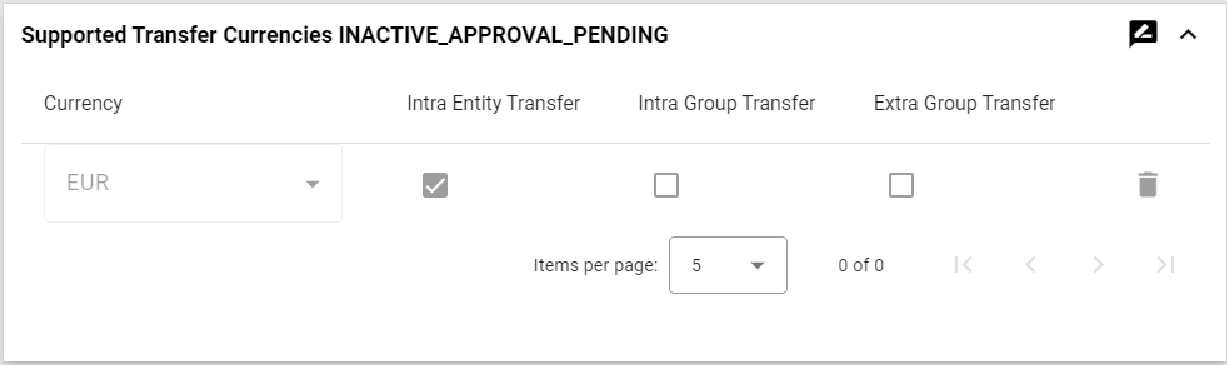
A modal will the record details, highlighting modifications: additions or changes in green and deletions in red. The operator can approve or reject the creation, modification, or deletion of the record, provide a reason for their choice, and confirm the action.
| Clicking out of the modal will cancel the action without saving any changes. |
Processing Entity Accounts
The setting category allows maintenance of the accounts maintained at Processing Entity Level.
These are usually ledger accounts used by the Processing Entities and are different from the settlement accounts used for settling with the Agents. The settlement accounts are maintained at Agent Settlement Setting level for corresponding Agent.
Managing Processing Entity Accounts
Create
To create a Processing Entity Account, operators can click on the 'plus' icon within the Processing Entity Accounts card. This action will open a modal for the operator to complete with the required information. After populating the modal, the operator can click the 'Create' button to submit the Processing Entity Account for approval.

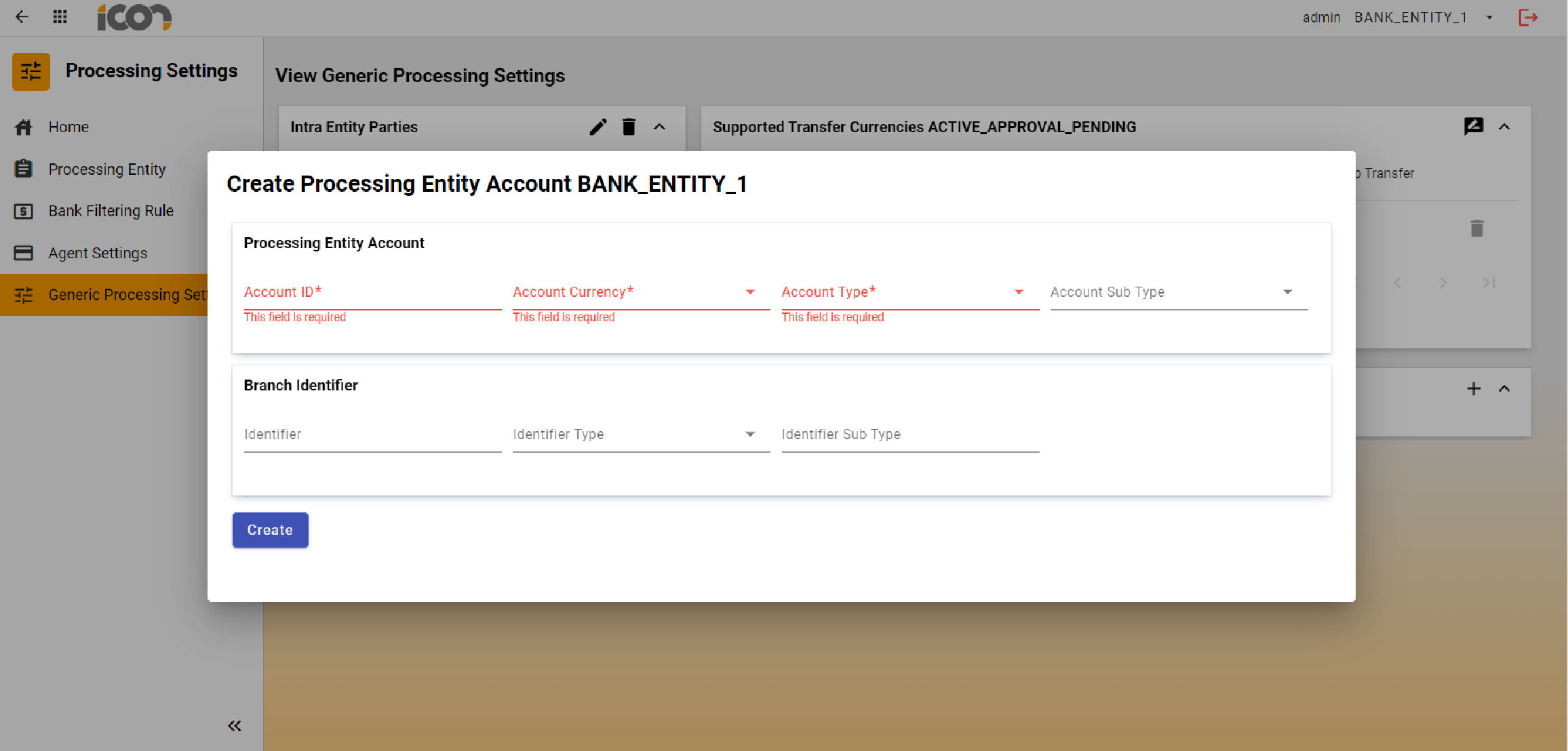
| Required fields are marked with an asterisk. Where required information has not been provided, an error will be displayed under the required field. |
Modification
Once a record is in a status of Active, the record can be edited by clicking on the edit icon (pencil) inline within the Processing Entity Accounts card. Once an edit has been made to the record, the operator must click the 'Save' icon. This will submit the record for approval.

Clicking on the delete icon next to the relevant record will initiate the deletion process. The record will be transitioned to an 'Active Pending Approval' status. Once the deletion is approved, the record will be permanently deleted.
Approvals
Upon creating, modifying, or deleting a Processing Entity Account, the record will transition to a 'Pending Approval' status. During this status users will see a 'Review' icon on the screen. When an operator clicks on the 'Review' button the approval process will commence.

| Whilst a record is awaiting review, the edit and delete icons will be disabled. |
A modal will display the record details, highlighting modifications: additions or changes in green and deletions in red. The operator can approve or reject the creation, modification, or deletion of the record, provide a reason for their choice, and confirm the action.
| Clicking out of the modal will cancel the action without saving any changes. |