Step 4 - Add a Mapping Function
Introduction to Step 4
In this tutorial step you will add a call-out to a mapping function in the flow so that the notification is an ISO Payment Status Report message.
Add a Mapping Function
In the previous step of the tutorial you specified that a Customer Credit Transfer (Pacs008) should be used by the connector to map to a Payment Status Report (Pacs002). In order to make things more explicit you are now going to bring that mapping from the connector into the flow by using the mapping function.
-
Open the flow
-
Find 'Function Definitions'
-
Click 'Add Function'
-
Input 'Name' and 'Description' as per the screenshot below:

-
Place the cursor in the 'Input Data' cell and press Ctrl+Space
-
Select 'Customer Credit Transfer' from the drop down list
-
Place the cursor in the 'Output Data' cell and press Ctrl+Space
-
Select 'Payment Status Report' from the drop down list

Update the Notification
Now you are going to invoke a mapping function from the flow, you do not require your connector to map to a Pacs002 so you now need to update the business data for the notification in you external domain.
-
Click on the 'Payment Monitoring' node
-
Delete the 'Customer Credit Transfer' from the business data cell
-
Press Ctrl+Space while the cursor is at the start of the business data cell
-
Select the 'Payment Status Report' from the drop down list
The notification should now look like this:

Add Mapping to an Action
Now you have defined a function that can convert a Pacs008 to a Pacs002. Developers will still need to build that mapping function (using the IPF Mapping Framework).
Any defined function can be added to the flow in a number of places where you see 'Perform Enrichment' or 'Generate Aggregate Data'
It is advisable to co-operate with engineers to choose the place to put a mapping function. At a high level:
-
When you 'Perform Enrichment' you are persisting the mapped data in the database, making it available to query and for use by the IPF Operational Data Store (ODS), or an alternative customer data store, and therefore by a customer UI or the IPF Operational Dashboard. It also makes the data available for use later on in the flow.
-
When you 'Generate Aggregate Data' you adding the mapped data to the transaction aggregate, making it available for use later on in the flow. The data will not be persisted, so will not be available to ODS.
For your example you don’t want perform enrichment or generate aggregate data - the Pacs002 is transient data that is sent to the payment monitoring system and then can be forgotten by the flow. In order to make the flow as efficient as possible you will add the mapping function to the action instead.

-
Place the cursor in the 'Perform Action' cell and press Ctrl+Alt+I
-
Place the cursor to the right of 'Mapping:' and press Ctrl+Space for your options
-
Select the 'Create a PSR' function that your created earlier from the drop down menu
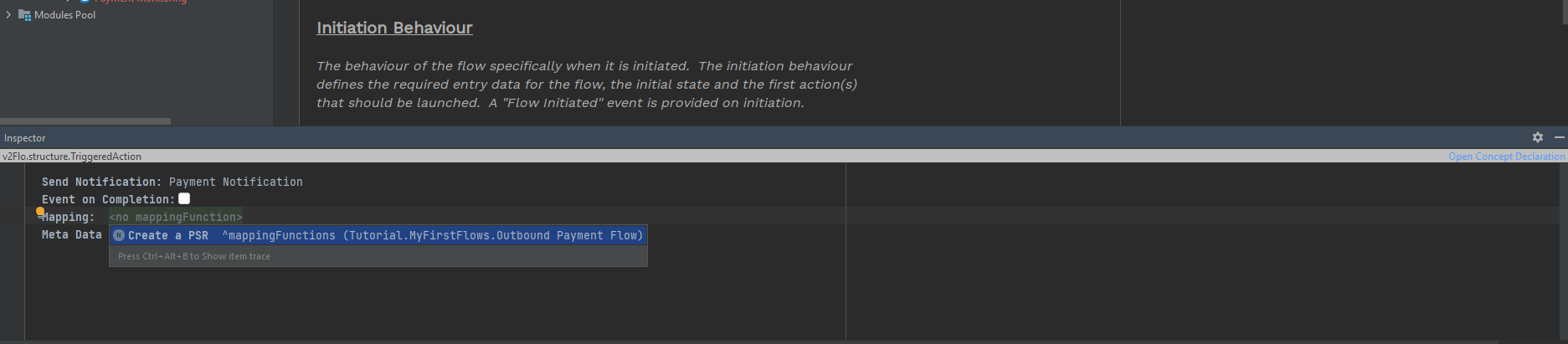
You have successfully added a mapping function and referenced the function from the flow.