HTM - Bulk Execute
Introduction
This page is an introduction to the Human Task Manager (HTM) bulk execute functionality. This functionality is designed to be used by an authorised operator to bulk process up to 1000 tasks of the same type within HTM.
| To read more on the HTM module, refer to HTM |
Task Type Selection
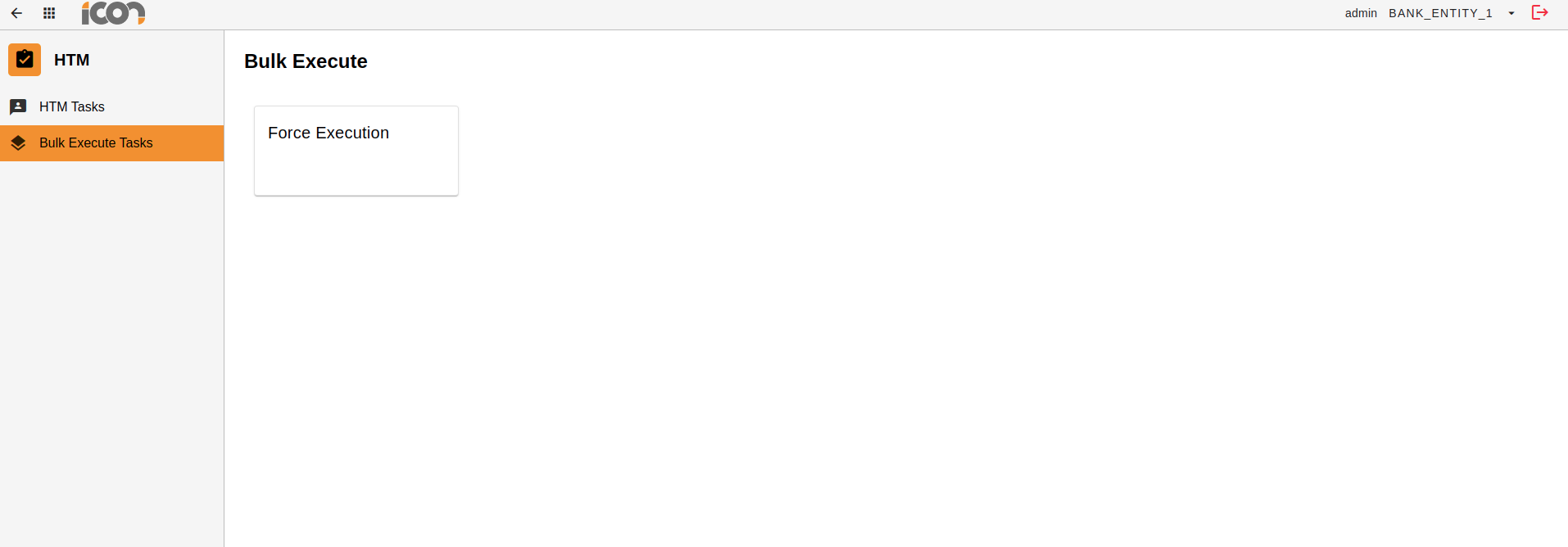
To navigate to the bulk execute screens within the Human Task Manager module, operators will have to click on the 'Bulk Execute Tasks' icon / submodule within the left hand side navigation bar.
Clicking on the 'Bulk Execute Tasks' submodule will display a UI screen with a tile for each task type supported within the HTM configuration. The feature only allows for tasks of the same type, hence selecting the task type before proceeding.
| Task types and associated screens within HTM are client configuration. There are no core task types. |
Executing a Bulk
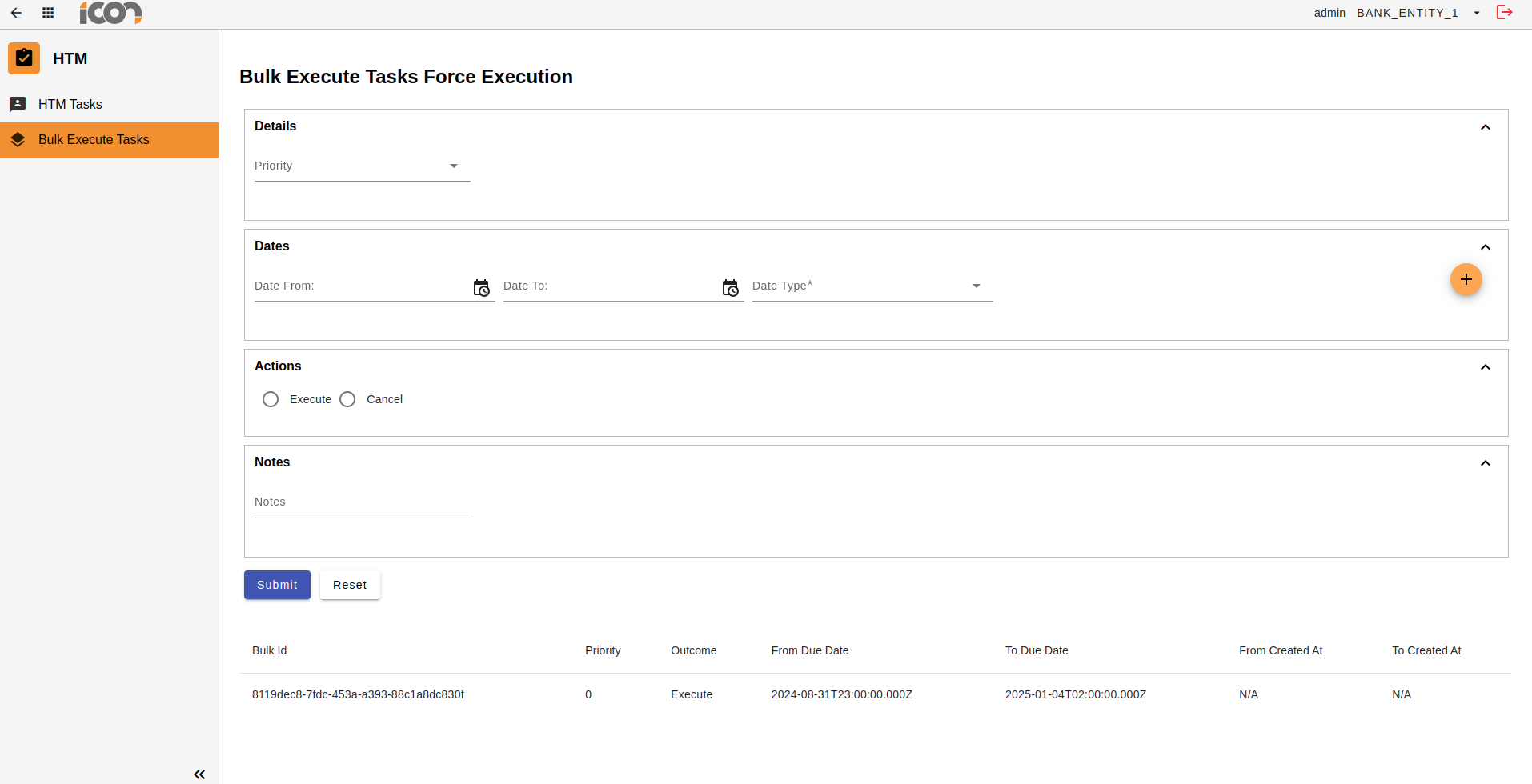
Upon selecting the relevant task, the operator will be presented with a screen where additional data (Task Priority and Date Range) can be provided to assist with identifying the tasks for bulk execution.
Actions & Notes
The actions card will contain the possible outcomes in regard to processing of the task. The operator can only select one option and the selected outcome will be applied to all tasks within the bulk.

| As part of the HTM core it is mandatory for a possible outcome to be selected before the task can be executed. However, this can be configured during implementation. |
The operator can also optionally add any notes, from within the Notes card, that they want to be included on all tasks in the bulk.
Submit
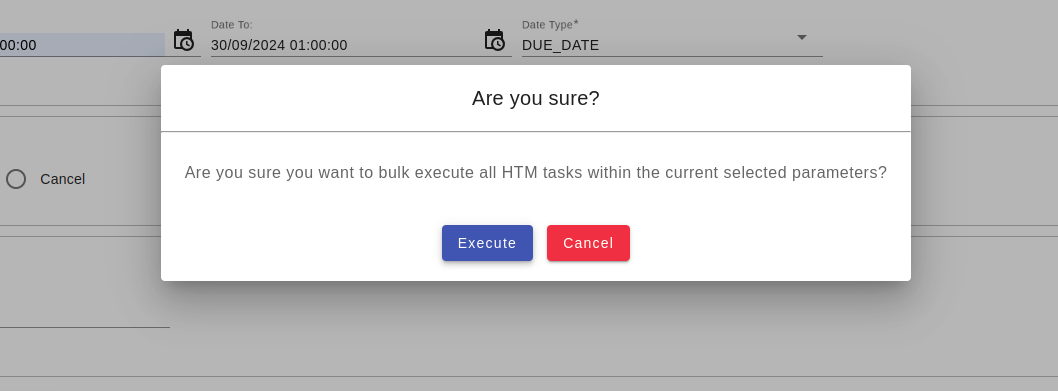
When all the necessary data has been provided, operators can click on the Submit button to initiate processing of the tasks in bulk. A confirmation pop-up will appear and once the operator confirms, the tasks will be sent for execution in bulk.
| Bulks can only contain up to 1000 tasks. Where more than 1000 tasks have been identified, only the first 1000 will be processed and the operator will need to initiate a new bulk for the remaining once the first bulk is complete. |
| An error will be returned when an operator clicks submit and no tasks are found. |
HTM Bulk Status
Once a bulk has been executed, it will appear in a table at the bottom of the UI. Clicking on the row will navigate the operator to a screen displaying the status of the bulk.
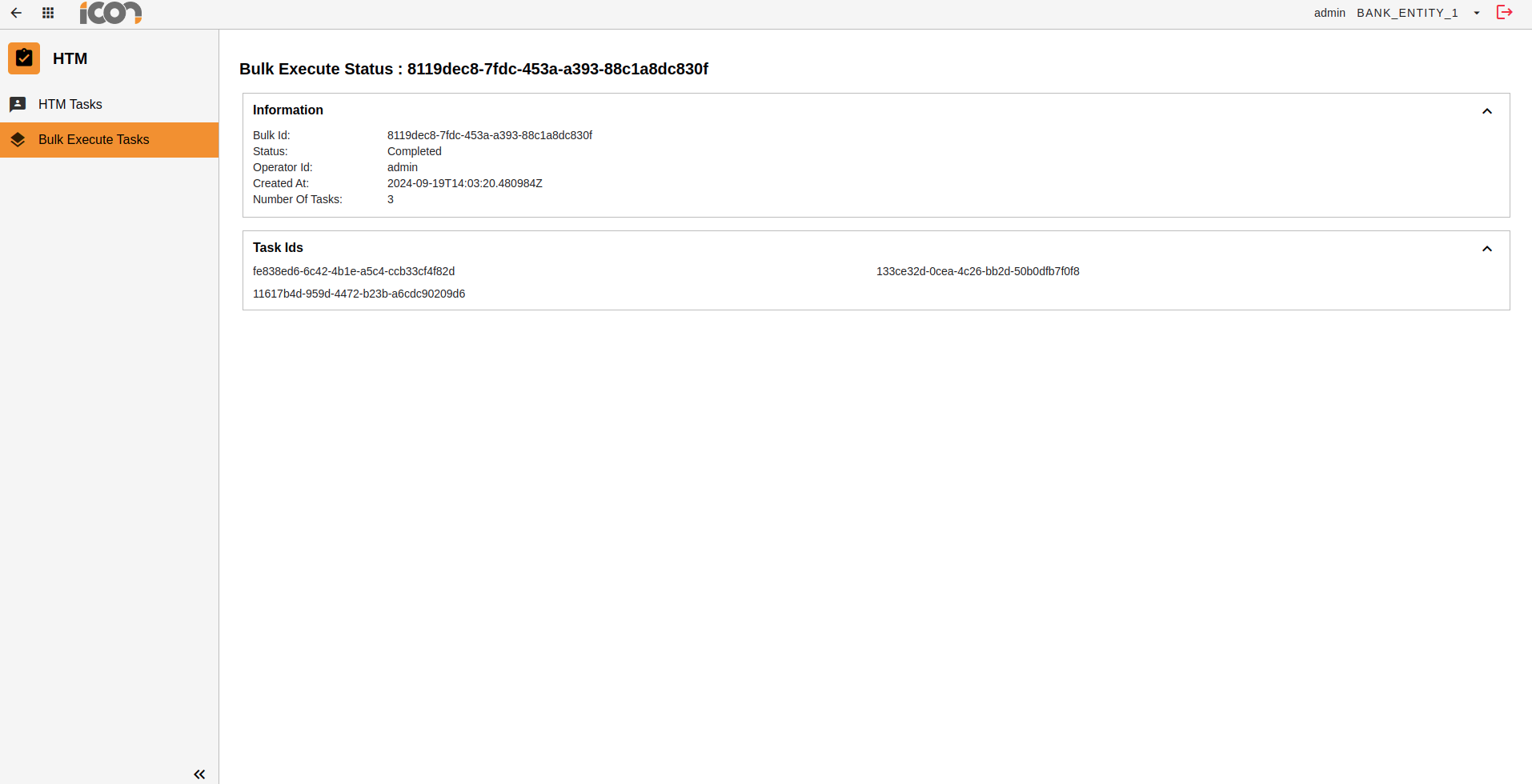
Operators will see information about the bulk including:
| Type | Description |
|---|---|
Bulk ID |
The ID associated with the bulk. |
Status |
The status of the bulk. i.e. Completed |
Operator ID |
The ID of the operator that initiated the bulk execution. |
Created At |
The date and time the bulk was created. |
Number of Tasks |
The number of tasks within the bulk. |
Task IDs |
The UoWID for each task within the the bulk |
| Using the Task ID, the operator can search for a singular task from within the core HTM search UI. |