DSL 10 - Calling Other Flows
|
Getting Started
The tutorial step uses the If at any time you want to see the solution to this step, this can be found on the |
Scenario
So far to date we have only considered a single flow, which takes in a pacs.008 and performs some actions on it. We could consider this to be an "execution" flow. Let’s now consider how we may do "initiation" and create a second flow that will:
-
Receive a pain.001
-
Convert the pain.001 to a pacs.008
-
Forward the pacs.008 to the execution flow
-
Determine the outcome of the execution flow and terminate appropriately.
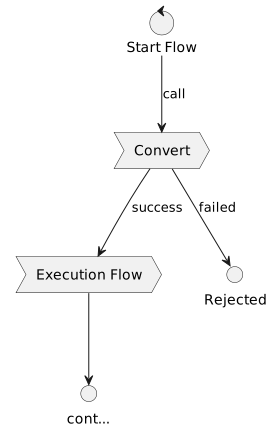
So the key thing to consider here is how we communicate flow to flow. In this step we will only look at flows that are deployed together - namely when two flows are both defined in the same model.
|
Whilst this section discusses how to use the DSL itself to set up flow to flow communication, it is important to realise that in essence flow to flow is effectively calling from one domain to another and as such it would be just as valid (and possible) to simply model the flow interaction using external domains. |
DSL Setup
Adding the Initiation Flow
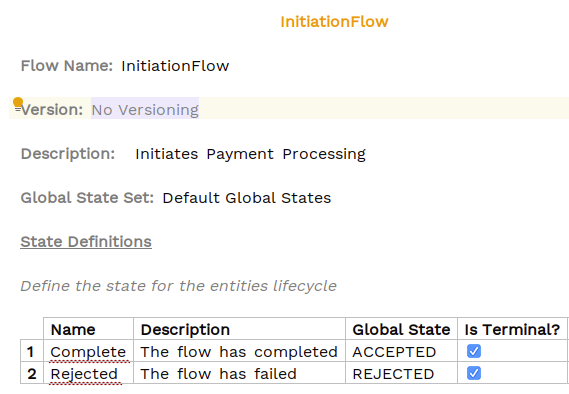
Let’s add a new flow by right-clicking on the model and selecting . Then in the flow editor we’ll set:
-
A name of "InitiationFlow"
-
A description of "Initiates payment processing"
-
A new state to represent flow rejection called "Rejected". This should have a REJECTED global code.
When done we should look like:
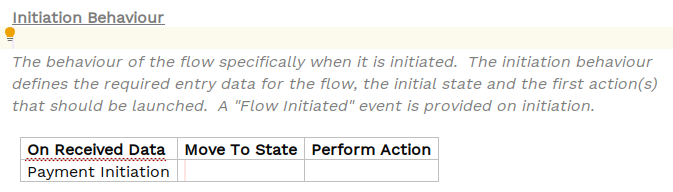
Now let’s move down to the initiation behaviour, as per our requirement we need to receive a pain001. The first thing we’ll do here is use the pre-packaged initiation types. To do these we have to import them into our solution.
You’ll do this by using pressing Ctrl+R and then entering 'ISO Initiation Types' into the search and selecting the resulting entry.
|
When importing models into your solution using this method, you may inadvertently import a model that you didn’t intend to, which can result in your application failing to start with errors such as: To remove this, and any other unused models you may have in your solution, click on the |

Now if we go to our Initiation Behaviour on the new flow, we should have the option to select "Payment Initiation" - so let’s do that.
Integrating the Flows
Now let’s integrate the two flows. To do this, we need to use another pseudo state just like in DSL 5 - Using a Decision. In this case it’s a "Flow State". So in the "Move To State" box, select "Create Flow State".
Let’s call our Flow State "Call Execution".
Then in the perform action state, we’ll select "Call Flow" and then select our ipftutorial flow. When done it should look like this:
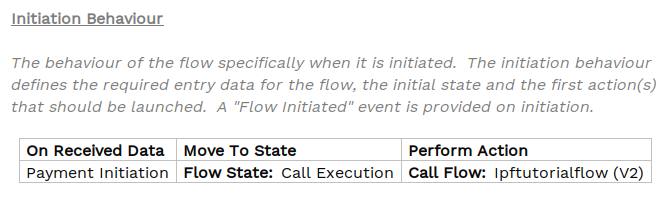
Now we can see that the calling of the flow is underlined as an error. If you validate the flow (ALT+ENTER then Validate Flow) we’ll find:

Let’s work through each of these, firstly "Called Flow requires missing data: Customer Credit Transfer". This is because our execution flow needs to be given a credit transfer object, but at the moment the initiation flow doesn’t have one to give. To fix this, we’ll create a new mapping function to map from the pain.001 to the pacs.008. If you need a reminder of mapping functions, then review DSL 6 - Mapping Functions. Try and add this new mapping function now and when ready, the solution is below:
Firstly we’ll need a mapping function:

And then add the mapping function to the initiation behaviour:
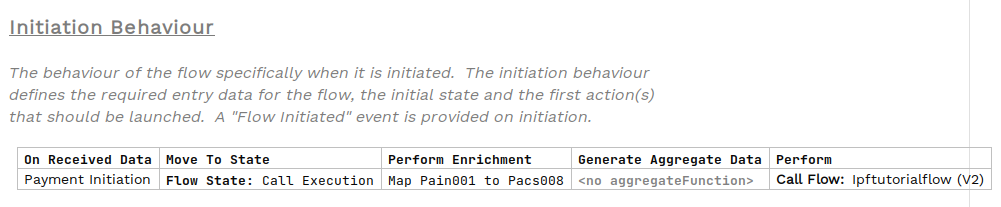
If we re-validate our flow, then we should no longer see the data error.
The state issues are due to the fact we’re not handling the output from Ipftutorialflow. Let’s go back to our initiation flow and add our Event Behaviour to fix this.
You’ll start by adding the behaviour when we’re in our "Call Execution" state. The event is the special bit here we need to select a special "On Flow State" event, and then select the "Complete" state from the execution flow. Finally, we’ll move to the "Complete" state from the initiation flow. Putting that together we have:
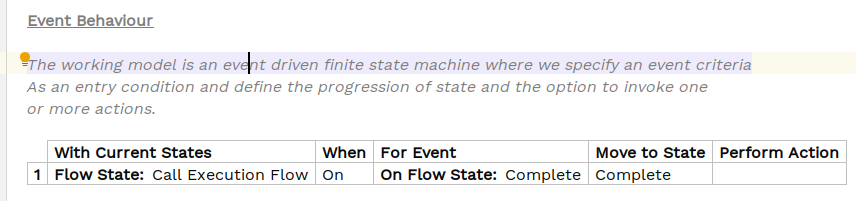
Now we can do the same for the Rejected and Timed Out state. For now, we’ll just send both to Rejected.
![][](_images/calling_other1/calling1_9.png)
Viewing the Flows
That’s all our DSL changes complete, but before moving on let’s consider the graph for our new initiation flow. As normal, let’s open the Flow Viewer (Tools > Open Flow Viewer`):
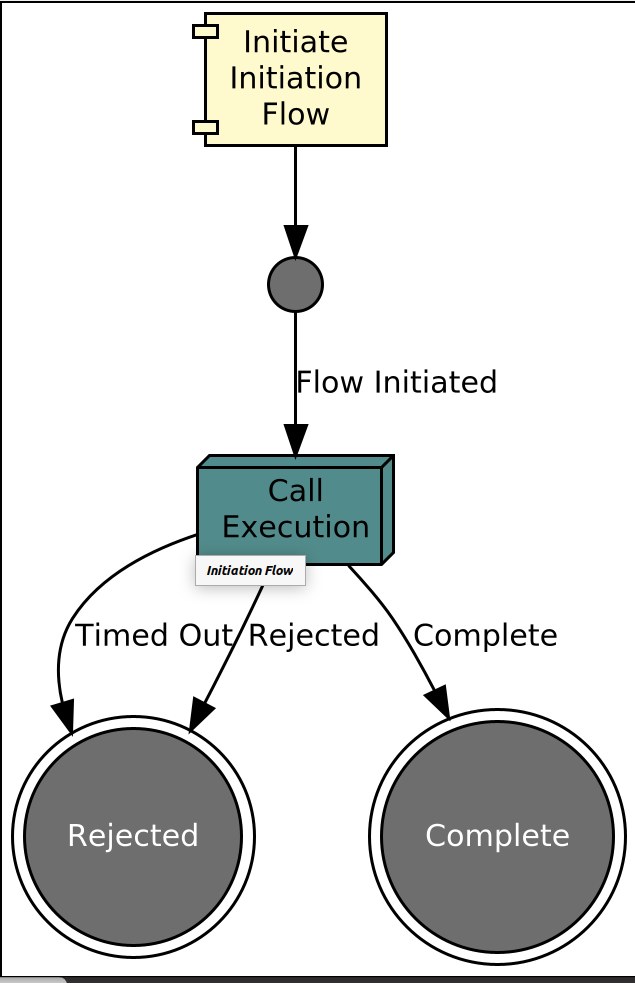
Here we can see that our child flow is represented by the green box for the call to the ipf tutorial flow. Note that unlike with the subflow, we cannot expand the execution block as that is a separate flow and is not considered an embedded part of this flow.
That’s all our DSL work done, and we have completed the setup of the flow.
Java Implementation
Let’s now switch back to Intellij and look at how we plug this into our implementation code. As normal we’ll start by running a build from a terminal window:
mvn clean installThis will successfully generate all of our DSL related components.
Previously we were firing our requests directly into the ipf tutorial flow, whereas now we want to call the initiation flow. So let’s change "InitiateIpftutorialflowInput" to "InitiateInitiationflowInput" (in the ipftutorialsolution/app/controller/InitiationController.java). In doing this, the expect type of data supplied changes from the customer credit transfer to the payment initiation object. So we’ll also need to change that line, for now we can use the Pain001Generator from within the ifptutorial-app.
Try and do this now and the solution is below:
var samplePain001 = Pain001Generator.generate();
 if (request != null && request.getValue() != null) {
    samplePain001.getPmtInf().get(0).getCdtTrfTxInf().get(0).getAmt().getInstdAmt().setValue(request.getValue());
}

return Mono.fromCompletionStage(IpftutorialmodelDomain.initiation().handle(new InitiateInitiationFlowInput.Builder(entityId)
        .withProcessingContext(ProcessingContext.builder()
                .unitOfWorkId(unitOfWorkId)
                .clientRequestId(clientRequestId)
                .build())
        .withPaymentInitiation(samplePain001)
        .build()).thenApply(done -> InitiationResponse.builder().requestId(clientRequestId).uowId(unitOfWorkId).aggregateId(done.getAggregateId()).build()));
Make sure you remember to clean up the imports (CTRL+SHIFT+O or CTRL+ALT+O on Windows).
Next we have to add the mapping function for the initiation flow. Let’s revisit what we were trying to achieve with this function: we need something to map from the pain.001 to the pacs.008.
Here you could use any approach required to perform the mapping. In our case, we’re going to use a pre-built library that provides us with a pain.001 to pacs.008 mapping. So let’s add that now.
First we need to add the dependency to the pom.xml within the ipf-tutorial-app module (ipf-tutorial-app/pom.xml).:
<dependency>
    <groupId>com.iconsolutions.ipf.core.mapper</groupId>
    <artifactId>mapping-library-spring</artifactId>
</dependency>
This will load in a Spring based implementation of various ISO to ISO mappings. Have a look at the IsoMappingService class that has been brought in and you can see it has a method to apply a mapping from pain.001 to pacs.008:
public FIToFICustomerCreditTransferV08 mapPain001toPacs008(CustomerCreditTransferInitiationV09 initiation) {
    return (FIToFICustomerCreditTransfer)this.transformationService.mapThenEnrichWithDefault(initiation, FIToFICustomerCreditTransfer.class);
}
Here we can see that it is calling a transformation service to apply the mapping. This is using Icon’s "Mapping Framework" to perform the mapping. The mapping framework can be used to build your own custom mappings, and this will be covered later in this series. Note that this implementation assumes as 1:1 ratio between pain.001 and pacs.008.
As we have chosen to use the spring based implementation, an instance of the IsoMappingService will be automatically injected into the spring context for us, so we simply need to add it to our tutorial class and then use it to provide the implementation of our mapping function.
Try and add this as now just as we did for the tutorial flow’s mapping function port before. When ready, the solution is below.
@Bean
public IpftutorialmodelDomain ipftutorialmodelDomain(ActorSystem actorSystem, IsoMappingService mappingService, SchedulerPort schedulerAdapter) {
    // All adapters should be added to the domain model
    return new IpftutorialmodelDomain.Builder(actorSystem)
            .withTutorialDomainFunctionLibraryAdapter(input -> CompletableFuture.completedStage(new DuplicateCheckResponseInput.Builder(input.getId(), AcceptOrRejectCodes.Accepted).build()))
            .withAccountingSystemActionAdapter(new SampleAccountingSystemActionAdapter())
            .withFraudSystemActionAdapter(new FraudSystemActionAdapter())
            .withDecisionLibraryAdapter(input ->
                    input.getCustomerCreditTransfer().getCdtTrfTxInf().get(0).getIntrBkSttlmAmt().getValue().compareTo(BigDecimal.TEN) > 0 ?
                            RunFraudCheckDecisionOutcomes.FRAUDREQUIRED : RunFraudCheckDecisionOutcomes.SKIPFRAUD)
            .withIpftutorialflowV1MappingAdapter(input -> new ExtractCreditorAccountForFlowIpftutorialflowV1MappingOutput(input.getCustomerCreditTransfer().getCdtTrfTxInf().get(0).getCdtrAcct()))
            .withIpftutorialflowV2MappingAdapter(input -> new ExtractCreditorAccountForFlowIpftutorialflowV2MappingOutput(input.getCustomerCreditTransfer().getCdtTrfTxInf().get(0).getCdtrAcct()))
            .withInitiationFlowMappingAdapter(parameters -> new MapPain001ToPacs008ForFlowInitiationFlowMappingOutput(mappingService.mapPain001toPacs008(parameters.getPaymentInitiation())))
            .withSchedulerAdapter(schedulerAdapter)
            .withCSMServiceActionAdapter(new SampleCSMServiceActionAdapter())
            .withSanctionsSystemActionAdapter(new SampleSanctionsSystemActionAdapter())
            .build();
}
That’s it, now when our flow calls the mapping function it will be returned a fully converted pacs.008.
Checking our solution
As normal let’s now check out solution works. Start up the application as previously (instructions are available in Reviewing the initial tutorial application if you need a refresher!)
And we fire in a payment:
curl -X POST localhost:8080/submit | jqAnd this time we’ll notice our aggregate id has changed:
{
  "requestId": "1a53c51c-c96e-4786-9f3f-d0d91f80b973",
  "uowId": "ba0b5c6c-855b-41ef-98a7-9b0ee121e6da",
  "aggregateId": "InitiationFlow|176a4e23-6299-49be-89bf-891ca12740de"
}
We can see here that it’s the initiation flow that’s being hit.
Then as normal, if we now bring up the payment in the Developer GUI and bring up the flow view (search by unit of work id, click view) and we should see:

This is a really important moment to understand. We’ve brought back all the flows associated to our unit of work id here, and in doing so, we’re now seeing two flows rather than one.
Firstly we have the initiation flow, let’s look at its graph:
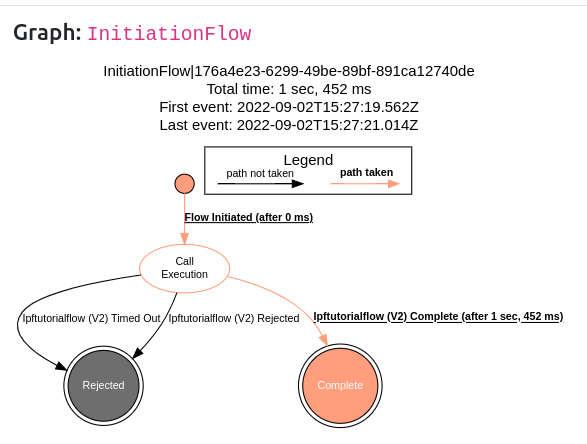
So we can see here that it’s calling the execution flow AND receiving the completion response back from it. So our main execution flow must have completed correctly. We can validate that by clicking on the graph for the ipftutorialv2 flow and see:
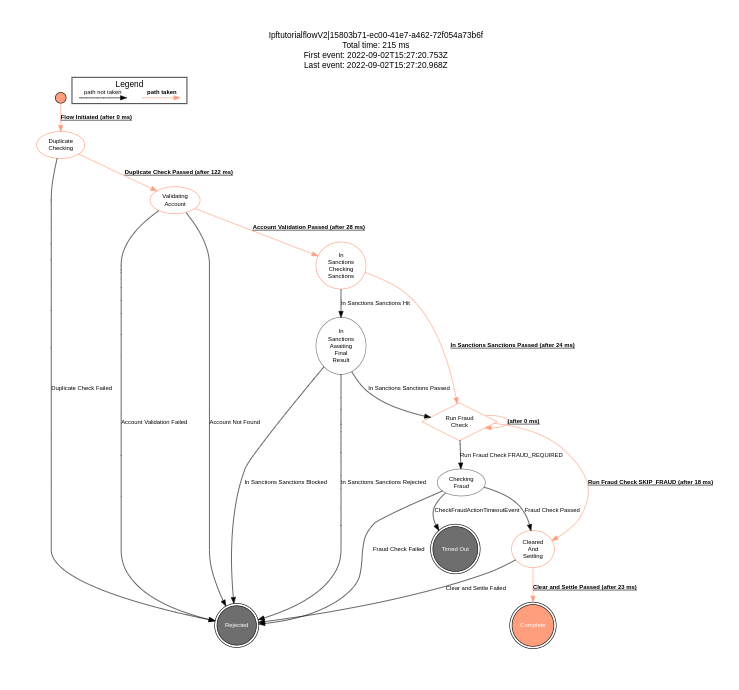
So as we expected it has completed successfully too.
Looking in the Message Data Structures tab, we can verify that the pain.001 file was passed to the flow
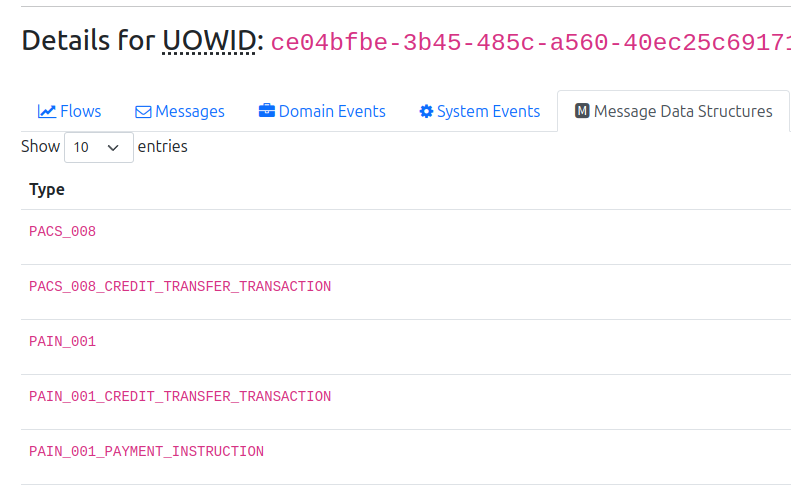
Its also worth just checking the "Domain Events" where you can observe the Events and the Process Flow from which those events originated.
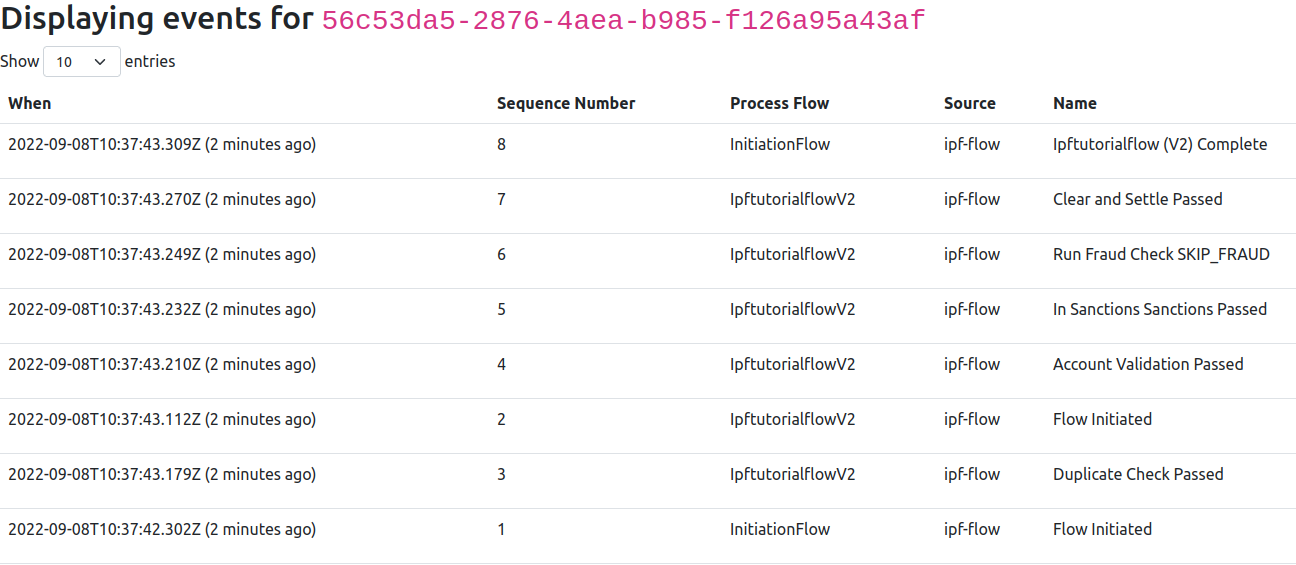
Conclusions
In this section we have successfully:
-
Created an initiation flow
-
Added the integration between the initiation and execution flow
-
Implemented the new adapters
-
Deployed and tested the application
-
Seen that the two flows are linked via the unit of work id.
Note that we have restricted this for now to flow’s within the same model, we’ll later look at how to do cross-model flows.