Agent Settlement Settings
What is Agent Settlement Settings
The Agent Settlement Setting User Interface (UI) is used to manage and configure the parameters that govern the payment settlement process between a principal entity (such as a payment service provider or a bank) and its agents. This UI is essential for ensuring accurate, efficient, and compliant transactions. Operators are able to use the UI to define one or more Settlement Accounts and adjust parameters related to the Settlement Account, the Account Servicing Agent, Agent Limits and Custom Participant Limits.
| Identifier Country and Country Limits are not supported in the UI but are available for configuration via the APIs. This functionality will be made available at a later stage. |
Managing Agent Settlement Settings
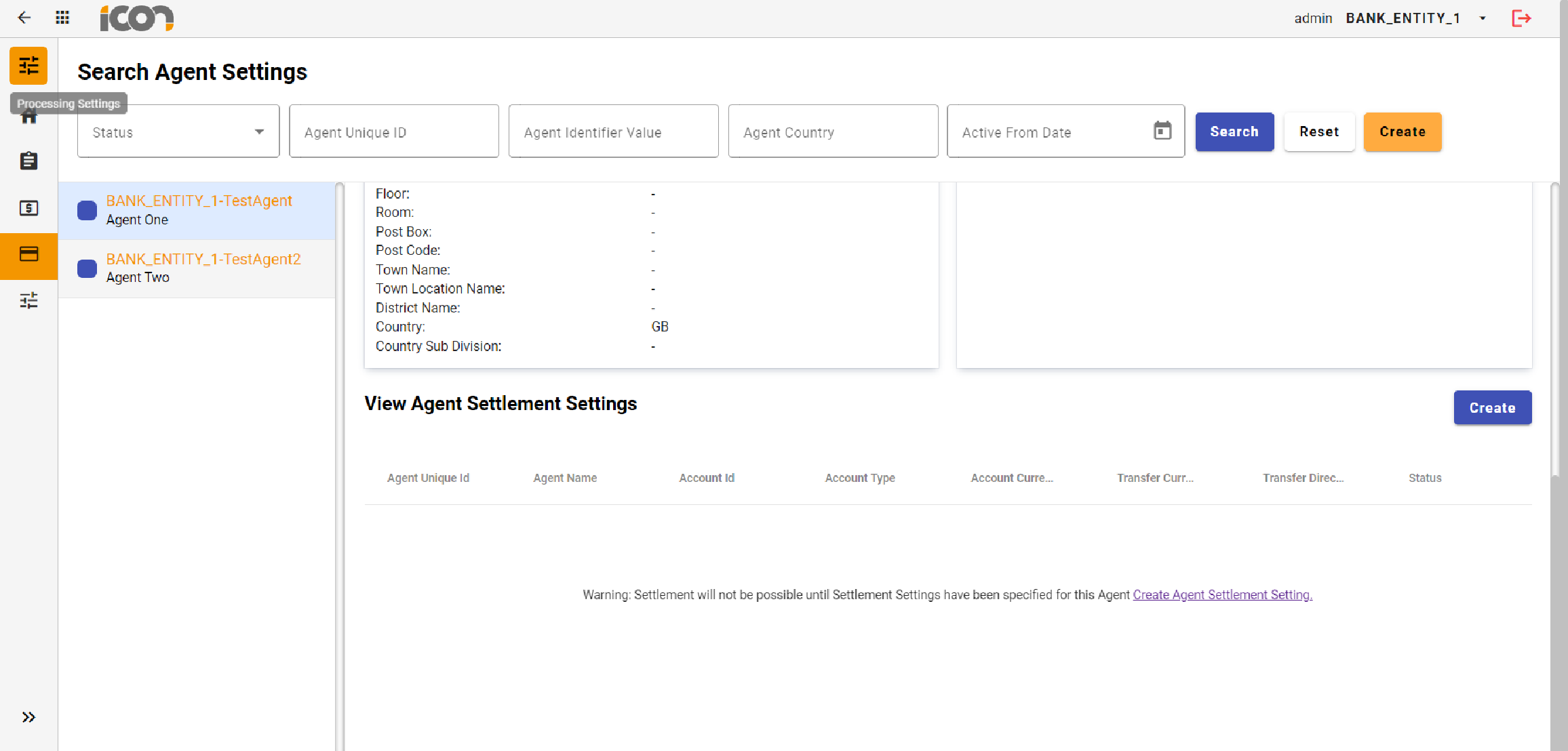
Creating and maintaining Agent Settlement Settings is done from within the UI for a specific Agent Setting. Details on how to create an Agent Setting can be seen Agent Settings.
Create
Clicking the 'Create' button from within the Agent Settlement Settings card allows operators to initiate the creation of a new Agent Settlement setting. This action will open a form for the operator to complete with the required information. After filling out the form, the operator can click the 'Create' button to submit the new setting for approval.
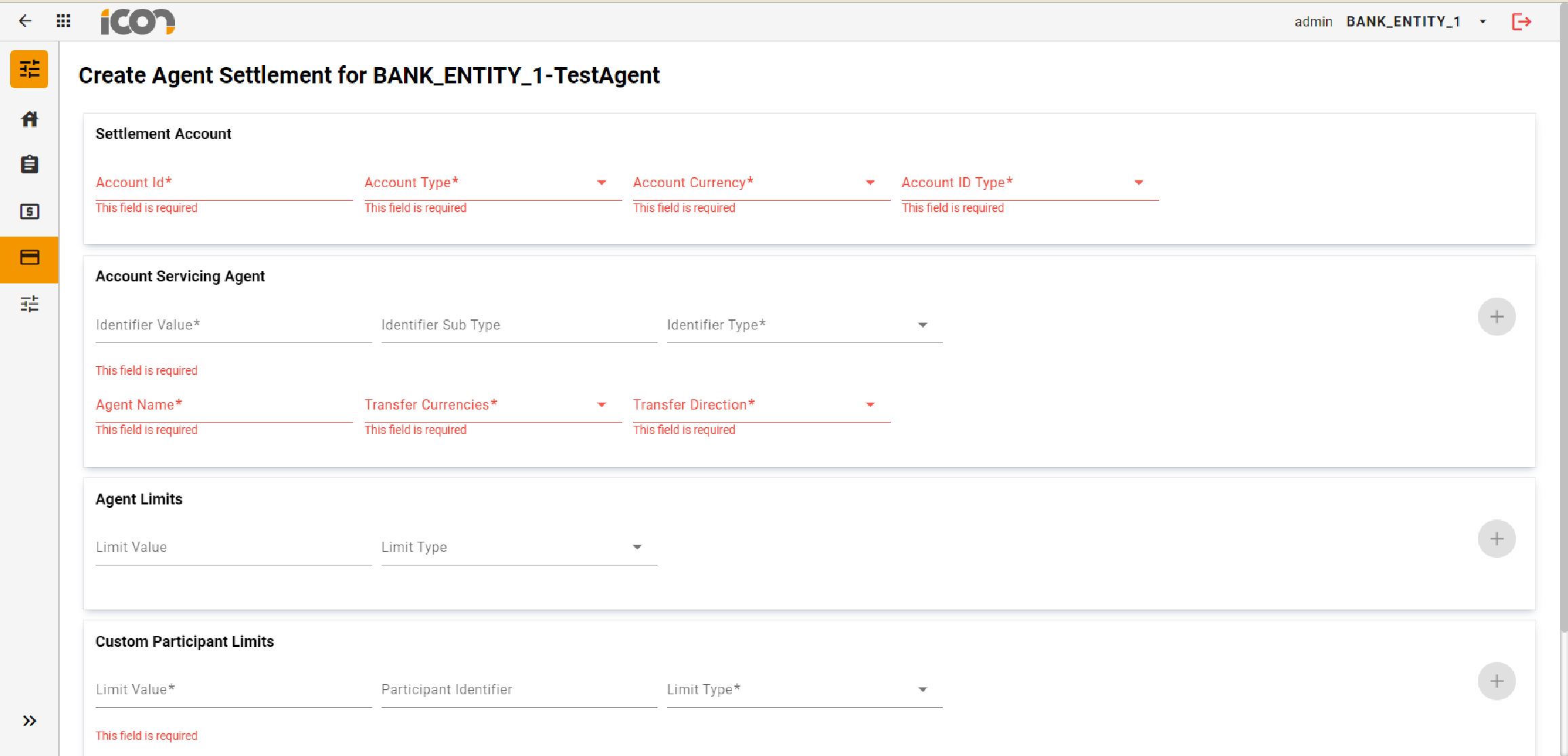
| Required fields are marked with an asterisk. Where required information has not been provided, an error will be displayed under the required field. |
Modification
Once a Settlement Setting is in a status of Active, options to edit or delete the record will be available.
Clicking the row of the record within the 'View Agent Settlement Settings' table will navigate to the full screen view of the setting details. Clicking on the edit button allows operators to modify the record, navigating them to a screen displaying the current data input for the Agent. All fields except the Account ID and Transfer Direction can be modified. Upon clicking save, the changes will be stored and the record will transition to an 'Active Pending Approval' status. If required data is missing, errors will be displayed under the respective fields.
Image: Modify Agent Settlement Settings
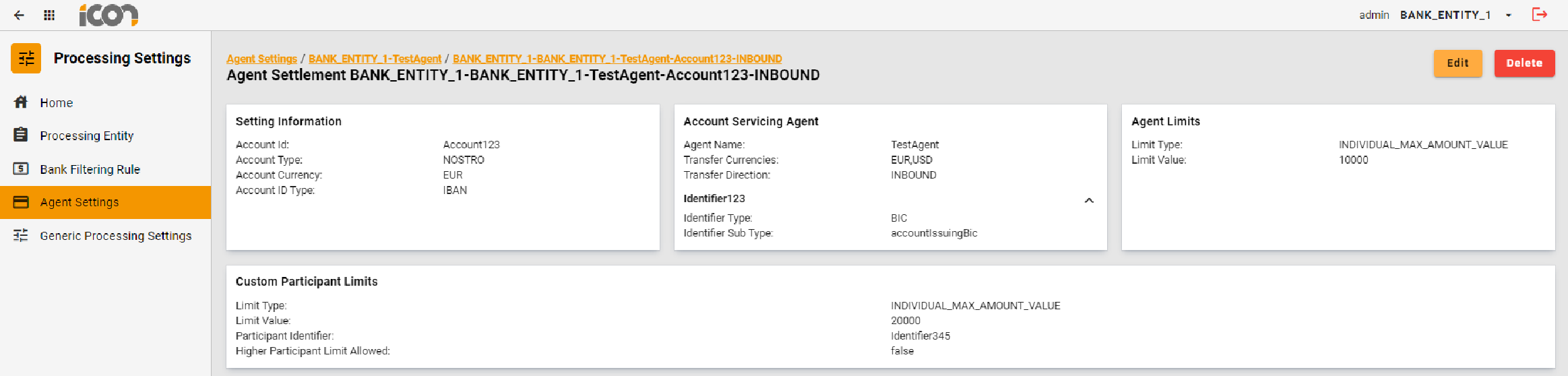
| To navigate out of the edit screen, operators can use the global back button located at the left hand corner of top navigation bar. |
Clicking the delete button initiates the deletion process, transitioning the record to an 'Active Pending Approval' status. Once the deletion is approved, the record will be permanently deleted.
Approvals
Upon creating, modifying, or deleting an Agent Settlement Setting, the record will transition to a 'Pending Approval' status. Clicking on the record within the table will navigate to the full screen view of the setting details and a 'Review' button will be visible.
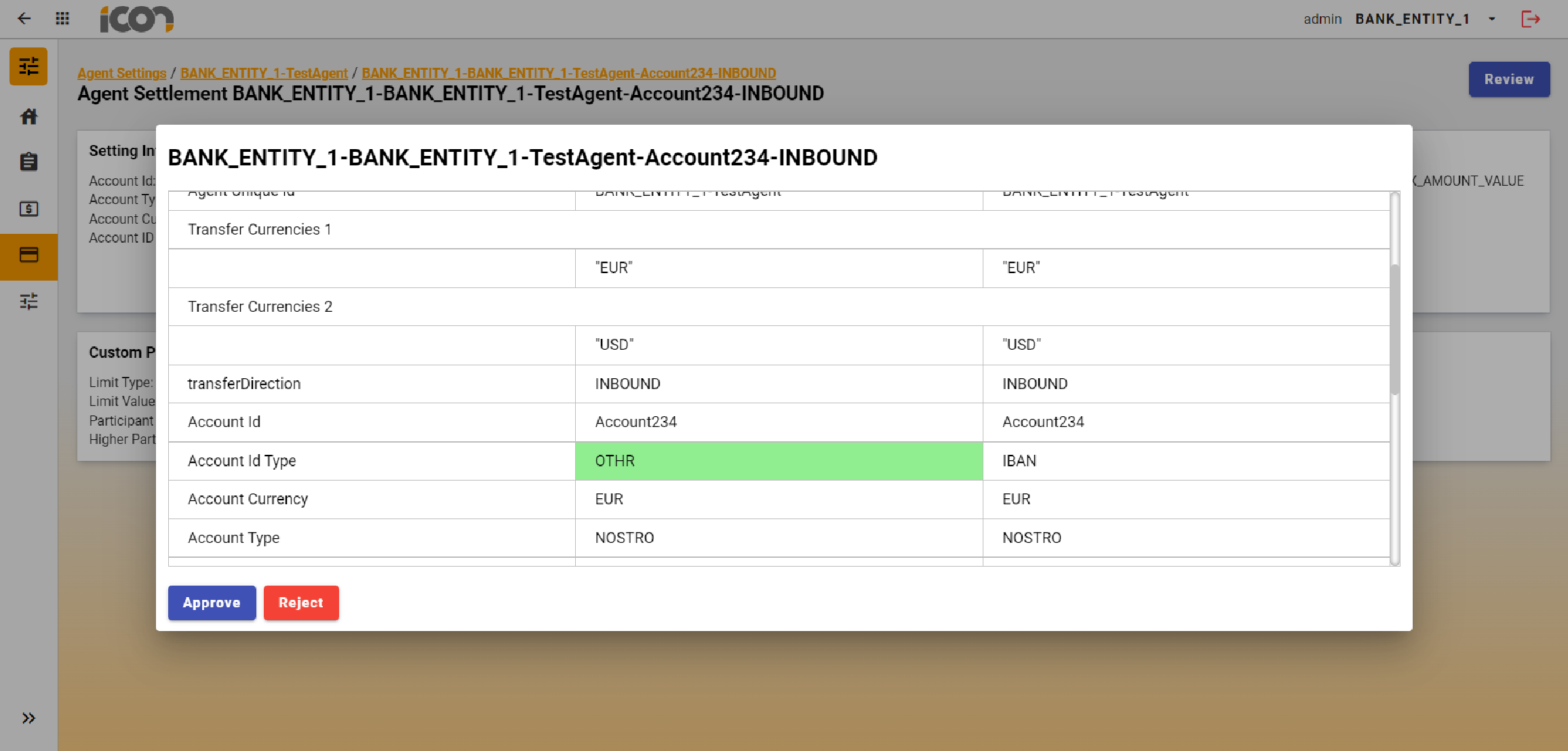
When an operator clicks on the 'Review' button the approval process will commence. A modal will display the record details, highlighting modifications: additions or changes in green and deletions in red. The operator can approve or reject the creation, modification, or deletion of the record, provide a reason for their choice, and confirm the action.
Image: Agent Settlement Account Screen - Record Pending Approval
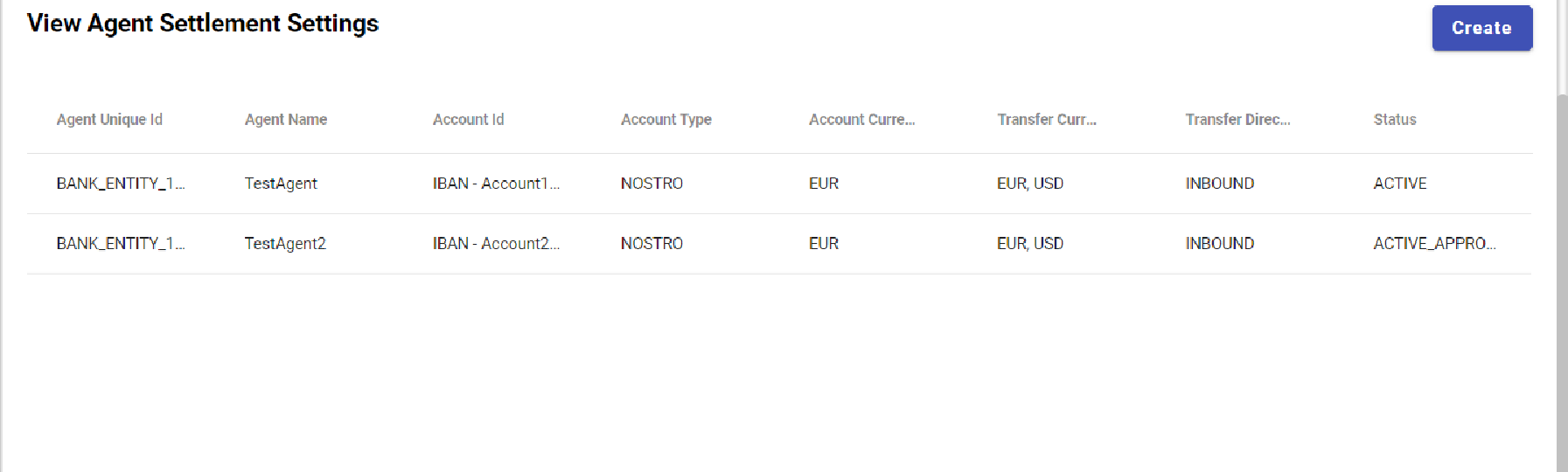
| New records will appear as 'Inactive Pending Approval' and modified or deleted records will appear as 'Active Pending Approval' |
Image: Agent Settlement Approval Modal
| Clicking out of the modal will cancel the action without saving any changes. |