Agent Settings
What is Agent Settings
The Agent Settings service is designed to enable operators to configure and manage comprehensive Agent Settings, encompassing Settlement and Clearing operations. This service facilitates the definition of payment routes, specifying the Clearing and Settlement Mechanism (CSM) agents through which payments should be routed, cleared, and settled. This functionality ensures that payments are accurately directed through the appropriate channels, optimizing the efficiency and accuracy of the payment processing workflow.
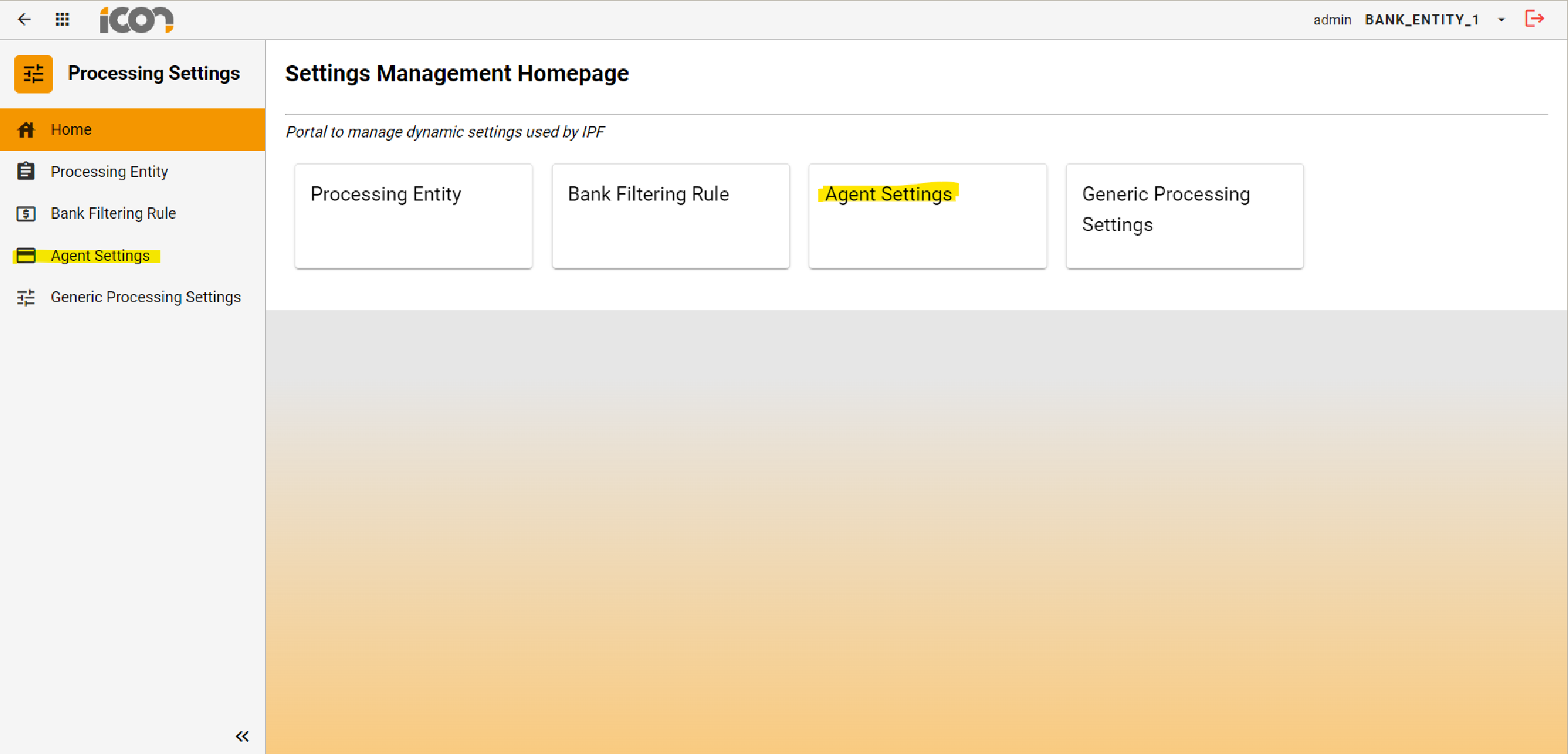
To navigate to the Agent Settings page, operators should navigate into Processing Settings tile from the dashboard Homepage and then click on the Agent Settings tile. Whilst in the Processing Settings module, users can also use the side navigation bar at any point to navigate to Agent Settings.
Search
Search Identifiers
The operator can input data into any of the available search fields and, upon initiating the search, will receive a tabulated display of the Agent settings that match the specified criteria. Selecting the reset option will clear the search parameters and restore the default settings.

| Identifier | Description |
|---|---|
Status |
The status in which the Agent setting is in. i.e Active |
Agent Unique ID |
The unique identifier assigned to the Agent |
Agent Identifier Value |
The identifier value for the Agent |
Agent Country |
The country in which the Agent is registered |
Active From Date |
The date from which the Agent settings is active from. |
Search Results
Upon clicking 'Search,' the operator will be presented with a list of Agent settings that align with the specified search criteria. Adjacent to the list, a preview pane will display detailed information related to the selected setting. By default, the first result will be automatically selected and its corresponding details displayed in the preview pane.
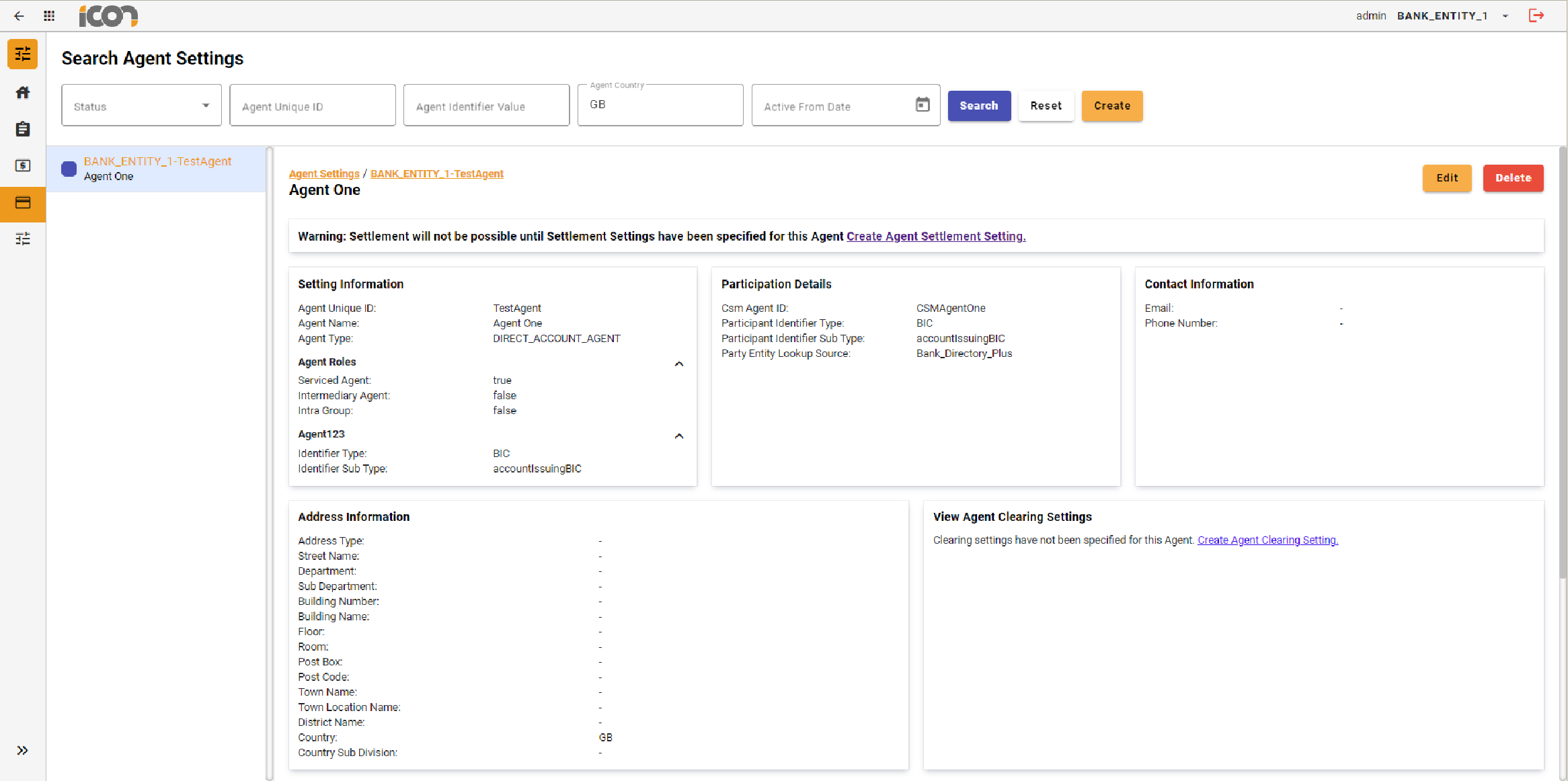
Where there are no search results returned, the below page will be displayed:
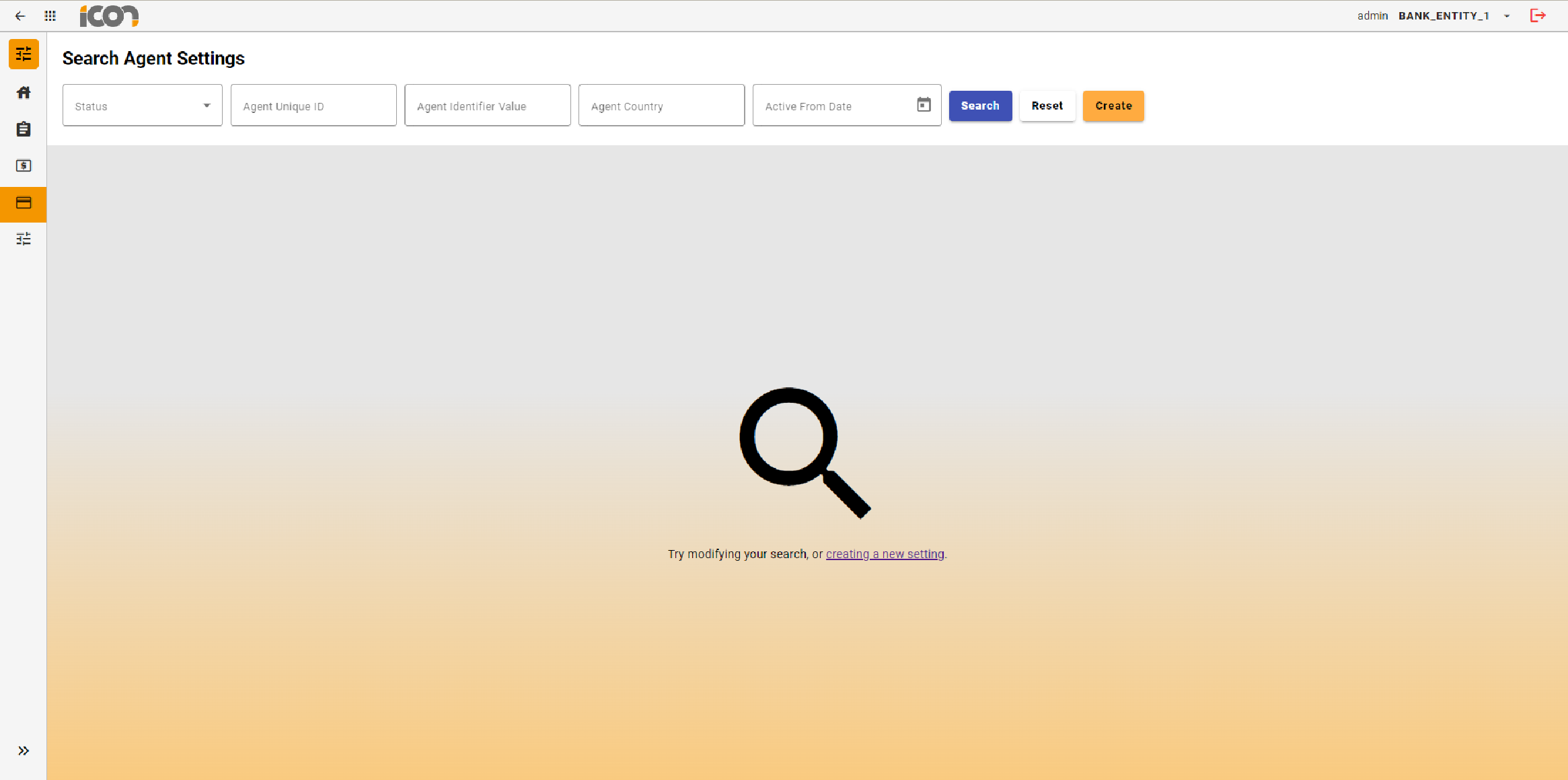
Managing Agent Settings
From the Agent Settings screen, operators can also independently create, view and maintain Agent Settlement Settings and Agent Clearing Settings however this next section will focus solely on creation and maintaining Agent Settings.
Create
Clicking the 'Create' button on the Agent Settings screen allows operators to initiate the creation of a new agent setting. This action will open a form for the operator to complete with the required information. After filling out the form, the operator can click the 'Create' button to submit the new setting for approval.
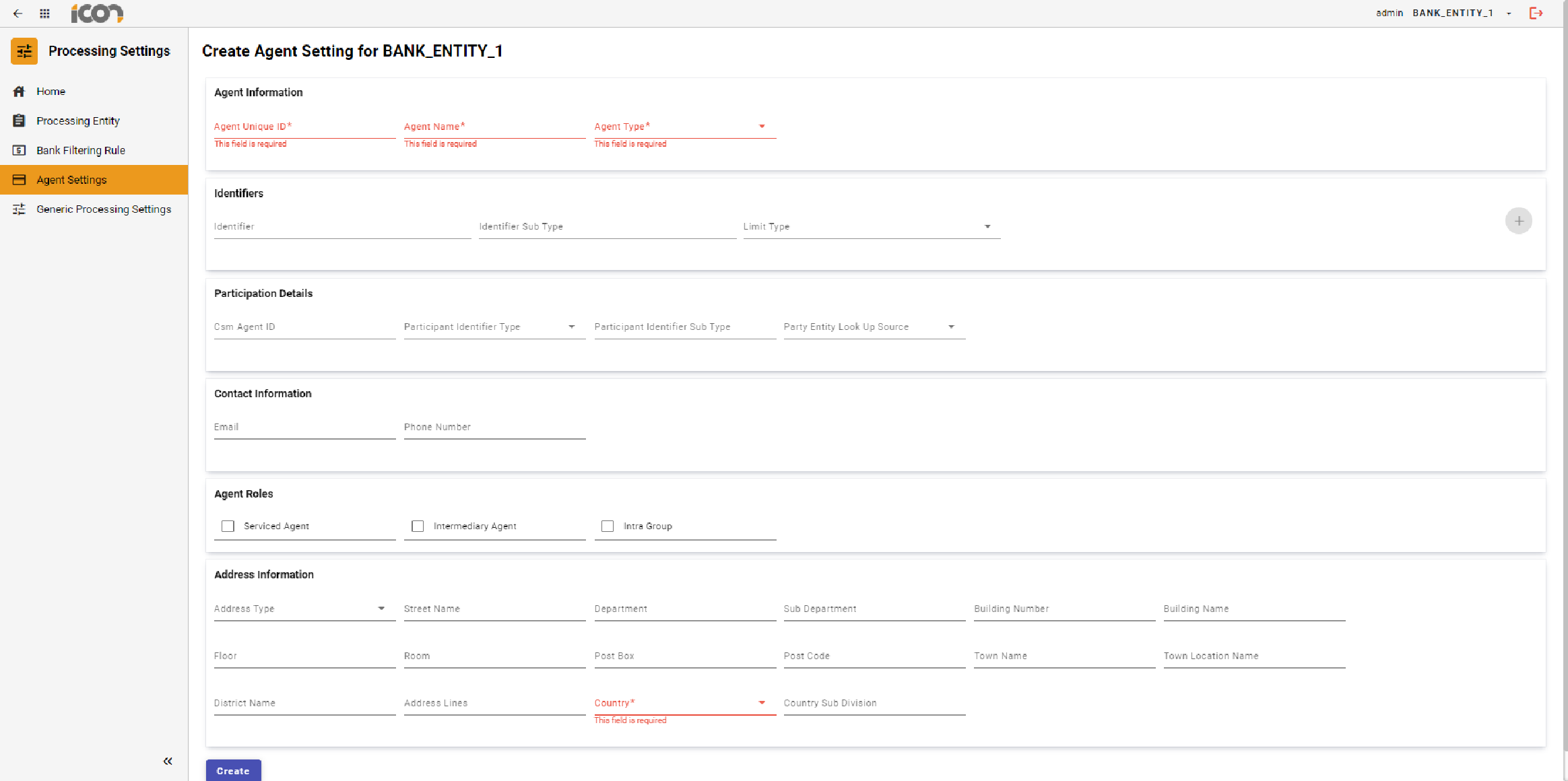
| Required fields are marked with an asterisk. Where required information has not been provided, an error will be displayed under the required field. |
Modification
Once a record is in a status of Active, the 'Edit' and 'Delete' buttons will be visible.
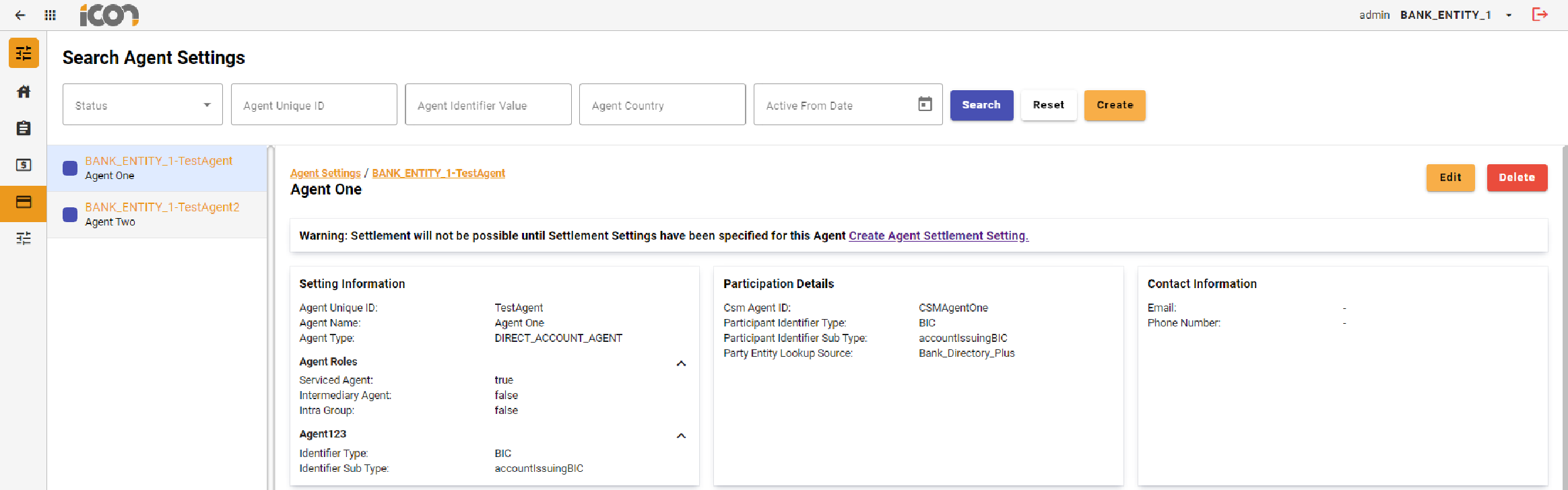
Clicking the edit button allows operators to modify the record, navigating them to a screen displaying the current data input for the Agent. All fields except the Agent Unique ID can be modified. Upon clicking save, the changes will be stored and the record will transition to an 'Active Pending Approval' status. If required data is missing, errors will be displayed under the respective fields.
| To navigate out of the edit screen, operators can use the global back button located at the left hand corner of top navigation bar. |
Clicking the delete button initiates the deletion process, transitioning the record to an 'Active Pending Approval' status. Once the deletion is approved, the record will be permanently deleted.
Approvals
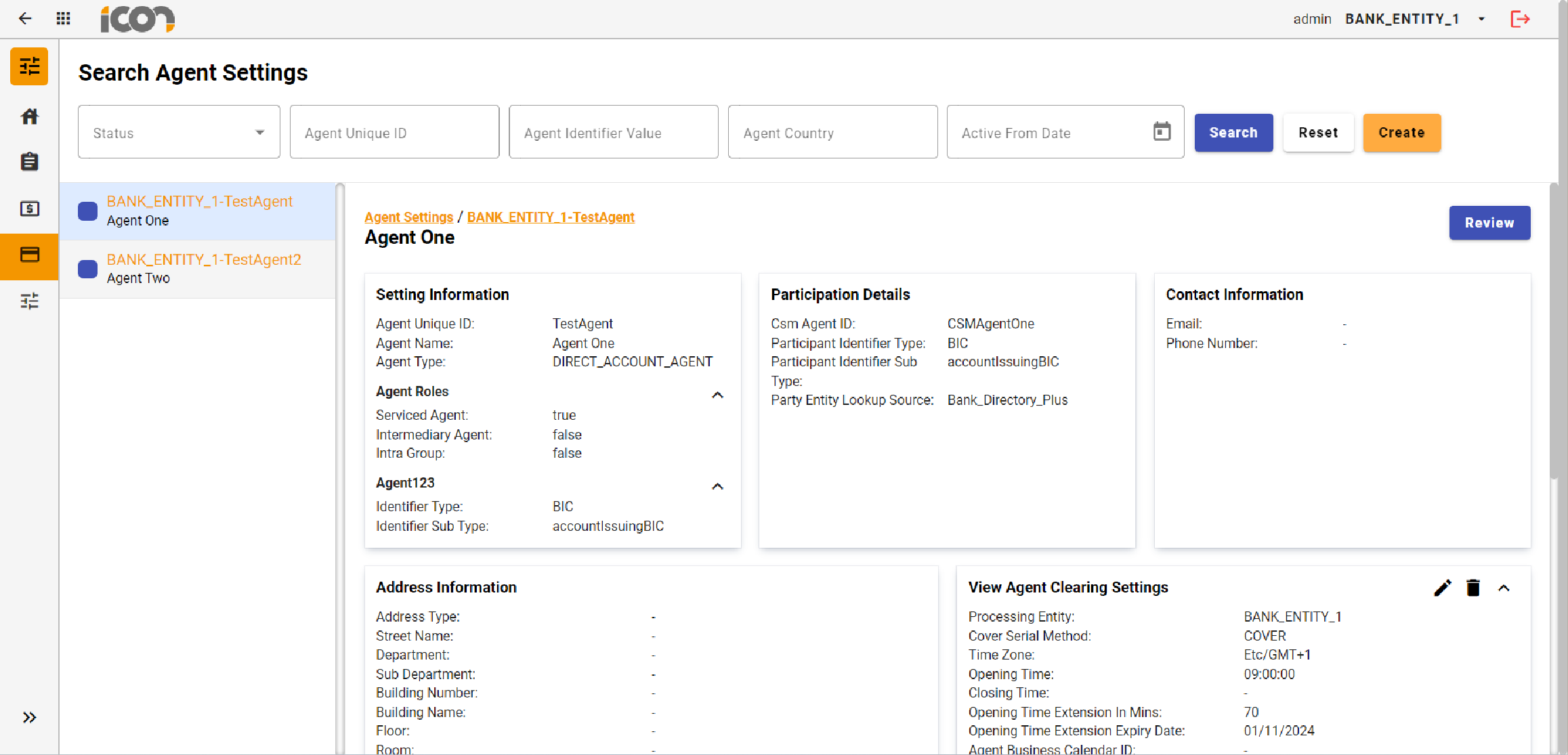
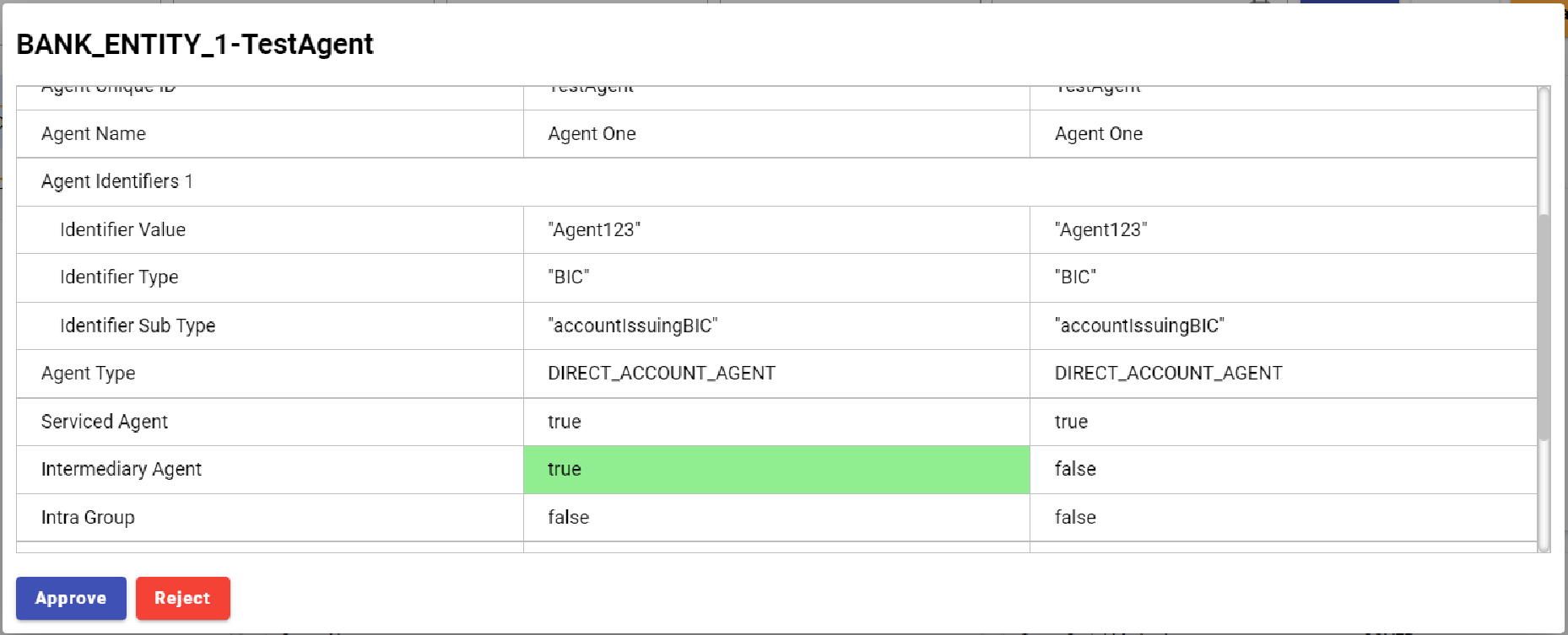
Upon creating, modifying, or deleting an Agent Setting, the record will transition to a 'Pending Approval' status. During this status users will see a 'Review' button on the screen. When an operator clicks on the 'Review' button the approval process will commence. A modal will display the record details, highlighting modifications: additions or changes in green and deletions in red. The original value will be on the right hand side and a new values on the left. The operator can approve or reject the creation, modification, or deletion of the record, provide a reason for their choice, and confirm the action.
| New records will appear as 'Inactive Pending Approval' and modified or deleted records will appear as 'Active Pending Approval' |