DSL 11 - Using additional events
|
Getting Started
The tutorial step uses the If at anytime you want to see the solution to this step, this can be found on the |
What is an Additional Event?
An Additional Event is simply an ability to generate an event from within the IPF processing. This is usually used as a method of adding descriptive information into the event history, but can also be used for performing conditional processing logic. In fact all the configuration we set up in could have been performed by using additional events.
In our scenario, when you look at the event history for an execution flow you can see:
[
  "Flow Initiated",
  "Duplicate Check Passed",
  "Account Validation Passed",
  "In Sanctions Sanctions Passed",
  "Run Fraud Check SKIP_FRAUD",
  "Clear and Settle Passed"
]
Here it is not immediately obvious that our flow has completed, it appears that we have only reached a clear and settle passed stage.
So to resolve this we will make the application raise an additional event to clearly show from the event history that we have completed.
DSL Setup
Adding the additional event
Firstly, let’s remind ourselves of the DSL logic we currently have for our Clear and Settle Passed event, we see this in the Event Behaviour:

Here instead of immediately completing, we want to raise our additional event. However, once we reach a terminal state the flow has finished and no other actions are allowed. For that reason, we’ll need a new State and a new state transition.
Let’s add a Completing state like this:

You’ll also need to define our additional Event Definition, call this Flow Complete and it gets added to the event definition of our flow just like anything else:

Note here we haven’t supplied any business data on the event, but we could do that. That data would then be populated from data contained from other events in our flow.
To actually raise our additional event we need to change our Event Behaviour (for Cleared And Settling) to move to the new Completing state (rather than Complete) and then raising an additional event. So here in the perform action box we need to choose to raise an additional event:
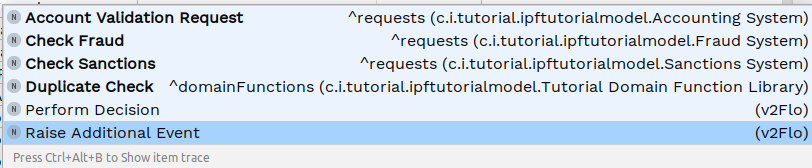
Then we can just select the event we want to raise, so in our case our new Flow Complete event.
When complete the Event Behaviour should look like this:

Finally, we need to transition to the Complete step again. This is simply a case of transition from Completing to Complete on receipt of our new Flow Complete event. So let’s add a new event behaviour to do this:

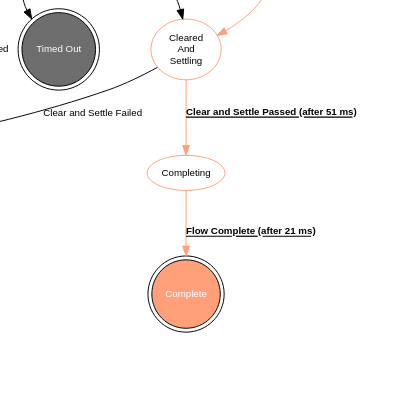
That’s it, our DSL work is complete. Let’s also look at the graph:
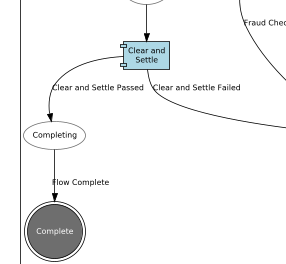
Java Implementation
The good news here is that there is no implementation required when adding additional events, it is all dealt with by the generation.
Checking our solution
As normal let’s now check out solution works. Start up the application as previously (instructions are available in Reviewing the initial application if you need a refresher!)
Then we can fire in a payment
curl -X POST localhost:8080/submit | jqNow if we now bring up the payment in the Developer GUI and bring up the domain events view (search by unit of work id, click view, click domain events) and we should see:
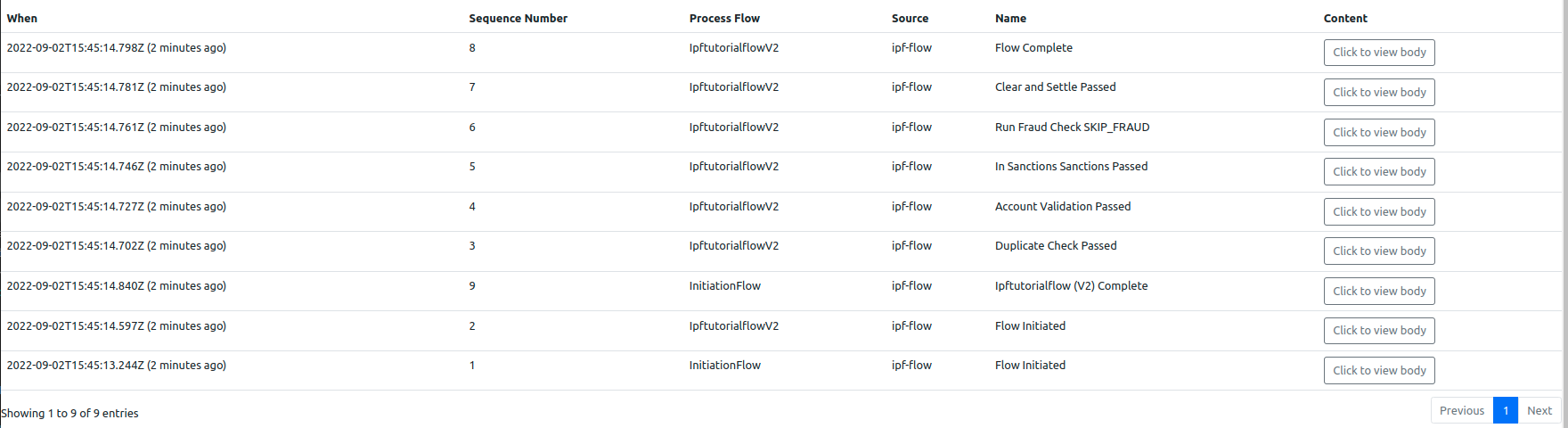
Here we can see that there is the new Flow Complete event present for the ipftutorialflowv2 process and hence we’ve shown that our additional event is correctly being fired.
If you look at the graph for the ipftutorialv2 flow you can see the extra event and transition: