Getting Started with Human Task Manager (HTM)
Pre-Requisites
This starter guide to using Human Task Manager assumes you have access to the following:
-
An HTM Server - this is available as a docker image from Icon.
-
The Operational Dashboard - this is available as a docker image from Icon.
-
A flow which is pre-loaded with the IPF Business Functions. You can find more details about how to add business functions to your flow here.
Integrating with a flow
The HTM business function is designed to allow easy interaction between an IPF process flow and the HTM application. It provides the capability to define the core characteristics of a task within the DSL such that tasks can be created and bespoke response codes returned from any point in your flow.
Defining an HTM Task
To define a task for HTM, we need to define a 'HTM Request' within our flow. To do this we use the bespoke HTM language - this works just like the core language except that it will appear in the folder for that language:
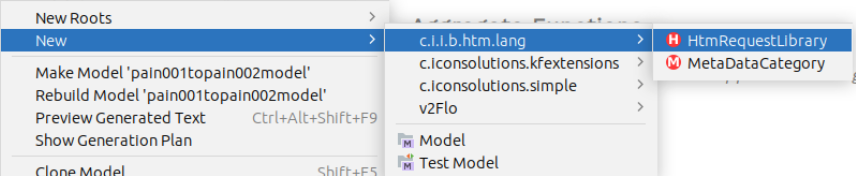
The core component here is the 'HTM Request Library'. It behaves in a similar way to the external domain component as creating one will provide both the request and responses that you need to interact with the HTM system. Let’s create a new library now nad you should see:
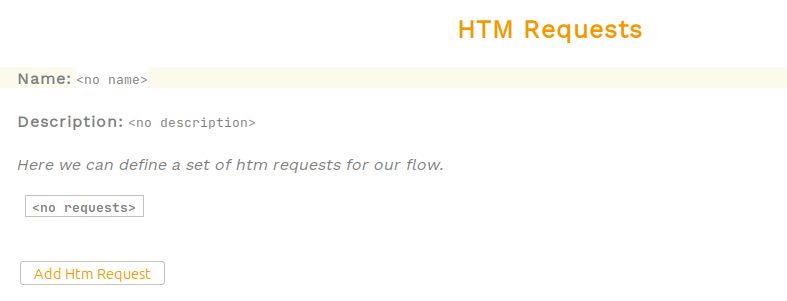
Now we can define the name and give a description to our library. Then we can add a new HTM Request - each HTM request represents a different task type that we want to send to the HTM Server. There are a number of properties to provide in defining the request:
-
Name - this will be provided to HTM as the 'task type'.
-
Description - informational only.
-
Priority - this will be provided to HTM as the 'task priority'. It is an integer value.
-
Required Approvals - this will be provided to HTM as the |required approvals for the task|.
-
Ignore Tech Response - this allows the flow to hook into the HTTP response of the initial task creation request. If this is not required, it can be ignored and only the final completion result will be returned to the flow.
-
Response Codes - this is the result outcome that will be available within the HTM application.
-
Business Data - this is the business data that will be packaged and sent to HTM.
-
MetaData Tags - these are custom, optional tags which can be attached to the HTM Request.

Using an HTM Task
An HTM Task is used exactly as a more traditional external domain request / response pair. The task is created simply by calling the HTM Request as an action at any point in the flow.

Then we can just use the resulting matching response input.

Providing an implementation
Once we’ve set up our flow integration, we need to provide the implementation. We do this simply by adding the following dependency:
<dependency>
  <groupId>com.iconsolutions.ipf.businessfunctions.htm</groupId>
  <artifactId>ipf-human-task-manager-floclient-service</artifactId>
</dependency>
From a configuration standpoint, we simply need to specify where our HTM server implementation is running. This is done by setting the following properties:
ipf.htm.request-reply.starter {
  http.client {
    host = "localhost"
    port = 8083
  }
  register-task.enabled = true
  cancel-task.enabled = false
}